How to Select the right motion-capture video
Uploading Tips
○ Recommended video resolution is 720p or higher
○ Video upload length and size

    ■ Free users. 30S , 100M;
    ■ Monthly Subscription. 60S, 200M;
    ■ Annual Subscription.120S, 400M;

○ Please make sure that the character in the uploaded video is a real person.
  Make sure that the background of the video is clean and neat to minimize
  obscuring the movement of the characters. Please do not upload videos with
  characters that are too small;
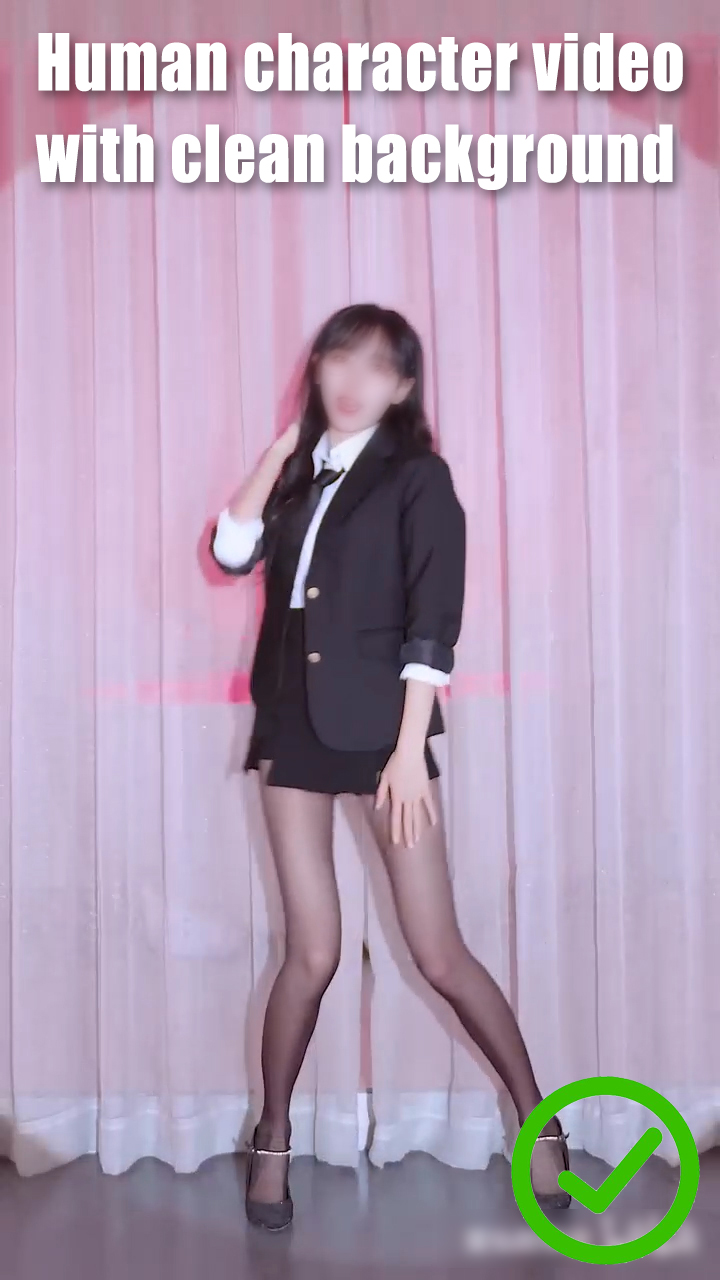
○ Please don't use videos with switched shots, and make sure that the video is
  in one shot as much as possible. Also make sure that the size of the people
  in the video does not change too much.
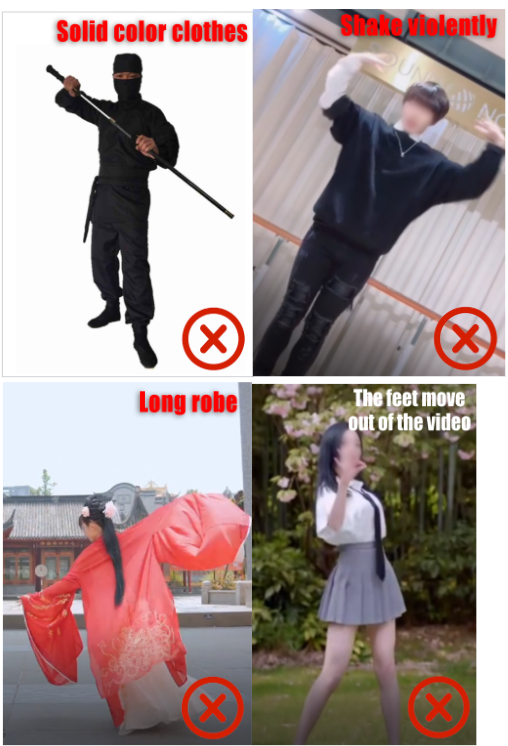
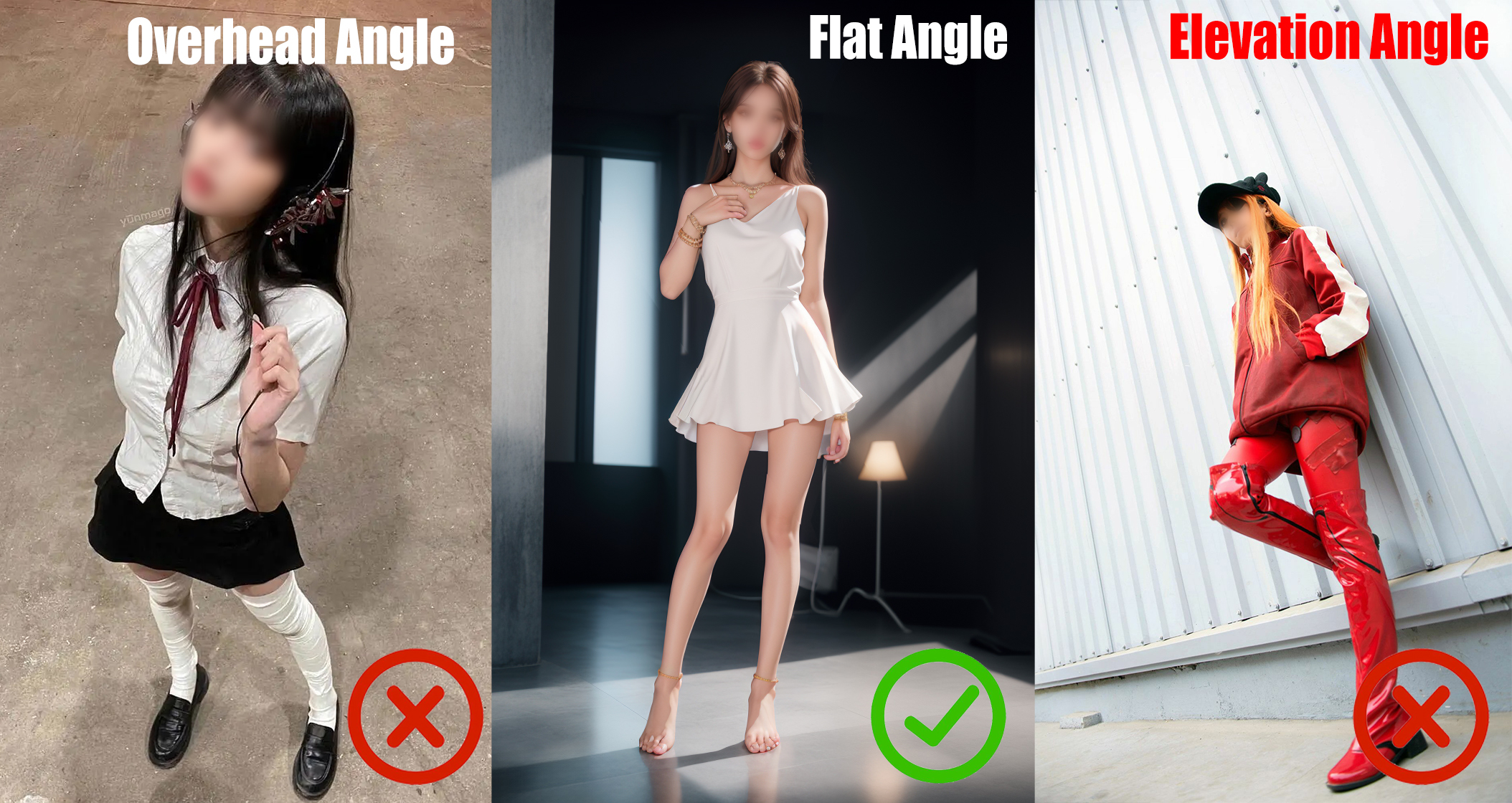
○ For better capturing effect, please avoid uploading the following videos.
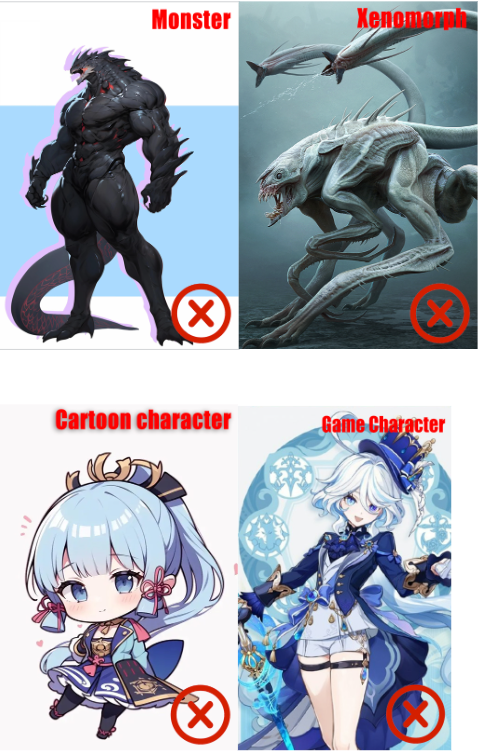
○ Non-human characters such as monsters, chibi style, and game characters are
  poorly captured. Please upload a real-person video
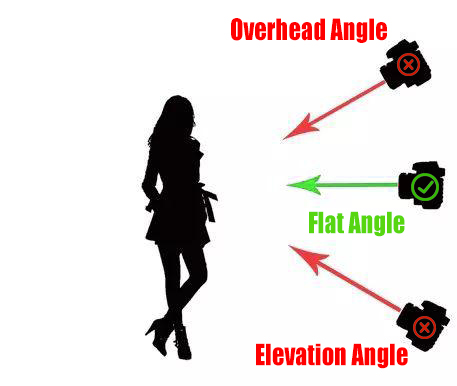
○ Record video from an overhead view or elevated view may cause the action to
  lean forward/backward. Please make sure to upload a video with a flat view
  angle.
Notes on Different Features
○ Upload a video to capture a character: the video of single person or multi person can be supported;
○ Body Capture:Body Capture contains only limbs and torsos, not Face Capture
  or Hand Capture.
  ■ Please ensure that you upload a full-body video. Please avoid videos in
    which the character's full body and half body appear alternately in the
    video, which will affect the capturing effect;
  ■ Please make sure the character appears within the video is not too small,
    and make sure that the characters in the video do not suddenly become
    larger or smaller;
  ■ Please do not use videos with switched shots;
  ■ Please do not upload a half-body video and select the full-body capture
    feature at the same time.
○ Half-body Capture:Currently QuickMagic only supports upper body capture, no
  animation for lower body.
  ■ Please ensure that you upload a half-body video. Please avoid videos in
    which the character's full body and half body appear alternately in the
    video, which will affect the capturing effect;
  ■ Please do not use videos with switched shots;
  ■ Please make sure the character appears within the video is not too small,
    and make sure that the characters in the video do not suddenly become
    larger or smaller;
  ■ Please upload a video that captures at least the pelvic area for a better
    capture.
○ Face Capture:QuickMagic supports three modes of face capture.
  1. Face Capture alone
    ■ Please make sure that the faces of the people in the uploaded video are
      clear;
    ■ Please make sure that the person in the video is always facing the camera
      and not shaking their head up and down
    ■ Make sure that the face of the video character is not obscured. e.g. hair
      covering the eyebrows
  2. Full-body Capture + Face Capture
    ■ Please make sure that the faces of the people in the video are clear and
      unobstructed. If the face is small in the video, it may reduce the accuracy
      of the capture
    ■ Users are recommended to use the other two modes: 1. half-body capture +
      face capture 2. face capture only.
  3. Half-body Capture + Face capture
    ■ Please make sure that the faces of the people in the video are clear and
      unobstructed. If the face is small in the video, it may reduce the accuracy
      of the capture
○ Hand Capture: Please capture simple dance moves for better results. Please avoid
  difficult dance moves, or you will be prone to mold penetration.
  ■ Make sure that the hands are clearly visible in the video. Avoid blocking hand
    movements, such as running your fingers through your hair.
  ■ When using Full Body Capture + Hand Capture, please try to use a video with larger
    hand images for better capture. If the hand image is small in the video, it results
    in low capture accuracy.
Notes on format selection
○ Girl_FBX:Default female fbx on QuickMagic
  ■ Regular FBX can be imported into mainstream software, such as 3D max, Maya, Blender,
    Unity, UE and so on.

○ Boy_FBX:Default male fbx on QuickMagic
  ■ Regular FBX can be imported into mainstream software, such as 3D max, Maya, Blender,
    Unity, UE and so on.
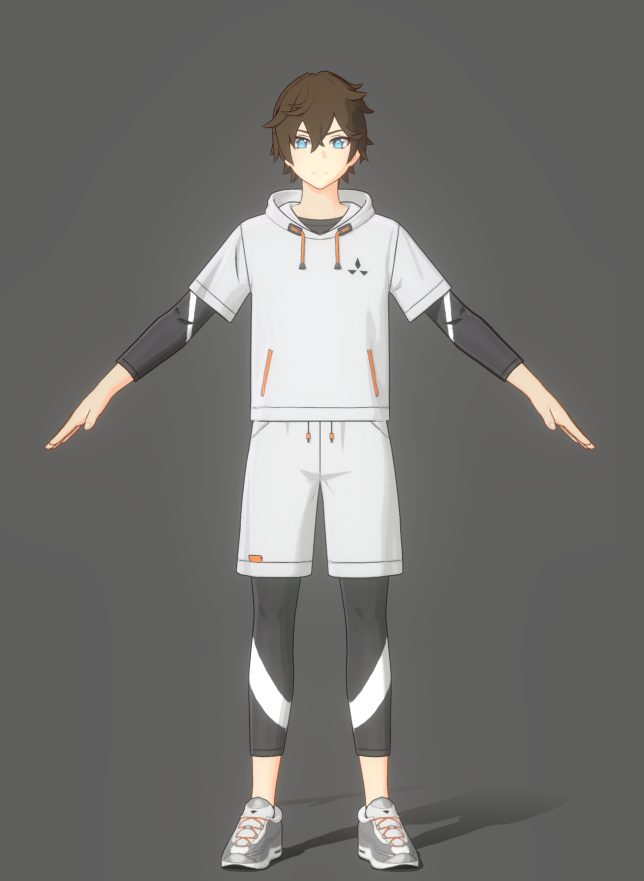
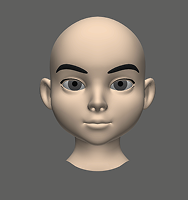
○ Only face: Capture only face movement, no animation for head and neck.This
  ■ format is FBX and supports face capture only.
  ■ The facial expression of the model is driven by the 52 Blender Shape of the ARKit standard,
    which can be redirected in 3D software (Blender plugin "Faceit" is recommended).
○ Unreal 4:Skeleton matches UE and can be imported directly into UE for use.
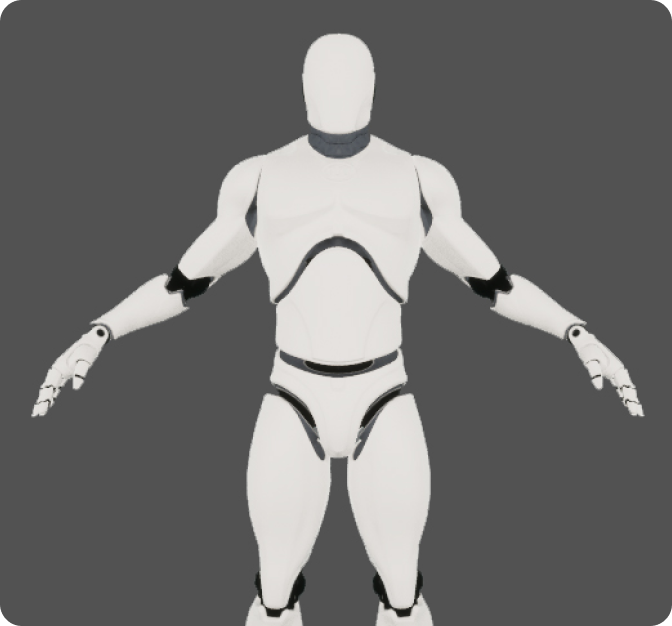
○ Mixamo:This format can be used in UE, Blender and other mainstream software, and a
  large number of plug-ins available.
  ■ The bone level is the same as the bone level of the model provided on the Mixamo website.
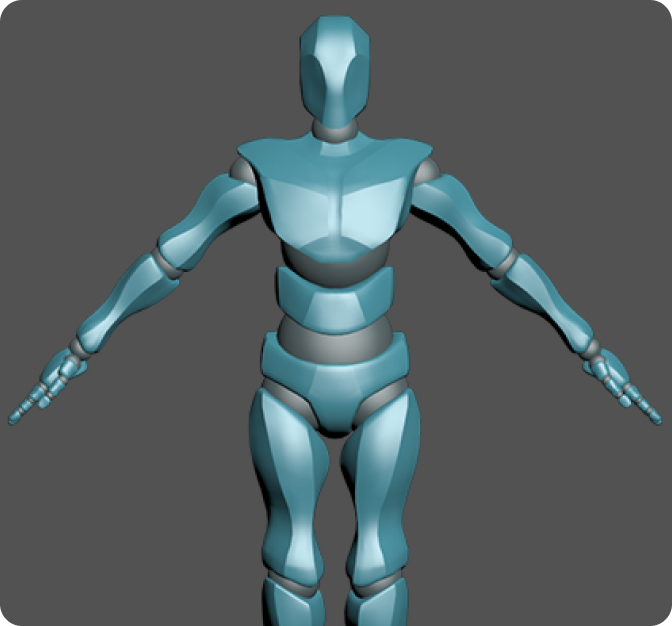
○ BIP: 3D Max Biped skeleton.
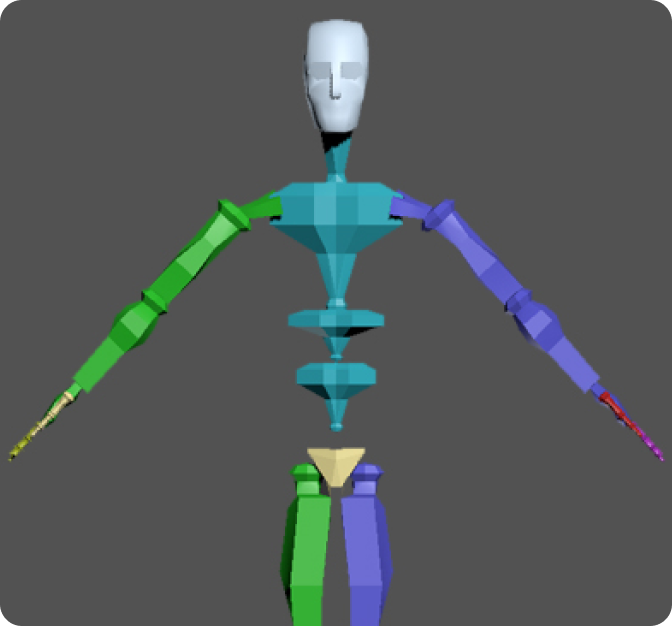
○ VMD:MMD(MikuMikudance)formatCredit:Tda式初音ミク・アペンド_Ver1.10

○ Unity_Anim:Anim file extracted by Unity
  Usage:
  1. Create an Animatior Override Controller
  2. Create an Animation Controller
  3. Create an empty Animation
  4. Drag the empty Animation into the created Animation Controller
  5. Select the created Animatior Override Controller, drag the Animation Controller
     into the Inspector, and drag the.anim file into the empty Animation
○ C4D: fbx animation file used in C4D software, C4D standard bone orientation
  ■ It is recommended to make T-Pose for easy redirection in C4D software

○ CC&iClone: fbx animation files for iClone and Character Creator software developed by Reallusion
  ■ Select 'Unreal BaseCharacter' provided with the software as the configuration file when importing actions

○ Unreal 5: Default Female Robot for UE 5
  ■ Skeleton matches UE 5, can be directly imported and used in UE 5.
○ Roblox: The fbx animation files used in the Roblox software
  ■ They can be directly imported. It is recommended to use R15 bones when importing.
   The bones in R6 are fewer and do not fit well with motion capture animations.Roblox: