Charitable makes it easy to accept and manage offline donations—such as checks, cash, or bank transfers—right alongside your regular online gifts. This way, every contribution counts toward your fundraising goals and your records stay complete and transparent.
In this guide, you’ll learn how to enable and use Offline Donations with Charitable.
Enabling Offline Donations
Go to Charitable » Settings » Payment Gateways in your WordPress dashboard. Find Offline Donations in the list and click to enable it.

Customizing Offline Donation Instructions
Once enabled, use the Gateway Settings button to open the configuration page for Offline Donations.
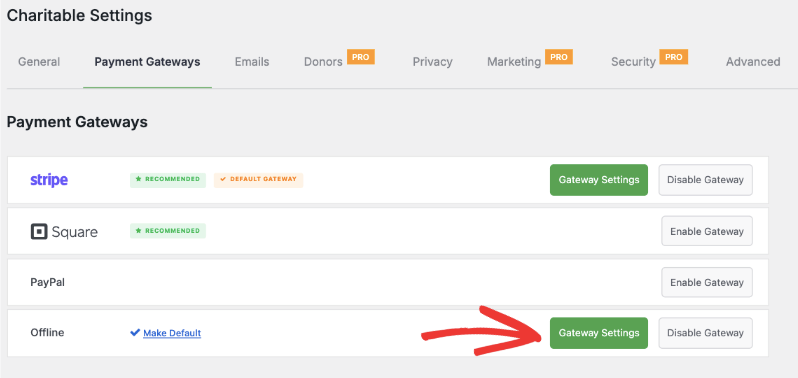
Here, you can clearly explain to donors how to give offline, directly on your donation form. For example, you might provide instructions for giving by check or bank transfer, including:
- Who checks should be made payable to
- Your organization’s mailing address for checks
- Bank details for wire transfers (bank name, account number, reference info, etc.)
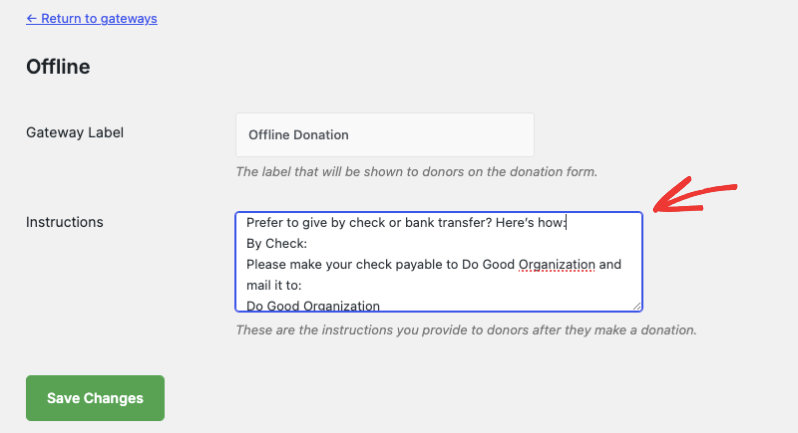
Here are sample instructions. Feel free to customize this information to match your organization’s needs.
By Check:
Make checks payable to Do Good Organization and mail to:
Do Good Organization
123 Kindness Ave
Suite 400
New York, NY 10001
USA
By Bank Transfer:
Bank: Community Trust Bank
Account Name: Do Good Organization
Account Number: 987654321
Routing Number: 021000021
Reference: [Your Name or Campaign Name]
Pro Tip:
Always provide clear, simple instructions for offline giving on your forms, and consider reaching out with a personal thank you for each offline donation you receive.
Make sure to save your changes in the Payment Gateways tab.
Managing Offline Donation Records
When a donor chooses the ‘Offline Donation’ method, it will automatically be recorded under Charitable » Donations. Under the ‘Amount Donated’ column, you can see whether the donation was made through the Offline Donation option.

You can manually edit these records to change the status to pending, paid, failed, cancelled, or refunded.

If you’ve received donations outside of Charitable, you can also manually create new donation records for these.
In your WordPress dashboard, go to Charitable » Donations and click the Add Donation button.

In the donation record page, select the campaign and the amount received. Next, you can choose to manually fill out new donor information or choose an existing donor who has donated in the past.
When you record an offline donation, Charitable can send a personalized email receipt (just like with online donations), making every supporter feel appreciated.

Hit the Save Donation button to store your changes.
Offline Donation Reporting
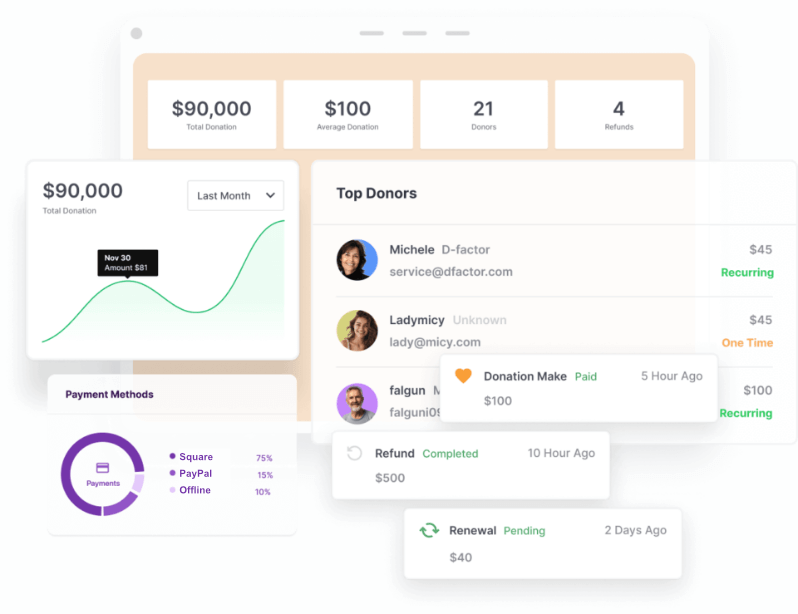
All your donations—online and offline—are included in your Charitable reports. This gives you a complete and accurate view of your fundraising progress, donor activity, and campaign performance.
You can access these reports under the Charitable » Reports tab in your WordPress menu.
Other Payment Gateways Available in Charitable
Charitable makes it easy to accept donations through a variety of payment gateways, giving your supporters the flexibility to give using their preferred method.
Charitable provides three payment gateways out of the box:
More gateway options are available in the Charitable Pro Plugin that include Authorize.net, Mollie, GoCardless, and more.
Learn more about Charitable Pro »
Also, see the difference between Charitable Pro and Lite »
Now, you can manage and configure payment gateways by going to Charitable » Settings » Payment Gateways in your WordPress dashboard.
For detailed setup instructions, see How to Set Up Payment Gateways »
We’ve also created gateway-specific documentation for details about setting up your chosen gateway(s). Choose your gateway from the list below:
- PayPal
- Square
- Stripe
- Authorize.Net
- Gocardless
- Braintree
- Windcave
- Payfast
- PayUMoney
- Payrexx
- Paystack
- Mollie
Accepting offline donations with Charitable is straightforward and ensures that every contribution—whether made online or offline—is accounted for in your fundraising efforts.
By enabling offline donations, providing clear instructions, and keeping your records up to date, you’ll give every supporter a seamless giving experience and maintain a complete view of your impact.
Pro Tip:
Offering multiple payment options can increase your conversion rate and help you reach more donors worldwide.
If you’d like a video walkthrough, watch our tutorial below that covers step-by-step details from setting up a campaign to accepting payments.
Get More Information
Here are some of the more popular “how to” guides and help articles for you:
- Create and Edit Donations in the WordPress Dashboard
- How to Use the Donor Management System
- How to Connect to Google Analytics
- Issues With Donation Emails Not Sending
- Using Widgets And Shortcodes
Want more fundraising tips and nonprofit advice?
We regularly share practical guides, proven strategies, and insider tips to help you raise more funds and build stronger donor relationships. Join thousands of nonprofits who get our best content delivered straight to them:
- Join our newsletter – Get weekly tips and exclusive guides in your inbox
- Subscribe to our YouTube channel – Watch step-by-step tutorials and success stories
- Follow us on LinkedIn – Connect with our community and get daily nonprofit insights
- Follow us on TikTok – Insightful & fun videos to help you grow your cause
No fluff, just actionable advice from people who understand the challenges you face every day.
Frequently Asked Questions (FAQ)
Can I customize the instructions shown for offline donations?
Yes! You can fully customize the instructions that appear for offline donations—such as your mailing address for checks, bank transfer details, and any other special notes—using the Gateway Settings for Offline Donations.
How are offline donations tracked in reports?
Offline donations are tracked alongside online gifts. They appear in your Charitable donations list and reports, so your fundraising totals always reflect all contributions, regardless of how the donor gave.
Can Charitable send receipts for offline donations?
Absolutely. Charitable sends personalized email receipts for offline donations, just like it does for online gifts. This keeps all your donors informed and appreciated.
Can I add offline donations that I received outside of Charitable?
Yes! You can manually add donation records for any offline gifts you’ve received. Just go to Charitable » Donations and click Add Donation to enter the details.
Can I allow donors to donate anonymously with offline donations?
Yes. If anonymity is important for a specific donor, just indicate this in their donor record when entering it manually.
How do I change the status of an offline donation?
Go to Charitable » Donations in your dashboard, find the donation you want to update, and edit its status (pending, paid, cancelled, refunded, etc.) anytime.
Is there a way to accept cash donations?
Yes! List your cash donation instructions with your offline payment instructions. When you receive a cash gift, record it manually in Charitable so it’s reflected in your totals and reports.
Who can use additional payment gateways with Charitable?
The Lite version offers Stripe, Square, PayPal, and Offline Donations by default. For more gateway options (like Authorize.net, Mollie, GoCardless, Braintree, and others), you’ll need to upgrade to Charitable Pro.
Where can I find detailed setup guides for each payment gateway?
Head over to our documentation on setting up payment gateways and select your chosen gateway from the list.
Do I need Charitable Pro to accept offline donations?
No. Offline donations are available in both the Lite and Pro versions of WP Charitable, so you can accept checks, cash, or bank transfers even on the free plan.
Will offline donations appear on my fundraising campaign’s progress bar?
Yes. Once you record an offline donation and mark its status as “Paid,” it will be counted toward your campaign goal and the progress bar automatically updates.
Can I edit or delete an offline donation after it’s been recorded?
Absolutely. You can always edit or delete any donation—online or offline—through the Charitable » Donations section. This keeps your records accurate and up-to-date.
How do I resend a receipt for an offline donation?
If a donor misplaces their receipt, edit their donation record. Under Donation Actions, you can choose the “Donor: Donation Receipt” email. Then hit the ‘Resend Email’ button. You can also download the PDF receipt and email it to them. See our guide: Resend Donation Emails from the Dashboard
Also, if the donor dashboard is enabled, donors can log into their own accounts and download their receipts any time they need.
Will donors be able to see their offline donations in a donor dashboard?
Yes. When a donor creates an account during the donation process or uses the same email for multiple donations, both their online and offline gifts will be visible in their donor dashboard (if your site has enabled this feature).
Can I require approval before an offline donation appears as paid?
Yes. By default, new offline donations are set to “Pending.” Only change to “Paid” after you’ve received and confirmed the gift (check, cash deposit, etc.).
How do I make sure offline donations don’t trigger instant receipts before confirming payment?
Charitable only sends a receipt after you mark the offline donation as “Paid.” This helps ensure donors only receive confirmation after their gift is received.
Can I collect custom information from offline donors (e.g., addresses, dedications)?
Yes! You can add custom fields to your donation forms (in Charitable Pro), and all info collected will also be attached to offline donations recorded through the standard process.
Is it possible for donors to choose “Offline Donation” at checkout, then change their mind and pay online?
Not automatically—if a donor selects “Offline” but wants to use an online method instead, they’ll need to submit a new donation using their preferred gateway. You can clarify this in your instructions.
Do I need to keep any paperwork for offline donations?
It’s best practice to keep copies (scanned or physical) of checks and correspondence related to offline gifts, especially for your own accounting and in case of audits. Charitable lets you filter and export your manual and offline donation records.
Where can I see a summary of all donation methods used on my site?
Go to Charitable » Reports to view donation breakdowns by payment method—including Stripe, PayPal, Square, Authorize.net, and Offline.
Can offline donations be refunded or marked as failed in Charitable?
Yes—just edit the donation record and set the appropriate status (refunded, failed, etc.) so your records and reports stay accurate.
Do donors need an account to give offline?
No, donors can give offline without creating an account. However, if you want to offer a donor dashboard or allow them to view their giving history, having them use the same email address for each donation helps link their gifts.
If you have more questions or need help with a specific scenario, visit our documentation hub »
If you’re a Lite user, you can also get help in the WordPress support forum.
If you’re subscribed to the Charitable pro plugin, you can contact us for priority support.