Site Nitro: Estimator is built to work alongside the most common WordPress plugins and page builders. However, certain plugin categories — page builders, caching plugins, security plugins, and JavaScript optimizers — can interfere with how the calculator loads and submits data. This article covers the most common conflicts and how to resolve them.
How to Identify a Plugin Conflict #
Before working through specific plugins, confirm a conflict is actually the cause of your issue:
- Deactivate all plugins except Site Nitro: Estimator.
- Test the calculator — does the issue go away?
- If yes, reactivate plugins one at a time, testing after each one.
- When the issue returns, the plugin you just activated is the conflict.
This process takes a few minutes but gives a definitive answer. If the issue persists with all other plugins deactivated, the conflict is likely with your theme — test with Twenty Twenty-Four to confirm.
Page Builders #
Elementor #
Issue: Shortcode placed in a Text widget or HTML widget does not render the calculator. Fix: Use the dedicated Shortcode widget from the Elementor widget panel. Search for “Shortcode” in the widget list and drag it into your section. Paste [sne_carpet_cleaning] into the shortcode field.
Issue: Calculator renders but JavaScript does not execute — clicking Get Estimate does nothing. Fix: Elementor sometimes loads its own JavaScript handling that conflicts with plugin scripts. Go to Elementor → Settings → Advanced and check whether Improved Asset Loading or Improved CSS Loading is enabled. Try disabling these experimental features and test again.
Issue: Calculator appears in the editor preview but not on the live page. Fix: This is a caching issue specific to Elementor’s built-in asset optimization. Go to Elementor → Tools → Regenerate CSS & Data and clear Elementor’s cache.

Divi #
Issue: Shortcode does not render in a Text module. Fix: Use a Code module instead of a Text module. In the Divi builder, add a Code module to your section and paste the shortcode directly inside it.
Issue: Calculator JavaScript does not fire. Fix: Divi’s Dynamic CSS and Dynamic JavaScript features can defer or combine scripts in ways that break the calculator. Go to Divi → Theme Options → Performance and temporarily disable Dynamic JavaScript Files. Test whether the calculator works correctly.
WPBakery #
Issue: Shortcode not rendering. Fix: Add a Raw HTML element to your page and paste the shortcode inside it. The standard Text block in WPBakery may encode bracket characters, preventing shortcode execution.
Beaver Builder #
Issue: Shortcode not rendering or rendering as plain text. Fix: Use the HTML module rather than a Text module. Paste the shortcode into the HTML module’s content area.
Gutenberg (Block Editor) #
Issue: Shortcode renders as plain text rather than executing. Fix: The shortcode must be inside a dedicated Shortcode block. If you typed the shortcode into a Paragraph block or any other block type, delete it and add a Shortcode block instead (click the + button, search “Shortcode”).
Issue: Calculator renders correctly but does not appear in the correct position on the page. Fix: The Shortcode block can be placed anywhere in the block editor. If position matters, wrap it in a Group block and use block alignment controls to position it.
Caching Plugins #
WP Rocket #
Issue: Calculator does not appear after recent changes to services or settings. Fix: Go to the WordPress admin bar → WP Rocket → Clear Cache. Hard refresh your browser with Ctrl+Shift+R (Windows) or Cmd+Shift+R (Mac).
Issue: Booking form submits but lead does not save. Fix: WP Rocket’s Delay JavaScript Execution feature can defer the calculator scripts, causing the form to fail. Go to WP Rocket → File Optimization → Delay JavaScript Execution and add sne-calculator to the exclusions list.
Issue: JavaScript errors related to sneData being undefined. Fix: WP Rocket’s Combine JavaScript Files feature can break the order in which scripts load, causing sneData (which is injected by the plugin) to be unavailable when the calculator script runs. Go to WP Rocket → File Optimization and add sne-calculator.js to the Excluded Files list for both Minify and Combine.
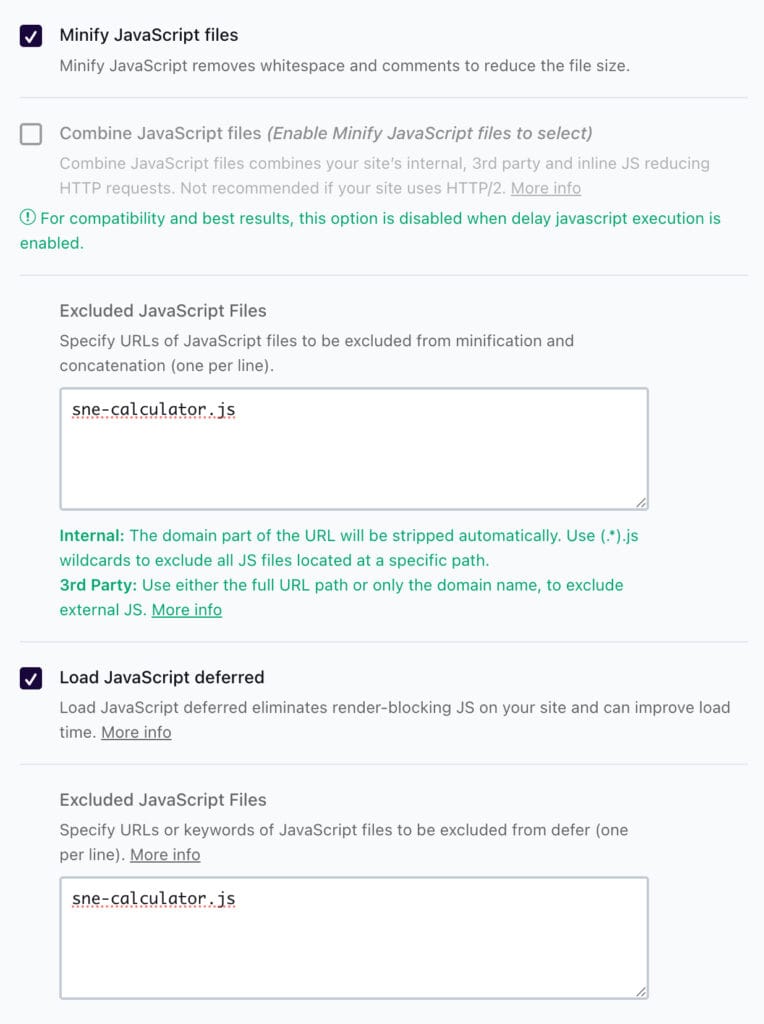
W3 Total Cache #
Issue: Calculator not loading or behaving erratically after enabling W3TC. Fix: Go to Performance → Minify and add sne-calculator.js and sne-calculator.css to the list of excluded files. Then go to Performance → Page Cache and confirm AJAX requests to admin-ajax.php are not being cached.
WP Super Cache #
Issue: Stale calculator page being served after updating settings. Fix: Go to Settings → WP Super Cache → Delete Cache. Also clear your browser cache.
Issue: Booking form not submitting on cached pages. Fix: WP Super Cache should not cache AJAX requests by default, but some configurations may affect this. Go to Settings → WP Super Cache → Advanced and confirm Don’t cache pages with GET or POST requests is checked.
LiteSpeed Cache #
Issue: Calculator scripts not loading or sneData undefined. Fix: Go to LiteSpeed Cache → Page Optimization → JS Settings and add sne-calculator.js to the JS Excludes list. This prevents LiteSpeed from combining or deferring the calculator script.
Issue: Booking form not submitting. Fix: Go to LiteSpeed Cache → Cache → Excludes and add admin-ajax.php to the Do Not Cache URIs list.
Cloudflare #
Issue: Calculator not updating after changes to services or settings. Fix: Go to your Cloudflare dashboard → Caching → Purge Everything. Cloudflare caches page assets at the CDN level — plugin and theme updates may not be reflected until the CDN cache is cleared.
Issue: Booking form not submitting — form appears to do nothing. Fix: Cloudflare’s Rocket Loader feature rewrites JavaScript loading in a way that can break plugins relying on wp_localize_script(). Go to Cloudflare → Speed → Content Optimization → Rocket Loader and disable it. Alternatively, add data-cfasync="false" to the calculator script — contact support for instructions on applying this without modifying plugin files.
Issue: AJAX requests returning 403 errors. Fix: Cloudflare’s WAF (Web Application Firewall) may be blocking AJAX POST requests. Go to Cloudflare → Security → WAF and check whether any firewall rules are matching requests to admin-ajax.php. Add an exception rule if needed.

Security Plugins #
Wordfence #
Issue: Booking form not submitting or analytics not recording. Fix: Wordfence’s firewall can block front-end AJAX requests. Go to Wordfence → Firewall → All Firewall Rules and check whether any rules are blocking requests from your own domain. Add an allowlist rule for your site’s IP if needed.
iThemes Security / Solid Security #
Issue: AJAX requests blocked, form not submitting. Fix: Go to Security → Settings → Network Brute Force and confirm your own site’s IP is not being rate-limited. Also check 404 Detection — some configurations block repeated requests to the same endpoint.
JavaScript Optimization Plugins #
Autoptimize #
Issue: Calculator not working after enabling Autoptimize. Fix: Go to Autoptimize → JS, CSS & HTML and add sne-calculator.js to the Exclude scripts from Autoptimize field. This prevents Autoptimize from combining the calculator script with other scripts in a way that breaks initialization order.
Asset CleanUp #
Issue: Calculator scripts not loading on pages where Asset CleanUp has been configured to remove them. Fix: Go to Asset CleanUp → Manage Assets and find sne-calculator.js and sne-calculator.css. Confirm they are set to load on your calculator pages. Asset CleanUp’s per-page asset management can inadvertently unload plugin scripts.
General Rules for Avoiding Conflicts #
Most plugin conflicts with Site Nitro: Estimator fall into three categories:
Script combining and minification — optimization plugins that merge all JavaScript files into one can break the initialization order that the calculator depends on. The fix is always to exclude sne-calculator.js from the combine/minify process.
Script deferring — plugins that defer JavaScript execution until after page load can cause sneData to be undefined when the calculator tries to initialize. The fix is to exclude sne-calculator.js from deferred loading.
AJAX blocking — security plugins and firewalls that block POST requests to admin-ajax.php prevent both form submissions and analytics tracking. The fix is to whitelist admin-ajax.php or the specific AJAX actions (sne_submit_lead, sne_track_event).
When contacting support about a conflict, include the name and version of the conflicting plugin and the specific symptom — this dramatically speeds up diagnosis.
Still Having a Conflict? #
If you have identified a conflicting plugin but cannot resolve it with the steps above, contact support at sitenitro.com/support with:
- The name and version of the conflicting plugin
- The specific symptom (calculator not loading, form not submitting, etc.)
- Any errors from the browser Console tab
- Your WordPress version and PHP version
Related Articles #
- Calculator Not Showing on My Page
- Booking Form Not Submitting
- Analytics Not Recording Events
Need help? Visit sitenitro.com/plugins/estimator or contact support.


