Heroku is a service that offers simple web application hosting with many extra features. We'll use their hosted Postgres service to quickly create a database instance.
https://www.heroku.com
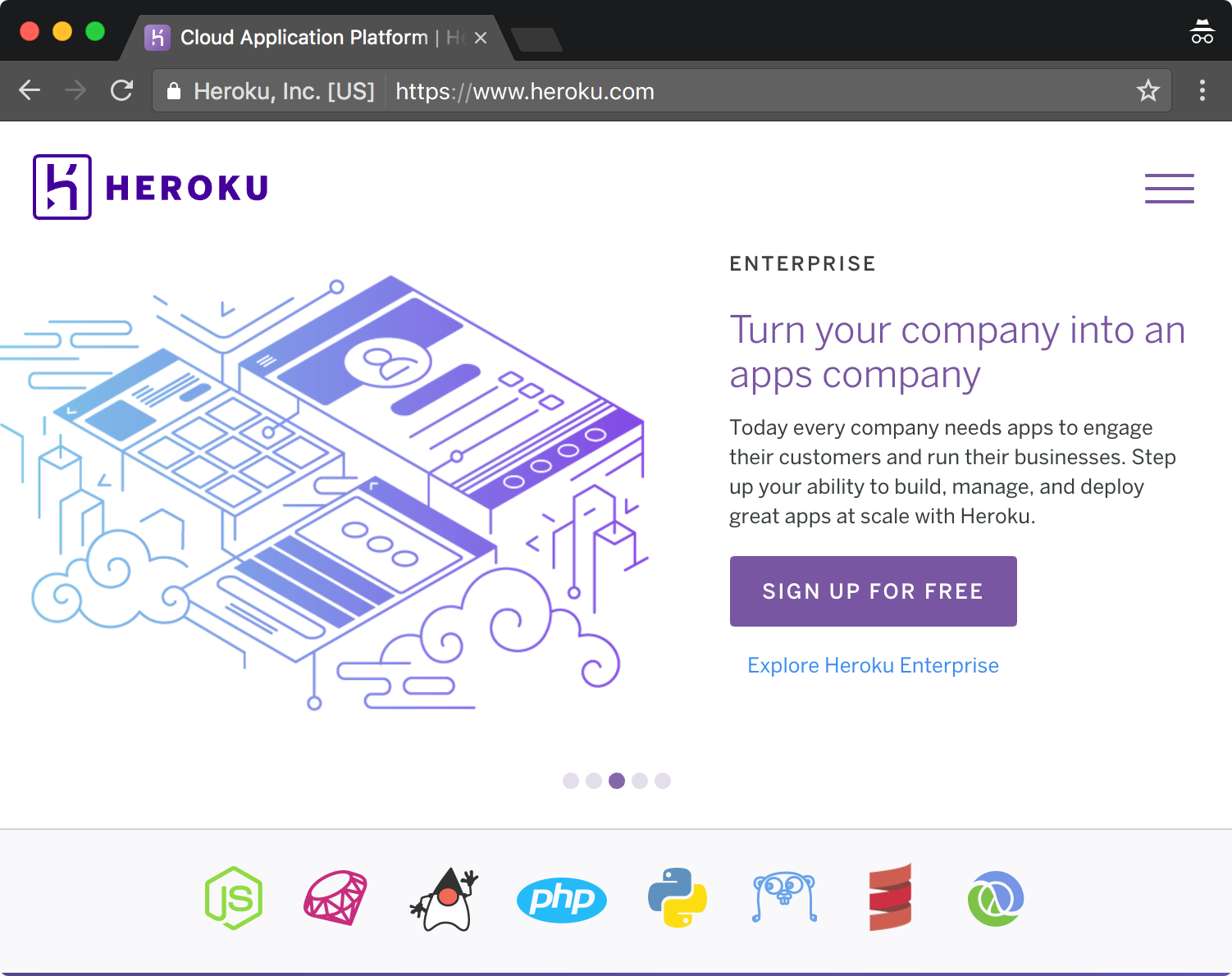
On the Heroku website, click the Sign up for free button. After submitting your details you'll be sent a confirmation email. Follow the link found in this email and set your password.
| Heroku Home Page | Sign Up |
|---|---|
 |
 |
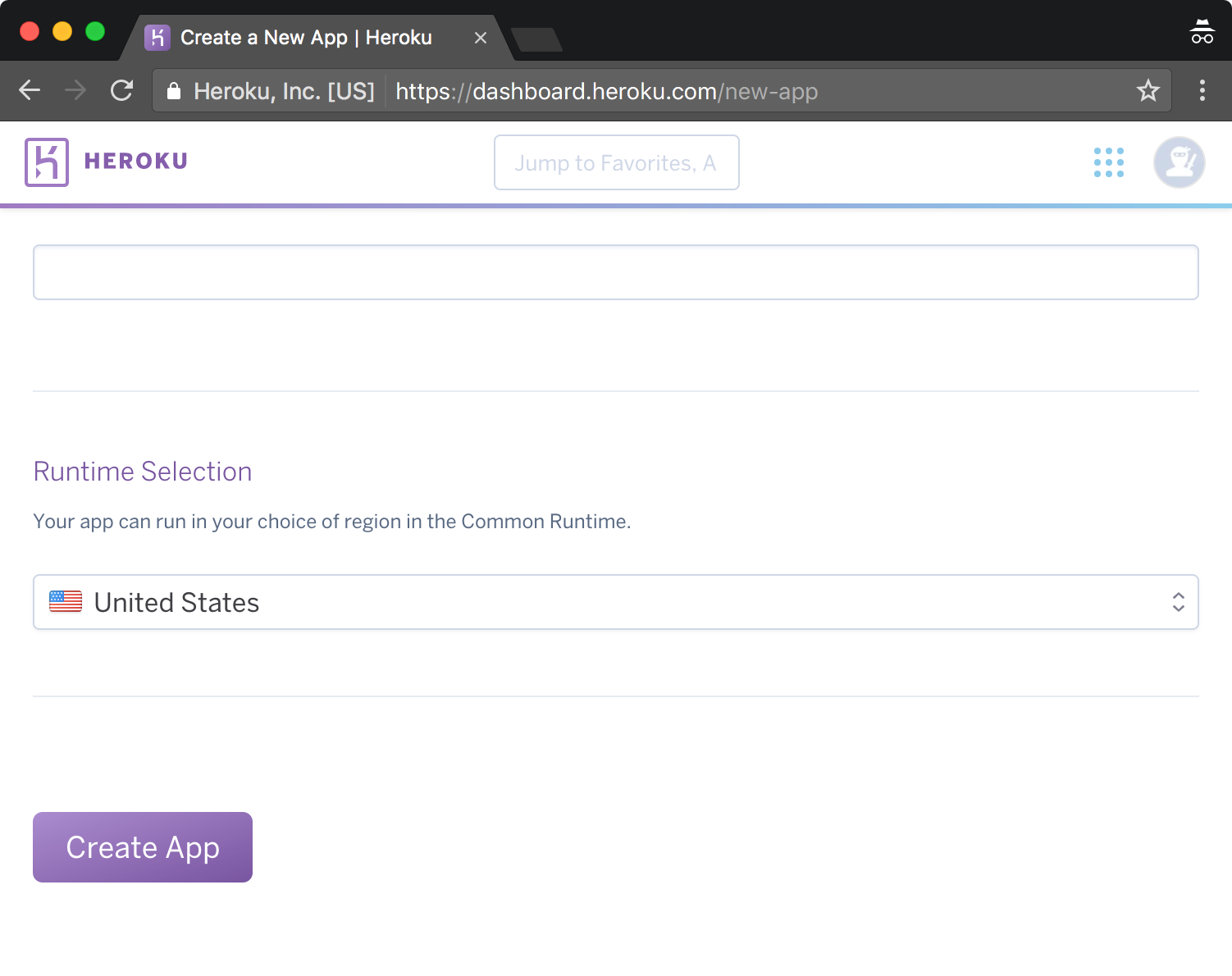
On your first visit to the dashboard, click the Create New App button. From there, specify a name (or leave blank and Heroku will generate a name). Click Create App
| Create New App | Add a Name |
|---|---|
 |
 |
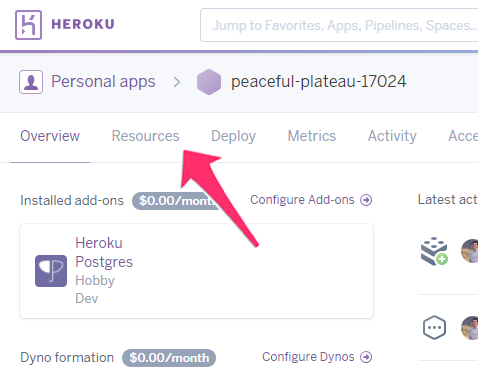
At this point, you're in the dashboard for the project you just created. Depending on the size of your browser window, you will see either a "Resources" tab or a set of seven icons near the top of the window. Select the resources tab if you see text options. If you see icons, select the icon with three horizontal lines.
| Select the "Resources" Tab | Or the Resources Icon |
|---|---|
 |
 |
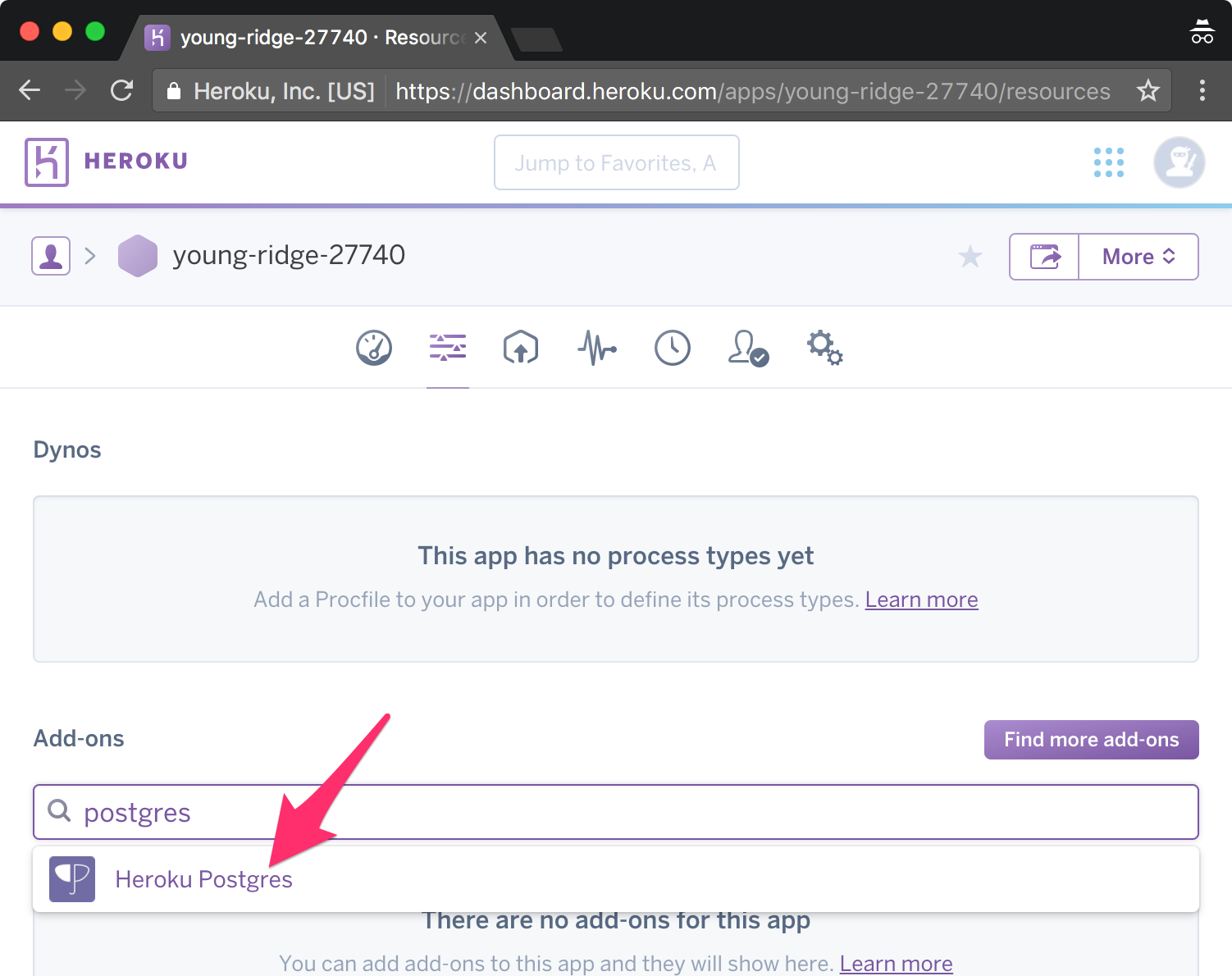
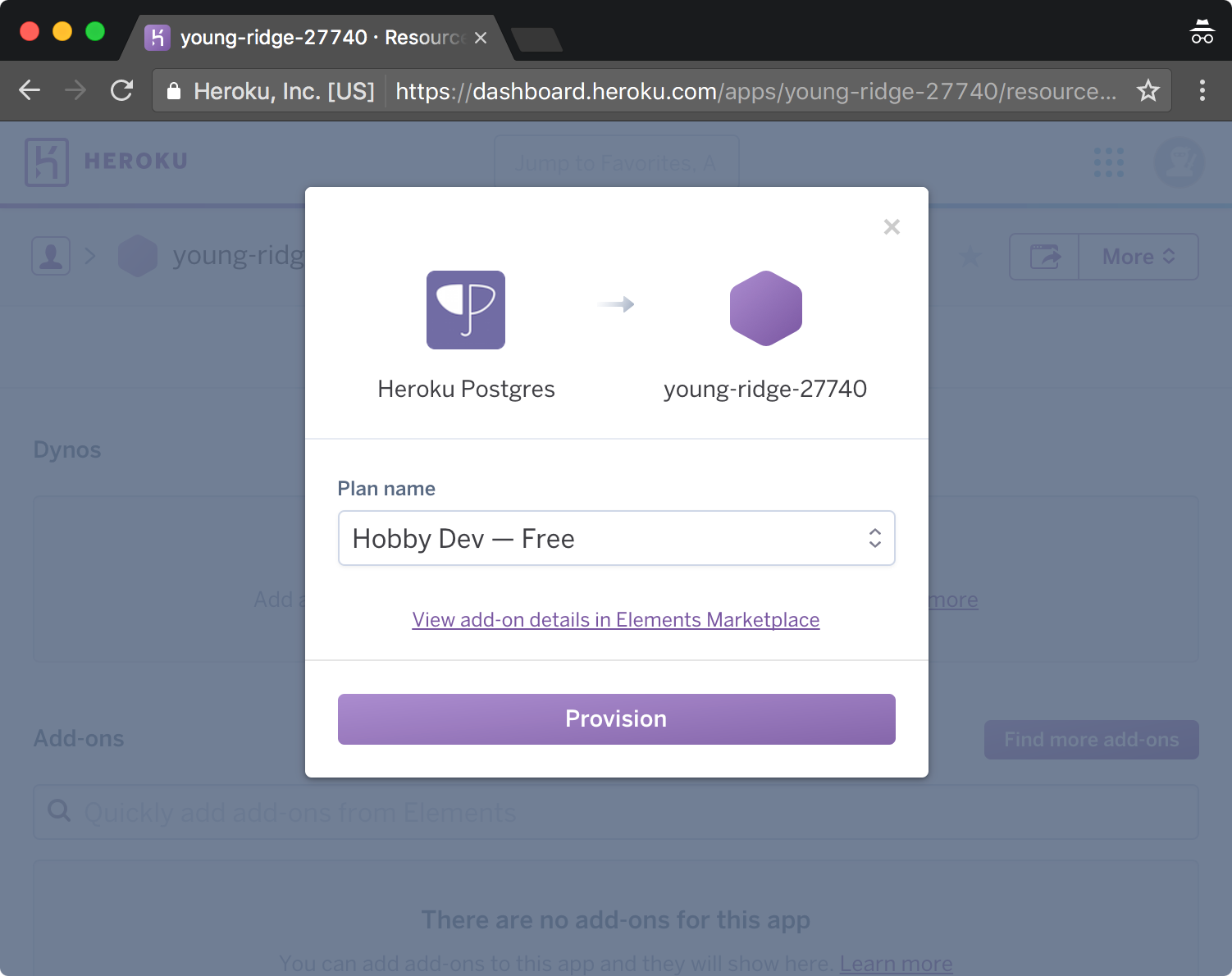
On the next screen, type "postgres" in the "Add-ons" search field and select "Heroku Postgres" from the list. Provision the Hobby Dev free tier database.
| Select Heroku Postgres | Click Provision |
|---|---|
 |
 |
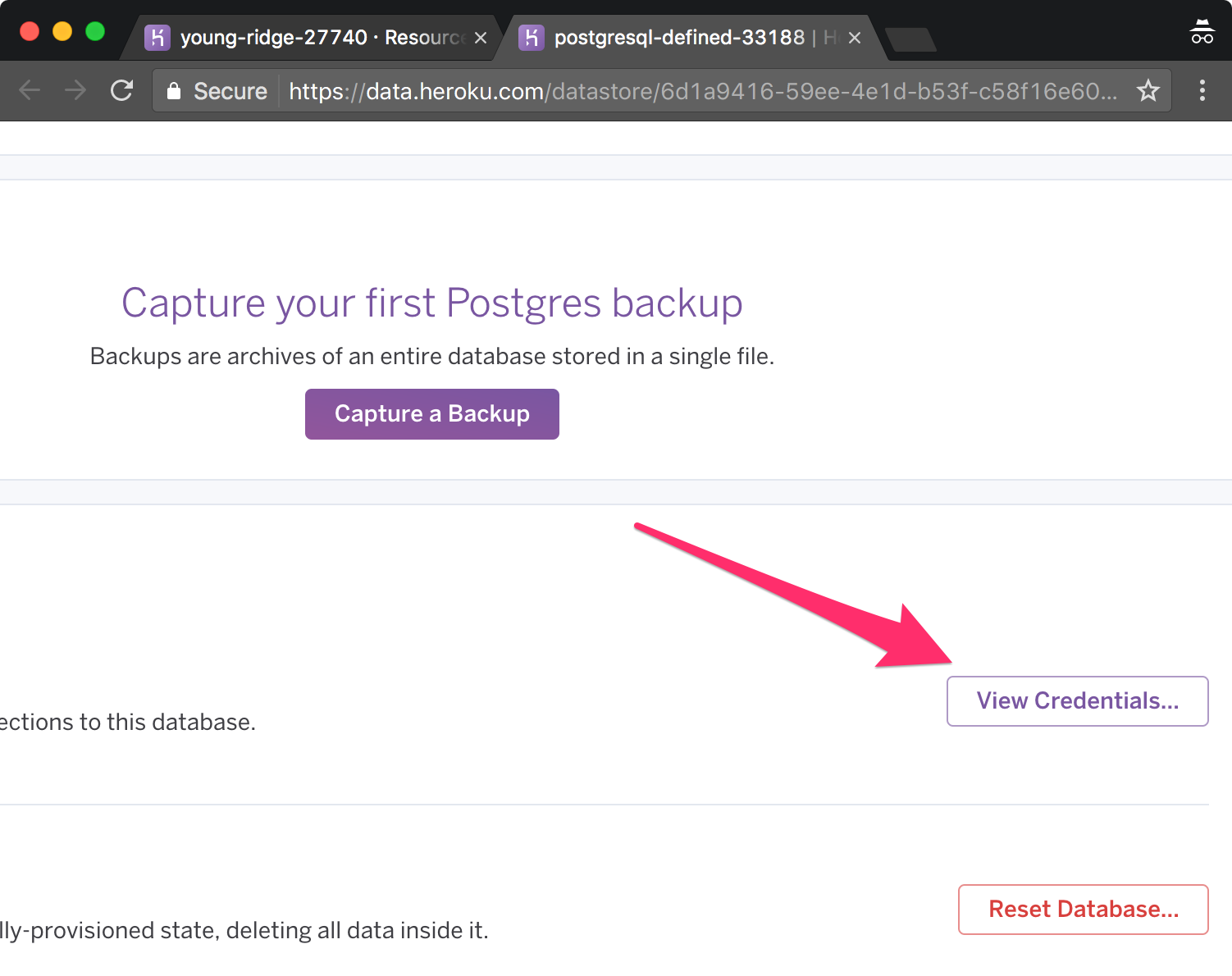
Select the Heroku Postgres :: Database add-on from the list. On the database page, click the View Credentials button. You will be presented with the credentials necessary to connect to the Postgres instance.
| Heroku Postgres :: Database | View Credentials | Credentials for Connecting |
|---|---|---|
 |
 |
 |
Way to go! You have your very own Postgres database. Now, you need a client to connect and run queries against it.
SQL Tabs is a cross-platform database client that will allow you to execute SQL commands to your hosted Postgres database.
Download the version for your OS from http://www.sqltabs.com and install accordingly
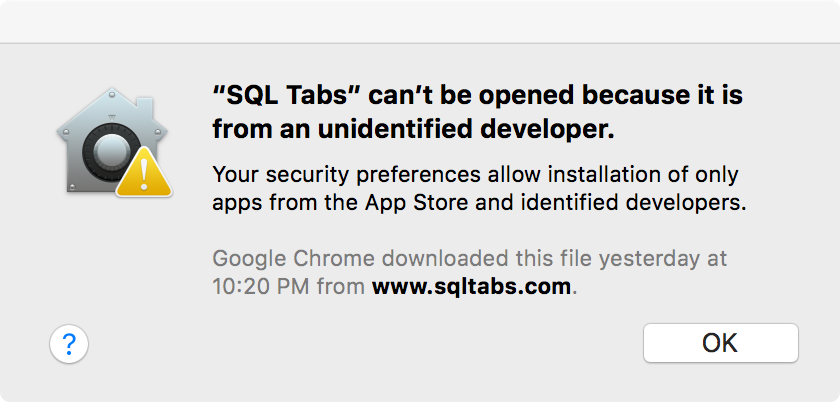
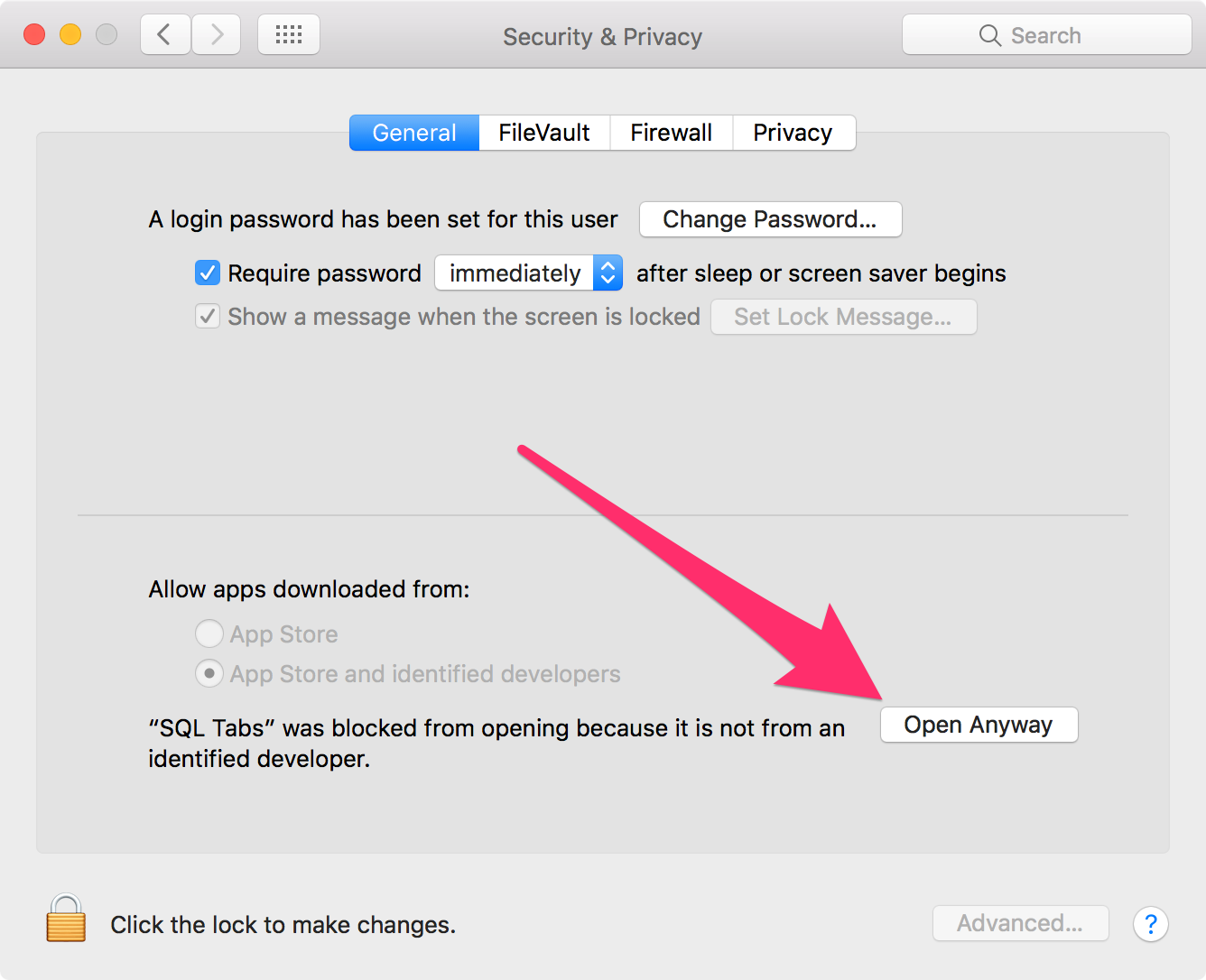
- Mac: unzip the download and put it in your Applications. Double click. If you get a security warning, open System Preferences > Security and click Open Anyway
- Windows: unzip the download and place the folder somewhere easy to access, like your desktop. Run sqltabs.exe.
- Linux: gunzip the tarball and execute ./sqltabs
| SQL Tabs Download | Mac Warning | Mac Preferences |
|---|---|---|
 |
 |
 |
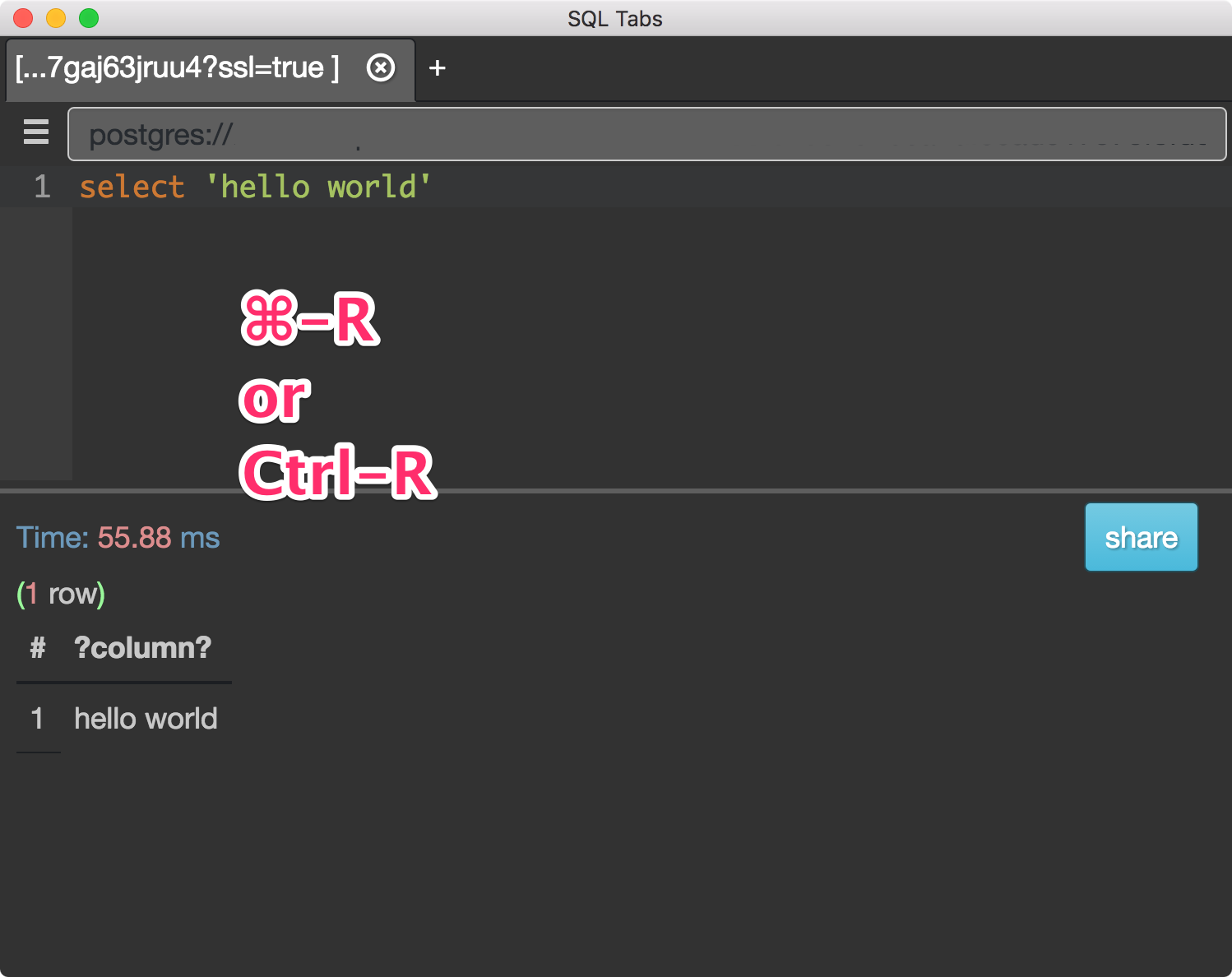
Copy the URI from your Heroku Postgres credentials. Paste it into the
connection string input at the top of SQL Tabs and THIS IS IMPORTANT:
append ?ssl=true to the end.

Run a select 'Hello World'; query against the database to ensure you're
connected. Execute the query using ⌘-R or Ctrl-R. If the database responds with
a column that contains 'hello world', you're good to go.
Congratulations! You've successfully set up a hosted Postgres database on Heroku. You can now connect to this database using SQL Tabs and write database queries to create and update content on your hosted database. Have fun!