Creating a merge protection ruleset for a repository
-
On GitHub, navigate to the main page of the repository.
-
Under your repository name, click Settings. If you cannot see the "Settings" tab, select the dropdown menu, then click Settings.

-
In the left sidebar, under "Code, planning, and automation", click Rulesets, then click Rulesets.
-
Click New ruleset.
-
To create a ruleset targeting branches, click New branch ruleset.
-
Under "Ruleset name," type a name for the ruleset.
-
Optionally, to change the default enforcement status, click Disabled and select an enforcement status.
-
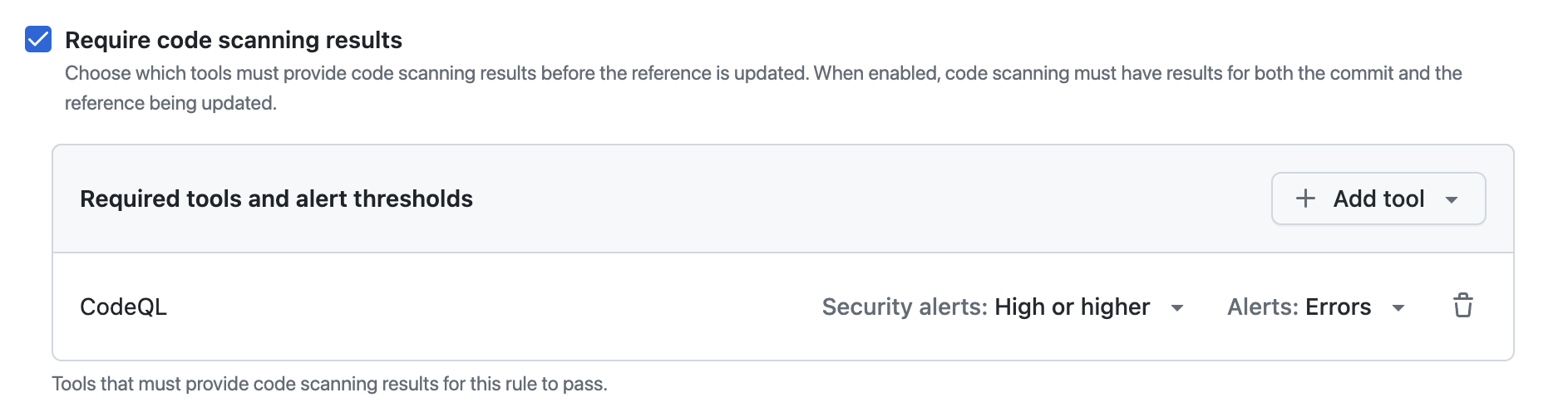
Under "Branch protections", select Require code scanning results.
-
Under "Required tools and alert thresholds", click Add tool and select a code scanning tool with the dropdown. For example, "CodeQL".
-
Next to the name of a code scanning tool:
- Click Alerts and select one of: None, Errors, Errors and Warnings or All.
- Click Security alerts and select one of: None, Critical, High or higher, Medium or higher, or All.


For more information about alert severity and security severity levels, see 코드 검사 경고.
For more information about managing rulesets in a repository, see 리포지토리에 대한 규칙 세트 관리.
Creating a merge protection ruleset for all repositories in an organization
-
In the upper-right corner of GitHub, click your profile picture, then click Organizations.
-
Select an organization by clicking on it.
-
Under your organization name, click Settings. If you cannot see the "Settings" tab, select the dropdown menu, then click Settings.

-
In the sidebar, under "Code, planning, and automation", click Repository, then click Rulesets.
-
Click New ruleset.
-
To create a ruleset targeting branches, click New branch ruleset.
-
Under "Ruleset name," type a name for the ruleset.
-
Optionally, to change the default enforcement status, click Disabled and select an enforcement status.
-
Under "Branch protections", select Require code scanning results.
-
Under "Required tools and alert thresholds", click Add tool and select a code scanning tool with the dropdown. For example, "CodeQL".
-
Next to the name of a code scanning tool:
- Click Alerts and select one of: None, Errors, Errors and Warnings or All.
- Click Security alerts and select one of: None, Critical, High or higher, Medium or higher, or All.

For more information about alert severity and security severity levels, see 코드 검사 경고.
For more information about managing rulesets for repositories in an organization, see 조직의 리포지토리에 대한 규칙 집합 관리.
Creating a merge protection ruleset with the REST API
You can use the REST API to create a ruleset with the code_scanning rule, which allows you to define specific tools and set alert thresholds. For more information, see 규칙에 대한 REST API 엔드포인트.