Threads
A thread is one conversation with the agent: your prompts, the agent’s replies, every tool call it made, and the files it changed. Threads are the unit of work in Amp. You start one per task, come back to it from any device, hand it to a teammate, or point a later thread at it.
Every thread has a URL like https://ampcode.com/threads/T-…. The same thread opens in the web
app, the CLI, and the Amp apps for macOS, Windows, Linux, iOS, and Android. Where the agent runs is separate from where you
look at it: a thread can run in an orb, on a runner, or in a
local CLI session.
Where Threads Live
The sidebar lists your recent threads. Pinned threads come first, then the rest grouped by project. Show Older at the end of the list loads older threads. Snoozed threads are under Snoozed Threads in the Filters menu at the top of the sidebar. Threads you archived in the last 72 hours are behind the archive button at the end of the list. Activity lists both under its Snoozed and Archived statuses.
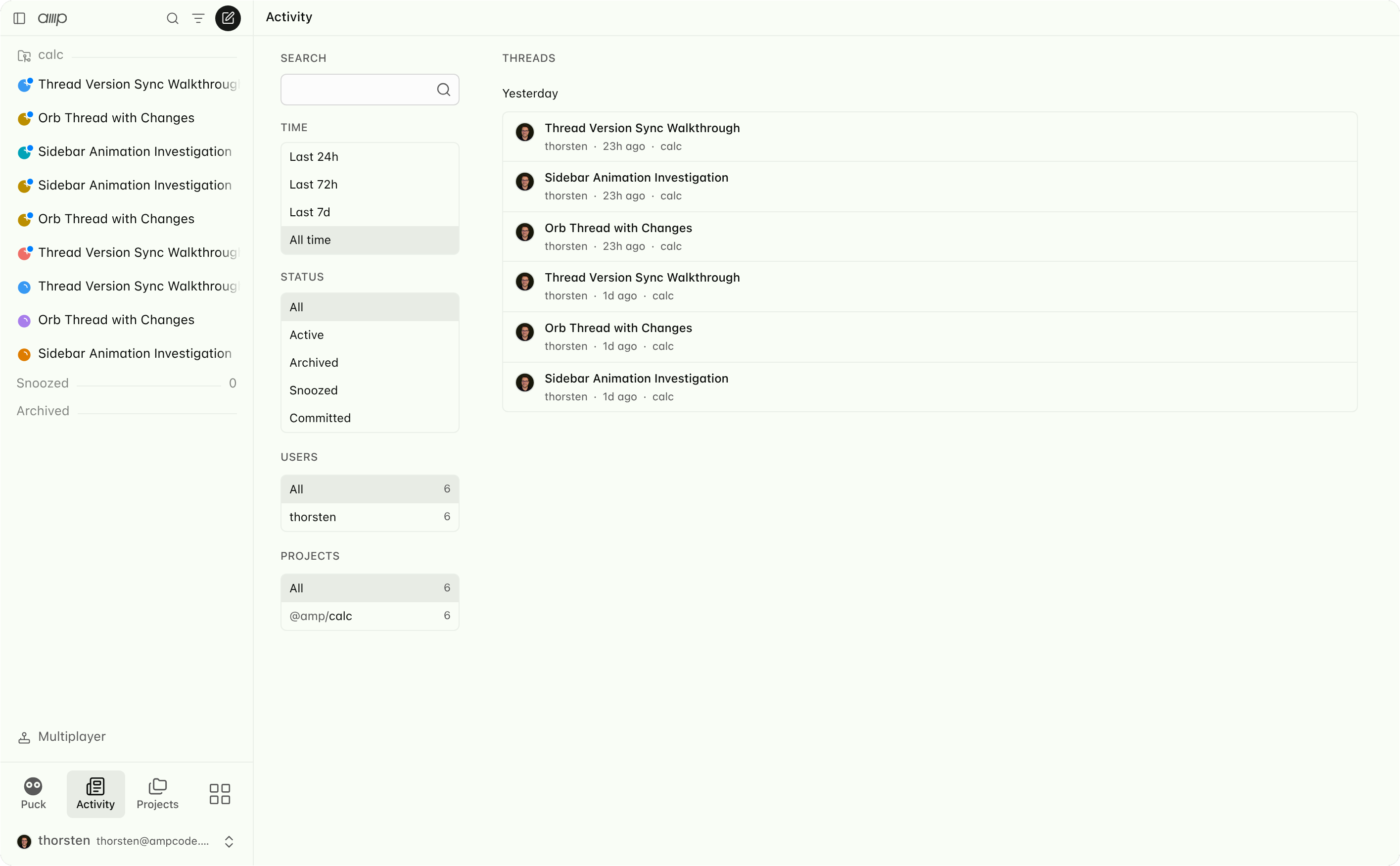
Activity at ampcode.com/feed shows every thread you can see, including your
workspace members’ shared threads. Filter by time, status, author, or project, or search with the
same query syntax the agent uses to find threads. The filters
live in the URL, so /feed?time=7d&q=label:bug is a link you can bookmark or share.
To choose your defaults, right-click or long-press an option under Time, Status, Users, or Projects and select Use … as Default. Each default is saved in this browser and applies when you open Activity without that filter in the URL. Saving a default does not change the current view. Use Reset Default in the same menu to reset that filter independently. Time resets to Last 24h. Status and Projects reset to All. Users resets to your own threads in a workspace where threads are private by default, or All otherwise. A saved project that you can no longer access is ignored.
Explicit URL filters take priority. Search links with a q parameter keep their existing defaults
rather than applying your saved choices.
Each project page also lists the threads that worked on that repository.
Start a Thread
- Web. Click New Thread in the sidebar. The composer shows where the thread runs (a new orb or a connected runner), which project it belongs to, and which model the agent uses. Type a prompt and press Enter. The Orbs getting started guide walks through this.
- CLI. Run
ampin a repository to start a thread on your machine, oramp -oxto start one in an orb for the matching project.amp -x "prompt"runs one prompt and exits. See the CLI page. - Puck. Ask Puck on the web or in Slack to start a thread for you.
- Another thread. An agent can start a thread and wait for its result with Agent to Agent. When a thread gets long, ask the agent to “Handoff and …” and it starts a fresh thread with the context that matters.
- On a schedule or an event. Automations and event-driven orbs start threads without you.
Use one thread per task. Threads can go on for a long time, but a thread that mixes unrelated work gives the agent a worse context to reason with. See Prompting for more.
Inside a Thread
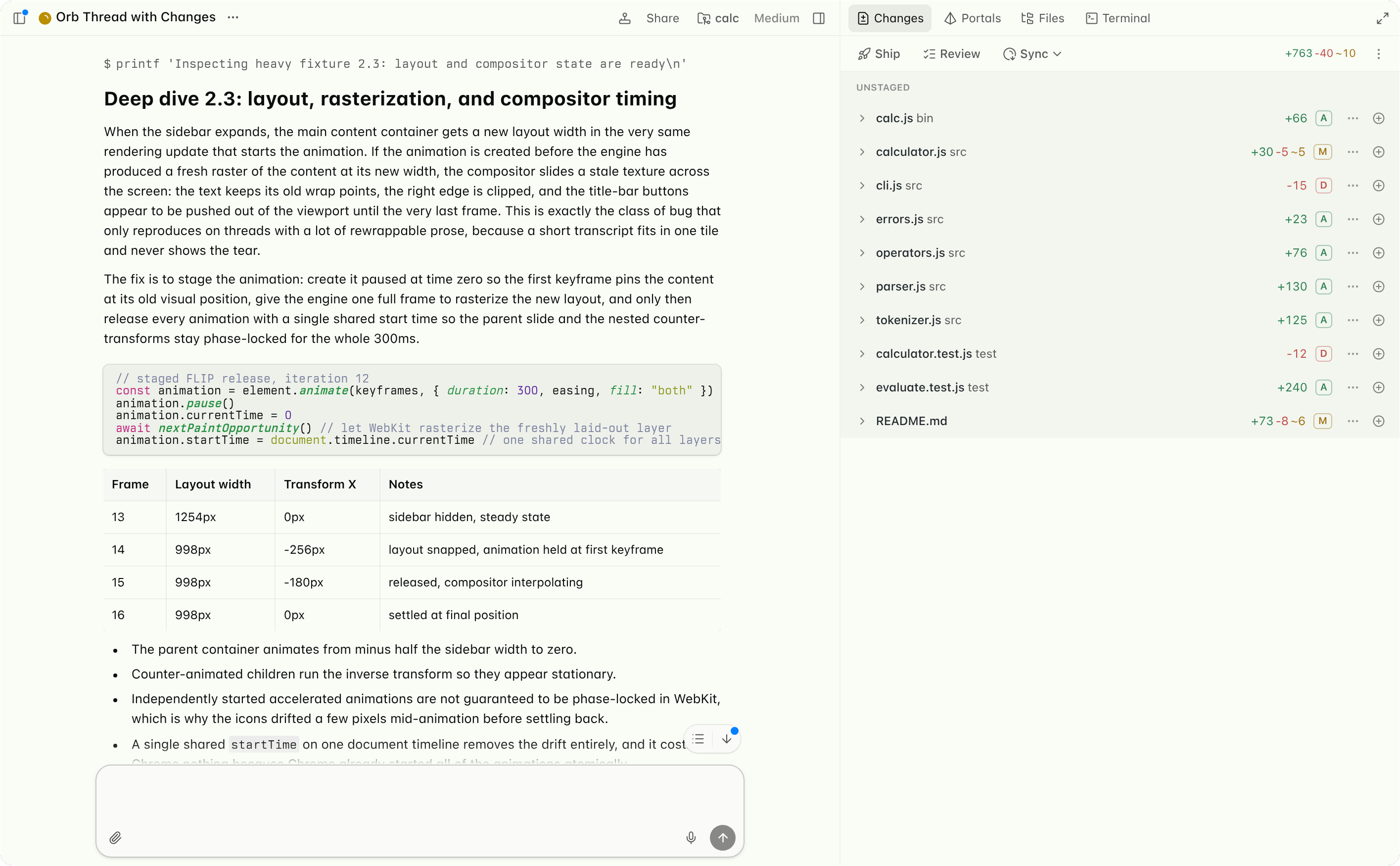
The title bar shows the thread’s title, the More Actions menu behind the … button, Share, and the project. For threads that run in an orb or on a connected runner, the panes on the right open into the machine:
- Changes lists committed and uncommitted changes. Use its commit picker to view one commit at a time, as described in Review Commits. Ship commits and pushes according to the project’s Ship Behavior, Review walks through the diff, and Sync pulls the orb’s branch to your machine.
- Portals shows web servers running in an orb. See Portals.
- Files browses the orb or runner’s file system. Drag and drop files from your computer onto it to upload them into the execution environment.
- Terminal opens a shell in the execution environment. Paste or drop a file onto it to upload
the file to the orb or runner and insert its path. See Upload Files to an Orb. (Runner terminals require
the
--remote-control-terminalflag.)
To make the transcript and composer wider, set Thread Width in Settings > Appearance to Wide or Full, or run Set Width to Wide or Set Width to Full from the command palette. The setting applies to every thread in that browser or app.
Review Changes
The Changes pane orders files intelligently: Amp reads the diff, moves the files that best explain the change to the top, and mutes less important files such as generated code. If the diff changes after an order has been applied, Amp keeps that order while the agent works and computes an updated order when the turn finishes. If the new order would rearrange files, a file order button with a blue dot appears in the toolbar. Click it (Apply Updated File Order) when you are ready. Intelligent ordering is unavailable when a diff contains more than 500 files or when the thread is read-only for you; files are then listed alphabetically.
Review Commits
When the thread’s branch has commits, a commit picker appears at the bottom of the Changes pane. Its button shows what the pane is showing and how many commits the branch is ahead of its base branch, such as All Changes · 3 commits ahead of origin/main. Click it to choose what the pane shows:
- All Changes shows every committed and uncommitted change since the merge base, which is where the branch split from its base branch.
- Uncommitted shows only the changes that are not committed yet.
- Each commit since the merge base is listed by its short SHA and subject, newest first. Select a commit to see only that commit’s diff. Hover over a commit, or press the right arrow key, to read its full commit message.
- Compare With Branch… shows all changes since the merge base with another remote branch.
To review a branch’s commit history one commit at a time, such as after a restack, select each commit in turn. You do not need to push the branch or open a pull request.
Every thread, with or without an orb, also has a Huddle pane: a voice and video call for talking the work over with your team. See Huddle.
The composer at the bottom sends the next message. When the agent is working, any message you send is steered: it is sent after the current step instead of waiting for the agent to completely finish. Press ⌘+Enter or Ctrl+Enter to instead queue the message until the agent completely finishes, or press Esc twice to interrupt. See Queueing Messages.
Continue a Thread Anywhere
A thread is not tied to the device you started it on.
Open an orb thread on your phone or another computer and keep prompting.
Run
amp threads continue T-…to attach the CLI to a thread. For an orb thread, pick Orb → Copy Sync CLI Command from the More Actions menu to copy anamp synccommand with the thread ID filled in.Send a single message to an orb thread from your terminal or a script without attaching to it:
$ amp threads continue T-… -ox 'The deploy finished, verify the fix in production'The message runs on the thread’s own orb, so this is a simple way to wake a thread from a CI job or a shell script.
A thread you started in the CLI stays open on the web too. Send it messages from ampcode.com with Cross-Client Access.
Reference and Find Threads
Paste a thread URL or type @T-… in a prompt and the agent reads that thread and pulls out what
matters for the current task. In the CLI, type @@ to search for a thread to mention.
Ask the agent to find threads by keyword, file, author, label, or date, and it searches your
threads and your workspace members’ shared threads. See Referencing Other Threads and Finding Threads.
Commits the agent makes carry an Amp-Thread-ID trailer, so git log leads from a change back
to the conversation that produced it. Putting the thread link in a pull request description gives
reviewers the same context.
Share a Thread
Click Share in the title bar, or choose Share Thread… in the command palette. The Share dialog lets you copy the thread URL and choose under General Access whether only the people and groups listed under People with Access can open the thread, your whole workspace can, or anyone with the link can. If you created the thread, use Add people to share it with specific members of its workspace, or, in Enterprise workspaces, Add people or groups to share it with any of the workspace’s groups. They get a notification. Only members of the thread’s workspace can be added. To remove a person’s or group’s access, open its menu under People with Access. Turn On Multiplayer lets everyone with access contribute. On a thread that can be multiplayer, its creator can instead choose Viewer or Contributor for each person and group, for the people being added, and next to the workspace under General Access. Contributors can prompt the agent while multiplayer is on; viewers can only read the thread. Setting someone to Viewer also makes them a viewer of the threads you started from this one. Multiplayer is not available while anyone with the link can view the thread, and making a thread viewable by link turns it off.
If you do not have a workspace, the dialog offers Create Workspace so you can share threads with your team.
| General Access | Who can open the thread |
|---|---|
| Restricted | You and the people and groups you add (groups in Enterprise workspaces only), plus workspace admins through audited access. |
| Your workspace | Every member of your workspace. The dialog shows the workspace’s name. |
| Anyone with the Link | Anyone on the internet who has the link. |
Workspace admins open such a thread, or a link to one of its artifacts, through audited access: they confirm their identity again, the page shows an audit notice, and the view is audit-logged. Artifacts opened this way are read-only.
Without a workspace, new threads are private. In a workspace, threads in workspace-owned projects are shared with the workspace by default, while threads in personal projects or without a project are private. Admins can change the default, turn off sharing outside the workspace, and set up groups; see Thread Visibility Controls.
In the CLI, press Ctrl+O and run set visibility or share with people, or run amp threads share T-… --visibility unlisted.
Export a Thread
Add .md to a thread URL, for example https://ampcode.com/threads/T-….md, to read it as Markdown. Export in the More Actions menu offers Markdown and, for the thread’s creator, the full JSON.
In the CLI, amp threads markdown T-… and amp threads export T-… do the same.
Organize Threads
Use a thread’s More Actions menu to organize it. To snooze a thread, right-click it in the sidebar or press Ctrl+G Z in the thread. On a phone, Snooze is in the More Actions menu.
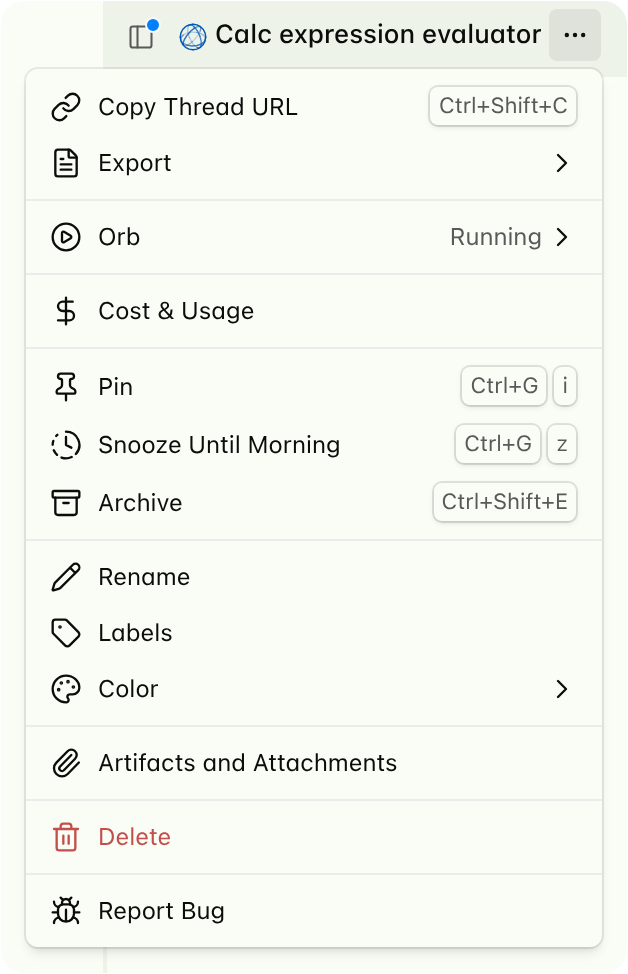
- Pin keeps a thread at the top of the sidebar.
- Color marks the thread in the sidebar and tints its title bar.
- Labels tag the thread. Click a label to see every thread with that label in Activity, or
search with
label:<name>. - Rename replaces the title the agent chose.
- Snooze hides the thread and mutes its notifications. When something can bring the thread back on its own (the agent is working, an automation can run, or multiplayer is on), the menu offers Snooze Until I’m Needed. It ends when someone sends a message, the agent finishes replying to one, a scheduled run’s reply tells you something new (not when it only says nothing changed), or the thread’s automations are done; tool calls along the way do not end it. Otherwise the menu offers Snooze Until Tomorrow, or Snooze Until Morning between midnight and 8am, which ends at the next 8am. For any other snooze, ask the agent in the thread or Puck, for example “snooze this until Monday at 9am”, “snooze this for two weeks”, “snooze this until you need me”, “snooze this until I reply”, or “snooze this until I unsnooze it”. While a snoozed thread waits for you to approve a tool or answer a question, it shows in the sidebar; once you answer, it is snoozed again. Snoozed threads, pinned ones too, wait under Snoozed Threads in the sidebar’s Filters menu and come back when the snooze ends. To bring one back sooner, use Unsnooze on its row there or in the thread’s More Actions menu. Snoozing does not stop the agent, and it does not pause the thread’s automation; scheduled runs keep firing and using credits, but quietly. To stop an automation, pause it from the thread’s automation indicator or archive the thread.
- Archive removes the thread from your active lists. The URL still works and the agent can still reference it. Threads you archived in the last 72 hours are behind the archive button at the end of the sidebar’s thread list, and every archived thread is in Activity under the Archived status. You can unarchive a thread at any time, unless its project was deleted; those threads stay readable but are permanently archived. Archiving a thread does not archive the threads it created. They stay active and move to the top level of the sidebar.
- Archive N Threads shows on parent threads and archives the parent thread and all of its child threads at once. If you don’t want to archive the child threads, choose the plain Archive option instead.
- Delete removes the thread permanently. In an Enterprise workspace whose admins restrict thread deletion, only workspace admins can delete threads.
- Mark as Unread brings the unread dot back so you remember to look at it later.
The menu also shows what the thread has cost so far and, for orb threads, whether the orb is running and which size it uses.
From the CLI, amp threads label, amp threads rename, amp threads archive, and amp threads delete do the same, and amp threads list and amp threads search find threads
without opening the web app.
Work on a Thread Together
Type @ in the composer to tag a workspace member. Tagging invites them to the thread and turns
on Multiplayer, so they can prompt the agent, open the orb’s portals,
and use its terminal and files. Only non-private threads in an orb or on a shared runner can be made multiplayer, and
agent and orb costs are billed to the thread’s owner.
To talk instead of type, join the thread’s Huddle, a voice and video call inside the thread with camera, microphone, and screen sharing.
Artifacts
An artifact is a document attached to a thread that you, your teammates, and the agent edit together. Use one for what people will read: a plan, a report, notes from a call, or findings gathered from several threads. A thread can hold many artifacts, grouped in folders. Artifacts hold headings, lists, checklists, tables, code, images, and interactive views.
Open them from Views → Artifacts in any thread, or ask the agent to write one. A link to an artifact in the transcript opens it in the Artifacts tab, even when another thread wrote it, such as a child thread or a thread in a Space; the artifact switcher lists it under that thread’s name, and on a wider screen a “from” link beside its title opens that thread. To have the agent write or edit the artifact you are on, use
Ask Amp inside it.The agent reads and writes artifacts as Markdown with its artifact tool, which every
user-selectable agent mode and every Space has. Each save makes a new revision. If someone saved
a newer revision while the agent worked, edits that still match are applied to it; otherwise the
agent’s update is refused and it merges its change into the newer version instead of overwriting
it.
The agent of another thread, such as a child thread, can also edit an artifact when you could edit it yourself, and it then sends the artifact’s thread a message saying what it changed and why.
Share shows which thread's agent made the last edit. An agent can also copy an artifact you can open into its own thread, for example to start the parent's report from a child thread's draft. The copy is a new artifact without the original's comments, and the original stays where it is. Only the artifact's own thread can delete it.Share an Artifact
Share → General Access sets who can open an artifact's link:- Same as the thread (the default): everyone who can open the thread, signed in or not. The artifact follows later changes to the thread’s sharing. The dialog names who that is with the thread’s own General Access: Restricted, your workspace’s name, or Anyone with the Link.
- Your workspace (shown as its name): every member of the thread’s workspace, even if they cannot open the thread. They can read the artifact but not edit it.
- Anyone with the Link: anyone, without signing in.
The menu offers only the choices that reach more people than the thread already does. Only the thread’s owner or the artifact’s creator can change who can open an artifact; everyone else sees who can open it. Everyone in the thread’s workspace who can open the thread can edit its artifacts, Viewers included; everyone else only reads them. A workspace admin can turn off public links with
Allow Sharing Outside the Workspace in workspace settings. Like link-shared threads, artifacts shared with anyone with the link then change to the workspace, or to the thread's own access on personal threads, and stay that way if the setting is turned back on. The Share dialog lists the people and groups the thread is shared with, for everyone in its workspace who can open it. Next to Share, Copy Link copies the artifact's link, and Download saves it as Markdown or HTML, or prints it to a PDF.You can also ask the agent to share an artifact. It asks you to approve in a dialog before more people can open it.
Images you add to an artifact are stored with the thread, and everyone who can open the artifact sees them. So do the visuals of the same thread that the artifact embeds; a visual from another thread keeps its own access. Deleting an artifact keeps its images until the thread is deleted, and deleting a thread deletes its artifacts. Each artifact holds up to 2 MB.