
When you browse the internet, often you mark some interesting & important web pages as the bookmark on Google Chrome. All your marked Bookmarks become available on the Google Chrome bookmarks bar. Google Chrome comes with the default settings as Disabled Bookmark Bar. This restricts the appearance of the Google Chrome Bookmark Bar from any opened web page. You can access the Bookmark Bar from the New Tab by default. However, by default, the Bookmark Bar is hidden to give you more screen space. You can easily show or hide the Bookmark Bar based on your needs.
This article is intended to focus on how to show or hide the Bookmark bar on Google Chrome to use it from any webpage.
How to Show or Hide the Google Chrome Bookmarks Bar
How to Show Bookmarks Bar in Google Chrome?
To see your bookmarks on any webpage, you first need to enable it. This makes it easier to quickly access your favorite websites without opening a new tab. The following steps will help you to show the Bookmarks Bar in Google Chrome.
Step 1: Open Google Chrome & click on the Three Dot Menu. Now, select the Bookmarks & Lists option.

Step 2: Click on the option Show Bookmark Bar & the Bookmark Bar will be frezzed on all webpages.

How to Hide Bookmarks Bar in Google Chrome?
If you want to make your browser screen bigger or simply don’t want to see the bookmark bar all the time, you can hide it. This is useful if you have many bookmarks and want a cleaner browser view. Follow the given steps to hide Bookmarks Bar on Chrome
Step 1: Open Google Chrome Browser & click on the Three Dot Menu. Now, go for the Bookmarks & Lists.
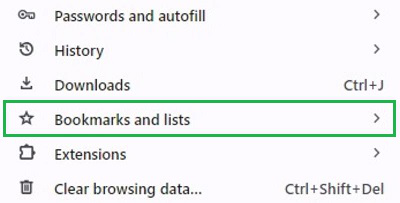
Step 2: Click on the option Hide Bookmark Bar & the Bookmark Bar will only be now available on the Chrome New Tabs, not for all pages.

Quick Process to Hide or Show Bookmarks Bar in Google Chrome
To Hide or Show Bookmarks Bar in Google Chrome,There is a quick alternative way. For that, On the Bookmark Bar, Right-Click to get a few options.
- Now, to Enable Chrome Bookmark Bar, click on the Show Bookmark Bar option.
- Remove the Mark, when you want to Disable Chrome Bookmark Bar.

From the above discussion, we conclude that there are numerous ways to Start & Stop Bookmark Bar Appearance on Google Chrome. When you start Chome Bookmark Bar Appearance, the Web Browser screen size becomes a bit smaller. At any point in time, you can Disable Bookmark Bar on Chrome to increase the screen size.