
React Suite is a popular front-end library with a set of React components that are designed for the middle platform and back-end products. Steps is a navigation bar that guides users through the steps of a task.
The Description is used to provide some explanation or information about the particular step. It adds more information to the title or makes the title more understandable.
Syntax:
<Steps current={index}>
    <Steps.Item title="Some title"
        description="Some description" />
</Steps>
Creating React Application And Installing Module:
Step 1: Create a React application using the following command:
npx create-react-app foldername
Step 2: After creating your project folder i.e. folder name, move to it using the following command:
cd foldername
Step 3: After creating the ReactJS application, Install the required module using the following command:
npm install rsuite
Project Structure: It will look like the following.

Example: Now write down the following code in the App.js file. Here, App is our default component where we have written our code.
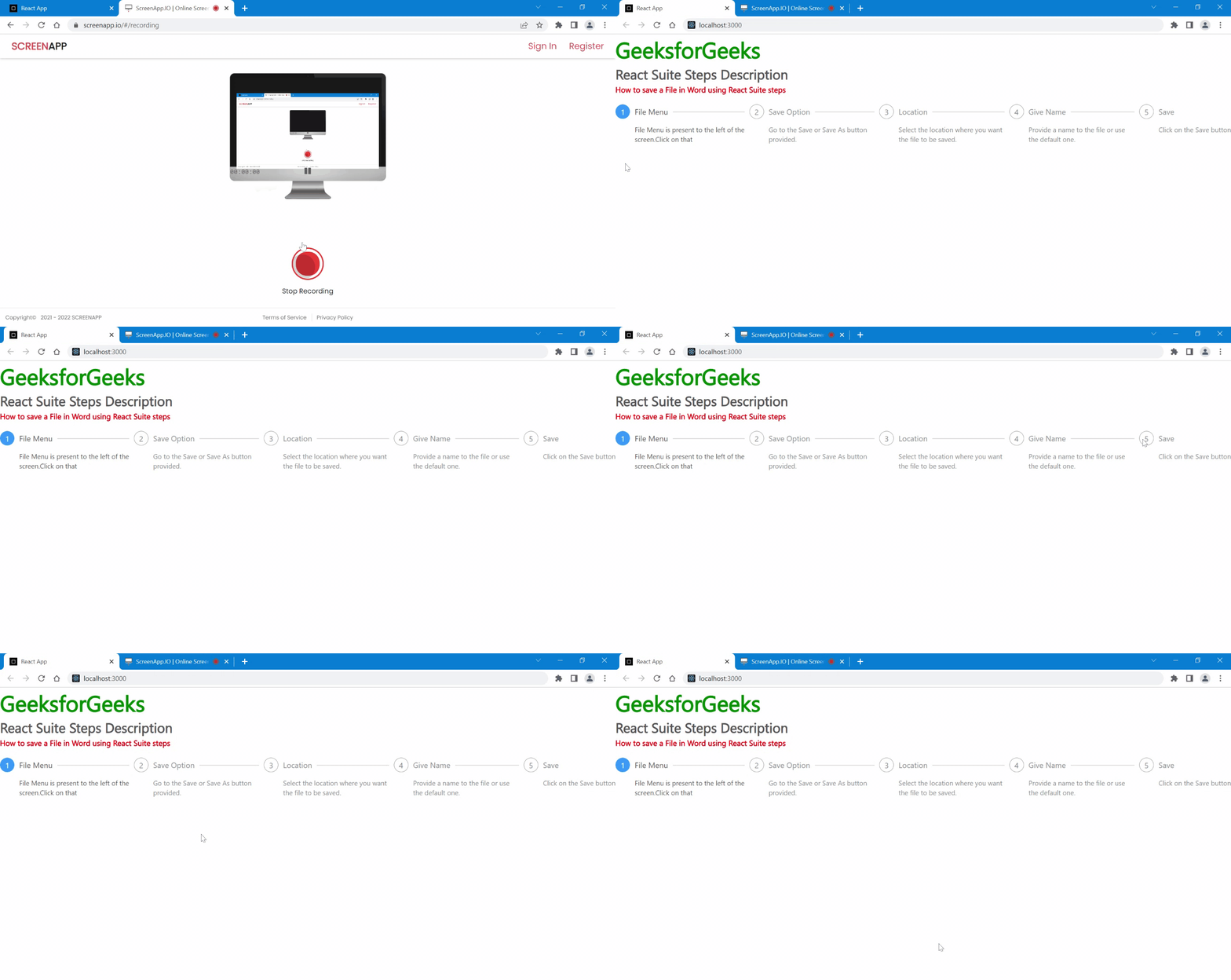
In this example, we will learn to save a file in Microsoft word using React Suite steps and provide some description to each step
import react from 'react'
import Steps from 'rsuite/Steps';
import 'rsuite/dist/rsuite.min.css';

export default function App() {
    return (
        <div className="App">
            <h1 style={{ color: 'green' }}>
                GeeksforGeeks
            </h1>

            <h3>React Suite Steps Description</h3>

            <h6 style={{ color: 'red' }}>
                How to save a File in Word
                using React Suite steps
            </h6>
            <br></br>

            <Steps current={0} >
                <Steps.Item title="File Menu" description=
"File Menu is present to the left of the screen.Click on that" />
                <Steps.Item title="Save Option" description=
                "Go to the Save or Save As button provided." />
                <Steps.Item title="Location" description=
    "Select the location where you want the file to be saved." />
                <Steps.Item title="Give Name" description=
        "Provide a name to the file or use the default one." />
                <Steps.Item title="Save"
                    description="Click on the Save button" />
            </Steps>
        </div>
    );
}
Step to Run Application: Run the application using the following command from the root directory of the project:
npm start
Output: Now open your browser and go to http://localhost:3000/, you will see the following output:
Example 2: In this example, we will provide the status of each step, and provide a description of them. Status can be waiting, finish, process, or error.
import react from 'react'
import Steps from 'rsuite/Steps';
import 'rsuite/dist/rsuite.min.css';

export default function App() {
    return (
        <div className="App">
            <h1 style={{ color: 'green' }}>
                GeeksforGeeks
            </h1>

            <h3>React Suite Steps Description</h3>
            <br></br>

            <Steps current={0} >
                <Steps.Item title="Waiting" status="wait"
                    description="I am in Waiting state" />
                <Steps.Item title="Error" status="error"
                    description="I am in Error state" />
                <Steps.Item title="Process" status="process"
                    description="I am in Processing state" />
                <Steps.Item title="Finish" status="finish"
                    description="I am in Finish state" />
            </Steps>
        </div>
    );
}
Output:

Reference: https://rsuitejs.com/components/steps/#description