
A Dockerfile is a simple text file that contains a script of instructions for building a Docker image.
- Layered Image Creation: Each command generates a cached, read-only layer, optimizing build speed and storage efficiency.
- Infrastructure as Code: It automates environment setup through a version-controlled script, replacing manual configuration with repeatable instructions.
- Universal Consistency: By packaging dependencies and settings together, it ensures the application runs identically across any hardware or cloud environment.
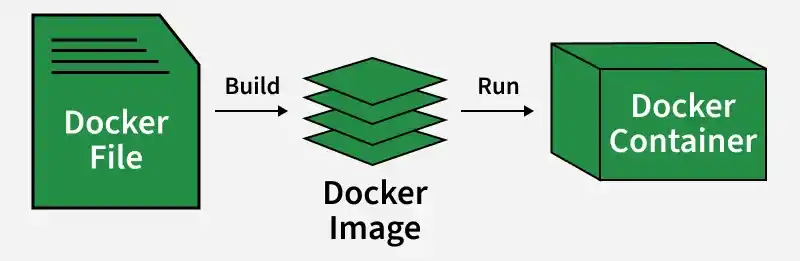
Container Creation using Dockerfile
- We start by writing the Dockerfile of the application. This contains all the necessary instructions like the runtime environment, the base image needed, files to copy and ports to expose.
- The Image is built using the docker file by using the command like docker build -t imagetag .
- From the image, we can run the container using the command docker run -- name <containername> <imagename>
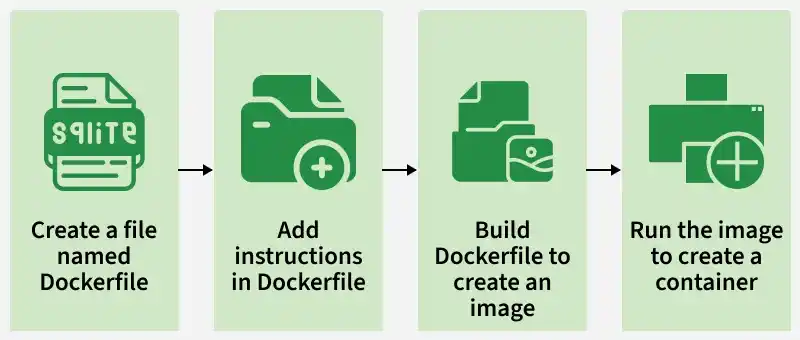
Dockerfile Instructions
Each instruction plays a specific role in building images, from defining the base system to copying files, running scripts, and setting container

1. FROM
This must be the very first instruction in a Dockerfile. It sets the base image for subsequent instructions, essentially choosing the foundational operating system or environment for your application.
Syntax
FROM <ImageName>
Example: The base image will be ubuntu:19.04 Operating System.
FROM ubuntu:19.04
2. COPY
The copy command is used to copy the file/folders to the image while building the image.
Syntax:
COPY <Source> <Destination>
Example: Copying the .war file to the Tomcat webapps directory
COPY target/java-web-app.war /usr/local/tomcat/webapps/java-web-app.war3. ADD
Has all the features of COPY, but can also handle remote file URLs and automatically extract compressed files (like .tar.gz) into the destination directory.
Syntax
ADD <URL>
Example: Try to download Jenkins using ADD command
ADD https://ftp.yz.yamagata-u.ac.jp/pub/misc/jenkins/war/2.397/jenkins.warBest Practice: Always prefer COPY unless you specifically need ADD's tar extraction or remote URL features. COPY is more transparent and predictable
4. RUN
This command executes any commands in a new layer on top of the current image and commits the results. These are build-time commands needed to set up your application, such as installing packages.
Syntax
RUN < Command + ARGS>
Example
RUN touch file5. CMD
The main purpose of the CMD command is to start the process inside the container and it can be overridden.
Syntax
CMD [command + args]
Example: Starting Jenkins
CMD ["java","-jar", "Jenkins.war"]6. ENTRYPOINT
- Primary Executable: ENTRYPOINT defines the main command that runs when a container starts, effectively turning the container into an executable.
- Overriding Behavior: CMD provides default arguments that are easily replaced by any command-line input; ENTRYPOINT is persistent and requires the explicit --entrypoint flag to be changed.
- Instruction Interaction: When used together, ENTRYPOINT sets the base command while CMD acts as the default, removable argument (e.g., ENTRYPOINT ["python"] + CMD ["app.py"]).
Syntax
ENTRYPOINT [command + args]
Example: Executing the echo command.
ENTRYPOINT ["echo","Welcome to GFG"]Example 1: Create Dockerfile With Example (Jenkins)
In this example, we will write the Dockerfile for Jenkins and build an image by using Dockerfile which has been written for Jenkins and we will run it as a container.
Step 1: Open Docker and create a file with the name Dockerfile.
Step 2: Open the Dockerfile by using the vi editor and start writing the command that is required to build the Jenkins image.
.png)
Dockerfile for Jenkins Image
- Base Layer Inheritance: The Dockerfile starts with a JDK base image, satisfying the core system requirement needed to execute Java-based applications like Jenkins.
- Instruction Workflow: Metadata and environment variables are defined via MAINTAINER and ENV, while RUN and ADD handle the physical creation of directories and the retrieval of the Jenkins .war file.
- Execution Strategy: The CMD instruction provides the final trigger, automating the startup of the Jenkins server as soon as the container is launched.
FROM openjdk:11-jdk
MAINTAINER GFG author
LABEL env=production
ENV apparea /data/app
RUN mkdir -p $apparea
ADD https://ftp.yz.yamagata-u.ac.jp/pub/misc/jenkins/war/2.397/jenkins.war $apparea
WORKDIR $apparea
EXPOSE 8080
CMD ["java","-jar","jenkins.war"]
-(1).png)
Step 3: Build the image by using the below command with the help of Dockerfile and give the necessary tags. and the dot(.) represents the current directory which is a path for Dockerfile.
docker build -t jenkins:1 ..png)
Step 4: Run the container with the help image ID or tag of the image by using the below command.
docker run -d -p 8080:8080 <Imagetag/ID>.png)
Step 5: Accesses the application (Jenkins) from the internet with the help of host port and hostIP (HostIP: Port)
.png)
Troubleshooting of Dockerfile Issues
The following are the some of the troubleshooting of Dockerfile Issues:
- Check Build Logs: Review the build logs for identifying the error through error messages and with log details. It helps in with providing the valuable information.
- Validate Syntax and Instructions: It helps in ensuring the dockerfile syntax and the instructions are in the proper order, It helps in addressing the common issues including the missing commands or in correct parameters.
- Optimize Layer Caching: Try to verify whether the caching is using effectively. Through reordering the instructions we can reduce the changes in frequently modified layers to speed up the build process.
- Dependency Management: Through ensuring all the dependencies correctly placing as accessible, we can avoid the build failures.
Dockerfile Vs Docker Compose
The following are the difference between dockerfile and Docker Compose:
| Dockerfile | Docker Compose |
|---|---|
| Defines how to build a single Docker image | Defines and runs multi-container Docker applications |
| Dockerfile (no extension) | docker-compose.yml |
| Builds an image layer by layer from instructions | Manages multi-container setups and networking |
| Focuses on image creation | Focuses on container orchestration and configuration |
FROM, RUN, CMD, COPY, ADD | services, volumes, networks |
| Single-container focus | Multi-container focus |
| Each image built individually | Handles inter-container dependencies |
| Creating a reusable environment for an app | Running an application stack (e.g., web server, database) |