
Android Studio is a powerful integrated development environment (IDE) that offers a wide range of features to streamline your Android app development process. Whether you're a beginner or an experienced developer, knowing the best tips and tricks can significantly enhance your productivity and efficiency. In this guide, we'll explore the top 20 tips and tricks of Android Studio, from keyboard shortcuts and hidden features to best practices that will help you get the most out of this robust IDE.
If you're new to Android Studio then Refer to Android App Development Fundamentals for Beginners. This will help you in learning the basics of Android Development.
Best Tips and Tricks for Android Studio
1. Search Everywhere: In Android Studio, we use many variables and libraries. If we need to search the variable declared anywhere in our project then we can use this command Shift + Shift in Windows/Linux.
2. Format your code: In Android Studio, if you want to format your code in Mac then press cmd + option + l, and for Windows / Linux press ctrl + alt + l.
3. Find: In Android Studio, If you are searching for a variable or word then just press cmd + f in mac/window/Linux.

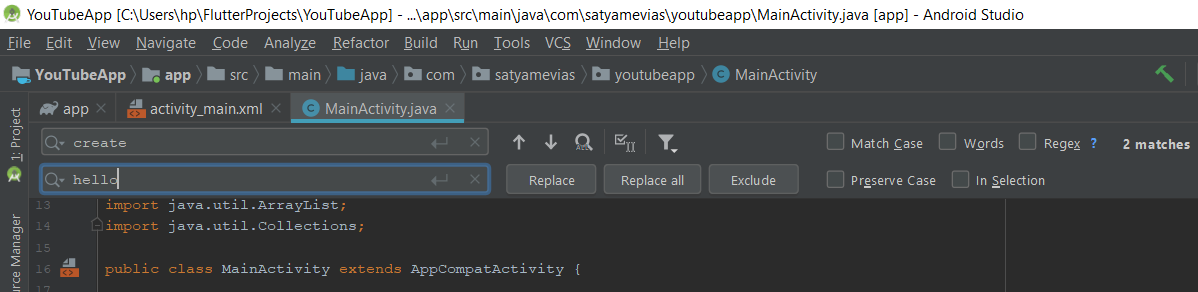
4. Find and replace: In Android studio, if you have declared a variable and want to change the name of the variable everywhere then you can use this command cmd + r for mac and ctrl + r for Windows / Linux as shown in the below image.
5. Build and run: In Android Studio, if we want to build and run your App then you can do that by just clicking on the green triangular button but if want to do that using the keyboard then press shift + F10 in Windows / Linux.

6. Bookmark a line: In Android Studio, we have various lines of code that we may need to check some time later but it is difficult to remember in which file which line of code you are looking for. In that case, you can just bookmark that specific line of code. Make sure your cursor is on that line. And then Ctrl + Shift + (1-9) (Any id between 1 to 9 ).

7. Jump to a Bookmark Line: In Android Studio, If we are searching for our bookmarked line then just press ctrl + id (you have given to that line ) No matter in which file you are currently working on. It will jump to the line you have bookmarked.
8. Remove a Bookmark: Jump to that Bookmark and press (ctrl + shift + id).
9. Comment a line of code: In Android Studio, if we want to comment a line (Basically we comment a line when we may require that part of code again or to explain what we have done is the next part of code). Then we use ctrl + / in Window and Linux.

10. Comment a Block of code: In Android Studio, if we want to comment a block of code (Basically we comment a code when we may require that part of code again or to explain what we have done is the next part of code) then just Highlight the part and press ctrl + shift + /.

11. Opening Tool window: In Android Studio, there are various tool windows for different tasks like Project, Logcat, Run, Todo, etc. We can open these windows by clicking on these buttons. But if we need to open it with the help of the keyboard we need to note the underlined number that is written beside the button.

In the above image, the Number written beside logcat is 6. So, If we have to open logcat then press alt + 6 for Windows and cmd + 6 for mac.
12. Close a current tab: In Android studio, If we want to close a current tab then we need to press cmd + w for mac and ctrl + F4 for Windows or Linux:
13. Hide all windows: In Android studio, If we want to hide all the windows from the background then we just need to press cmd + shift + F12 in mac and ctrl + shift + F12 in Windows or Linux.

14. Finding uses about methods and parameters: For information related to any given method just put the cursor on the required method and then press the ctrl + q in Windows and ctrl + j in Mac. For information about the parameters of any methods, you can press ctrl + p (in both Windows and Mac).
15. Finding Actions: Android Studio has a number of features and it is just impossible for anyone to remember how a particular feature can be activated. So, in order to search these features, use cmd + shift + a for Mac and ctrl + shift + a For Windows.

16. Move Statements up/ down: Inside a function, we can select one or more lines of code and then collectively move all the selected statements up or down by pressing the ctrl + shift + up (to move up) arrow and ctrl + shift + down (to move down) arrow in Windows. In Mac, we use option + shift + up/down
17. Open a class: We create a lot of classes in Android Studio. So, in order to open any classes easily, we can simply use cmd + o for Mac and ctrl + n For Windows.

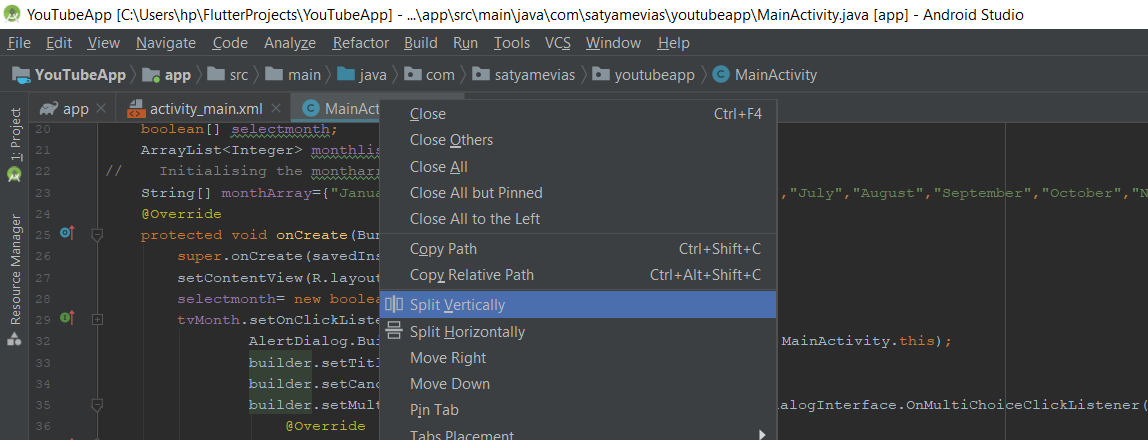
18. Dual Screen: When you need to see upper and lower code in a large class of code at the same time, do that by just using Split Screen. In order to split the window, Right-click on the tab of the file that you want to split and choose from split vertically/horizontally.
19. Copy and paste to the next line: In Android Studio if you want to copy a specific line of code in the next line again and again then, If you are at the end of a line, press ctrl + d as much time as you want to copy that line.

20. Uncomment a Block of code: Highlight the part and press ctrl + shift + /.
Conclusion
Mastering the top tips and tricks of Android Studio can greatly improve your development workflow and make your coding experience more enjoyable and efficient. By incorporating these practices into your routine, you'll be able to take full advantage of Android Studio's capabilities, allowing you to build high-quality apps more quickly and easily. Keep exploring and experimenting with these tips to continuously enhance your skills and productivity.