

PySimpleGUI is a Python library that simplifies the process of creating graphical user interfaces (GUIs). It provides a simple and beginner-friendly API for building desktop applications with minimal code. Instead of writing complex GUI code, developers can create windows, buttons, text boxes, menus and other interface elements using straightforward Python syntax.
Installation
Before using this library, install the library using pip:
pip install PySimpleGUI
After installation, you can import the library and start building GUI applications. PySimpleGUI includes many built-in elements and ready-to-use examples, making it easy to create desktop applications quickly.
Creating First PySimpleGUI Window
After installing PySimpleGUI, you can create a simple GUI application by defining a layout and displaying it inside a window. The following example creates a window with a text label, an input box, and two buttons.
import PySimpleGUI as sg
sg.theme('BluePurple')

layout = [
    [sg.Text('Your typed characters appear here:'),
     sg.Text(size=(15, 1), key='-OUTPUT-')],
    [sg.Input(key='-IN-')],
    [sg.Button('Display'), sg.Button('Exit')]
]

window = sg.Window('Introduction', layout)

while True:
    event, values = window.read()
    print(event, values)

    if event in (None, 'Exit'):
        break

    if event == 'Display':
        window['-OUTPUT-'].update(values['-IN-'])

window.close()
Output

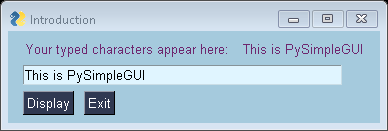
Explanation:
- Sets the application theme to BluePurple.
- Creates a layout containing text, an input field, and two buttons.
- Creates a window using the defined layout.
- Waits for user events using window.read().
- Displays the entered text when the Display button is clicked.
- Closes the window when the Exit button is pressed or the window is closed.
Common PySimpleGUI Elements
PySimpleGUI provides several built-in elements for creating graphical interfaces.
| Element | Description |
|---|---|
| Text | Displays text in the window. |
| Input | Accepts user input. |
| Button | Creates a clickable button. |
| Checkbox | Creates a checkbox. |
| Radio | Creates radio buttons. |
| Combo | Displays a drop-down list. |
| Listbox | Displays a selectable list of items. |
| Image | Displays an image. |
| ProgressBar | Shows task progress. |
| Multiline | Displays a multi-line text box. |
Working with Buttons and Input Fields
Buttons and input fields are the most commonly used elements in PySimpleGUI. The following example takes the user's name and displays a greeting message.
import PySimpleGUI as sg

layout = [[sg.Text("Enter your name:")],
          [sg.Input(key="-NAME-")],
          [sg.Button("Submit"), sg.Button("Exit")]]

window = sg.Window("Greeting App", layout)

while True:
    event, values = window.read()

    if event in (sg.WIN_CLOSED, "Exit"):
        break

    if event == "Submit":
        sg.popup(f"Hello, {values['-NAME-']}!")

window.close()
Output


Explanation:
- Creates a text label and an input field.
- Reads the entered name.
- Displays a popup message when Submit is clicked.
- Closes the application when Exit is pressed.
Using Checkboxes and Radio Buttons
PySimpleGUI provides checkboxes and radio buttons to collect user selections.
import PySimpleGUI as sg

layout = [[sg.Checkbox("Python", key="-PY-")],
          [sg.Radio("Beginner", "LEVEL", default=True), sg.Radio("Advanced", "LEVEL")],
          [sg.Button("Show"), sg.Button("Exit")]]

window = sg.Window("Selection Example", layout)

while True:
    event, values = window.read()

    if event in (sg.WIN_CLOSED, "Exit"):
        break

    if event == "Show":
        sg.popup(values)

window.close()
Output


Explanation:
- Creates a checkbox and radio buttons.
- Reads the selected options.
- Displays the selected values in a popup.
Creating a Drop-Down List
A Combo element allows users to choose one value from a list.
import PySimpleGUI as sg

layout = [[sg.Text("Select a programming language")],
          [sg.Combo(["Python", "Java", "C++", "JavaScript"], default_value="Python", key="-LANG-")],
          [sg.Button("Show"), sg.Button("Exit")]]

window = sg.Window("Combo Example", layout)

while True:
    event, values = window.read()

    if event in (sg.WIN_CLOSED, "Exit"):
        break

    if event == "Show":
        sg.popup("Selected:", values["-LANG-"])

window.close()
Output


Explanation:
- Creates a drop-down list.
- Allows the user to select one option.
- Displays the selected value in a popup.
Selecting a File
PySimpleGUI includes built-in dialogs for selecting files and folders.
import PySimpleGUI as sg

layout = [[sg.Input(), sg.FileBrowse()],
          [sg.Button("Exit")]]

window = sg.Window("File Browser", layout)

while True:
    event, values = window.read()

    if event in (sg.WIN_CLOSED, "Exit"):
        break

window.close()
Output


Explanation:
- Opens the system file browser.
- Displays the selected file path in the input field.
- Eliminates the need to create custom file dialogs.
Displaying Popup Messages
Popup windows are useful for displaying messages, warnings, or notifications.
import PySimpleGUI as sg
sg.popup("Welcome to PySimpleGUI!", title="Information")
Output

Explanation:
- Displays a simple popup window.
- Shows a custom title and message.
Advantages
- Beginner-Friendly: Uses simple Python syntax, making it easy to learn and build GUI applications.
- Less Code: Requires fewer lines of code than many traditional GUI frameworks, speeding up development.
- Ready-to-Use Elements: Provides built-in GUI components such as buttons, text boxes, input fields, tables, and images.
- Cross-Platform Support: Supports multiple GUI backends, including Tkinter, Qt, WxPython and Remi, allowing applications to run on different platforms.
Applications
- Desktop Applications: Create simple desktop software with an interactive graphical interface.
- Login and Registration Forms: Design user authentication forms with text fields, buttons, and validation.
- File Management Tools: Build applications for selecting, opening, and saving files or folders.
- Data Entry Forms: Develop forms to collect and process user input efficiently.
- Dashboards: Create simple dashboards to display data, charts, or application status.
- Automation Utilities: Build GUI-based tools to automate repetitive tasks and system operations.