

ImageIO is an open-source Python library for reading and writing images, videos, animated GIFs, and scientific image formats. It provides a simple and consistent API for working with multimedia files and supports a wide variety of file formats, making it useful for image processing, computer vision, and data visualization tasks.
Installation
Before using this library, install it using pip in command prompt or terminal:
pip install imageio
Read an Image
ImageIO provides the imread() function to read image files. The image is loaded as a NumPy array, allowing it to be processed using NumPy or other image processing libraries.
Syntax:
imageio.v3.imread(uri, *, index=None, plugin=None)
Parameters:
- uri: Path or filename of the image.
- index (Optional): Specifies which image/frame to read from multi-image files such as GIFs or TIFFs.
- plugin (Optional): Specifies the backend plugin used to read the file.
Returns: A NumPy array containing the image data.
import imageio.v3 as iio
image = iio.imread(r"C:\Users\gfg0753\rose.jpg")
print(image.shape)
Output
(148, 260, 3)
Explanation:
- Imports the ImageIO library.
- Reads the image using iio.imread().
- Prints the shape of the image in the format (height, width, channels).
Read Frames from a GIF
ImageIO can also read animated GIFs. You can either load all frames at once or access individual frames using the index parameter.
import imageio.v3 as iio

frames = iio.imread(r"C:\Users\gfg0753\animation.gif")
print("Total Frames:", frames.shape[0])

first_frame = iio.imread(r"C:\Users\gfg0753\animation.gif", index=0)
print(first_frame.shape)
Output
Total Frames: 16
(300, 354, 4)
Explanation:
- Reads all GIF frames into a NumPy array.
- Prints the total number of frames.
- Reads the first frame separately using the index parameter.
Write an Image
The imwrite() function saves a NumPy array as an image file. This is useful when creating or modifying images programmatically.
Syntax:
imageio.v3.imwrite(uri, image, *, plugin=None, extension=None)
Parameters:
- uri: Path where the image will be saved.
- image: NumPy array containing the image data.
- plugin (Optional): Specifies the backend plugin.
- extension (Optional): Specifies the output image format.
Example: The example below creates a simple black image using NumPy and saves it as a PNG file.
import imageio.v3 as iio
import numpy as np

image = np.zeros((200, 200), dtype=np.uint8)
iio.imwrite("black_image.png", image)
print("Image saved successfully.")
Output
Image saved successfully.
Explanation:
- Creates a 200 × 200 NumPy array filled with zeros.
- Saves the array as an image using iio.imwrite().
- Stores the image in the current working directory.
Read an Image from a URL
ImageIO can read images directly from a URL without downloading them manually. This is useful when processing images available online.
import imageio.v3 as iio
image = iio.imread("https://upload.wikimedia.org/wikipedia/commons/3/3f/Fronalpstock_big.jpg")
print(image.shape)
Output
(4542, 10109, 3)
Display an Image Using Matplotlib
After reading an image, it can be displayed using the Matplotlib library.
import imageio.v3 as iio
import matplotlib.pyplot as plt

image = iio.imread("rose.jpg")

plt.imshow(image)
plt.axis("off")
plt.show()
Output

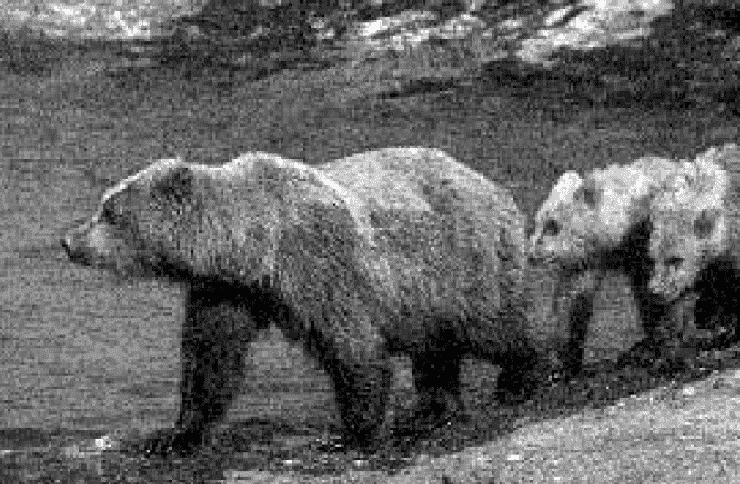
Convert an Image to Grayscale
ImageIO reads images as NumPy arrays, making it easy to manipulate pixel values.
import imageio.v3 as iio
import numpy as np

image = iio.imread("bear.jpg")
gray = np.mean(image[:, :, :3], axis=2).astype(np.uint8)
iio.imwrite("bear2.png", gray)
print("Grayscale image created.")
Output
Grayscale image created.
Supported Image Formats
ImageIO supports many commonly used image and multimedia formats.
- PNG: Portable Network Graphics
- JPEG/JPG: Standard compressed images
- BMP: Bitmap images
- GIF: Animated and static GIFs
- TIFF: High-quality images
- WebP: Modern compressed image format
- MP4: Video files (with plugins)
- AVI: Video files (with plugins)
Advantages
ImageIO offers several features that make it suitable for image and video processing.
- Supports a wide range of image and video formats.
- Simple and consistent API.
- Returns images as NumPy arrays.
- Cross-platform and open source.
- Integrates well with NumPy, Pillow, OpenCV, and Matplotlib.