

OpenCV is one of the most popular computer vision libraries. If you want to start your journey in the field of computer vision, then a thorough understanding of the concepts of OpenCV is of paramount importance.
In this article, to understand the basic functionalities of Python OpenCV module, we will cover the most basic and important concepts of OpenCV intuitively:
- Reading an image
- Extracting the RGB values of a pixel
- Extracting the Region of Interest (ROI)
- Resizing the Image
- Rotating the Image
- Drawing a Rectangle
- Displaying text
This is the original image that we will manipulate throughout the course of this article.
.jpg)
Let’s start with the simple task of reading an image using OpenCV.
Installation
For the implementation, we need to install the OpenCV library using the following command:
pip install opencv-python
Reading an Image
First of all, we will import cv2 module and then read the input image using cv2’s imread() method. Then extract the height and width of the image.
import cv2

image = cv2.imread('image.jpg')
h, w = image.shape[:2]
print("Height = {}, Width = {}".format(h, w))
Output
Height = 1603, Width = 2400
Extracting the RGB Values of a Pixel
Now we will focus on extracting the RGB values of an individual pixel. OpenCV arranges the channels in BGR order. So the 0th value will correspond to the Blue pixel and not the Red.
(B, G, R) = image[100, 100]
print("R = {}, G = {}, B = {}".format(R, G, B))

B = image[100, 100, 0]
print("B = {}".format(B))
Output
R = 211, G = 172, B = 165B = 165
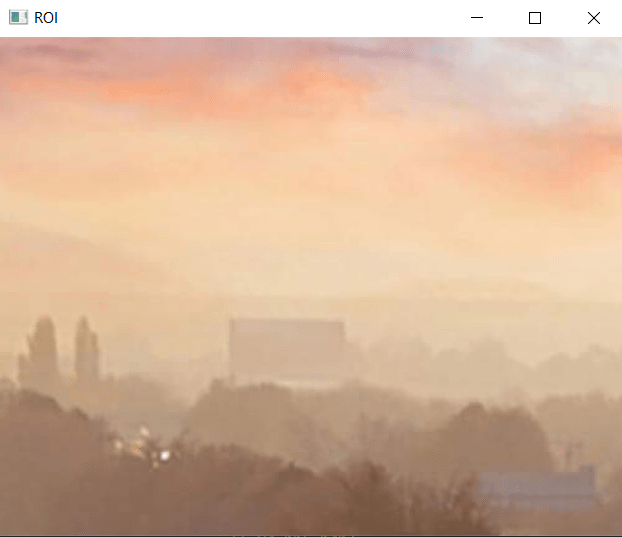
Extracting the Region of Interest (ROI)
Sometimes we want to extract a particular part or region of an image. This can be done by slicing the pixels of the image.
roi = image[100 : 500, 200 : 700]
cv2.imshow("ROI", roi)
cv2.waitKey(0)
Output
Resizing the Image
We can also resize an image in Python using resize() function of the cv2 module and pass the input image and resize pixel value.
resize = cv2.resize(image, (500, 500))
cv2.imshow("Resized Image", resize)
cv2.waitKey(0)
Output

Rotating the Image
The problem with this approach is that the aspect ratio of the image is not maintained. So we need to do some extra work in order to maintain a proper aspect ratio.
ratio = 800 / w
dim = (800, int(h * ratio))

resize_aspect = cv2.resize(image, dim)
cv2.imshow("Resized Image", resize_aspect)
cv2.waitKey(0)
Output

Drawing a Rectangle
We can draw a rectangle on the image using rectangle() method. It takes in 5 arguments:
- Image
- Top-left corner co-ordinates
- Bottom-right corner co-ordinates
- Color (in BGR format)
- Line width
output = image.copy()
rectangle = cv2.rectangle(output, (1500, 900), (600, 400), (255, 0, 0), 2)
Output

Displaying text
It is also an in-place operation that can be done using the putText() method of OpenCV module. It takes in 7 arguments:
- Image
- Text to be displayed
- Bottom-left corner co-ordinates, from where the text should start
- Font
- Font size
- Color (BGR format)
- Line width
output = image.copy()
text = cv2.putText(output, 'OpenCV Demo', (500, 550), cv2.FONT_HERSHEY_SIMPLEX, 4, (255, 0, 0), 2)
Output
