
Creating relational tables in Excel allows us to connect multiple datasets using common fields, enabling seamless data analysis across tables like Orders and Customers.
Benefits of Relational Tables
- Connected Data: Links tables via common fields (e.g., Customer_ID) for integrated analysis.
- Reduced Redundancy: Avoids duplicating data across sheets.
- Dynamic Reporting: Powers PivotTables to aggregate data from multiple tables.
- Scalability: Handles large datasets within Excel’s Data Model.
Prerequisites
- Power Pivot Enabled: Ensure Power Pivot is enabled (File > Options > Add-ins > COM Add-ins > Microsoft Office Power Pivot) for Data Model functionality.
- Table Format: Datasets must be formatted as Excel tables (Insert > Table).
- Common Fields: Tables must share a column (e.g., Customer_ID) with matching data types and unique values in the primary table.
Example Scenario: Summarizing Sales by Customer
We’ll create two tables: Orders (Customer_ID, Product, Sales_Channel, Cost) as the master table and Customers (Customer_ID, Name, Country) as the detail table. The goal is to summarize total cost by customer name using a relationship on Customer_ID.
Table 1: Order table: We create an order table with fields customer_id, Product, sales channel, and Cost.

Table 2: Customer table: We create a customer table with fields customer_id, Name, and country.

Create both tables in excel either in the same sheet or as a separate file.
Method 1: Creating Relational Tables with a Pivot Table
This methods uses a pivot table and the data model to create and manage relationships.
Step 1: Go to the insert tab at the top of the ribbon and then Select PivotTable.

Step 2: "Create pivot table" dialog box appears. Here select the orders table in the first selection. (Here we have selected the range in our datasheet). Make sure to check the "add this data to the data model" field and then click OK.

Step 3: Do the same process for the customer table. Visualize the pivot table fields and go to "All view". Both tables will be displayed. Here we have selected from the ranges so range name (range 2, range 3 in our case) will be displayed.

Step 4: To build a pivot table, select the name from the Customers table. Place it in the Rows area. We can either check the mark by expanding the table or dragging the field to the rows area. Select cost from the Orders table. Place it in the Values area.

Step 5: Pivot the table fields pane showing the notice that "Relationship between the tables is needed". There are two options available:
- We can create the relationship between tables.
- Let the excel guess by clicking on "Auto Detect".

Step 6: In Auto Detect, excel will create a relationship. Click on "manage relationship" to check. By clicking on "Auto Detect," simple associations with smaller tables and consistent field names may be built automatically. Once done, click on the close button.

Step 7: The pivot table so created will have the customer name from the customer's table and the total cost from the orders table.

If we want to create a relationship by ourselves, without letting excel do the auto-creation, click on the create button in the pivot table fields.
Step 8: It will open the edit relationship menu. Select the table containing orders as the main Table. ("range" in our case). Select Customer_id for the Column (Foreign). Select the table containing Customers as the Related Table. ("range1" in our case). Select Customer_id as the Related Column (Primary). Click ok to finish the relationship creation.

The pivot table so created will have the customer name from the customer's table and the total cost from the orders table.
Method 2: Creating a Relationship between Two Tables
Before creating a pivot table, we can create a relationship between two tables as shown:
Step 1: Go to the Data tab on the top of the ribbon and then to the data tools group. Click on the relationships button.

Step 2: This will open the relationships manage dialog box. All the existing relationships will be displayed with "active" status. We can perform all the options viz. edit, activate, deactivate, delete, auto-detect, etc.
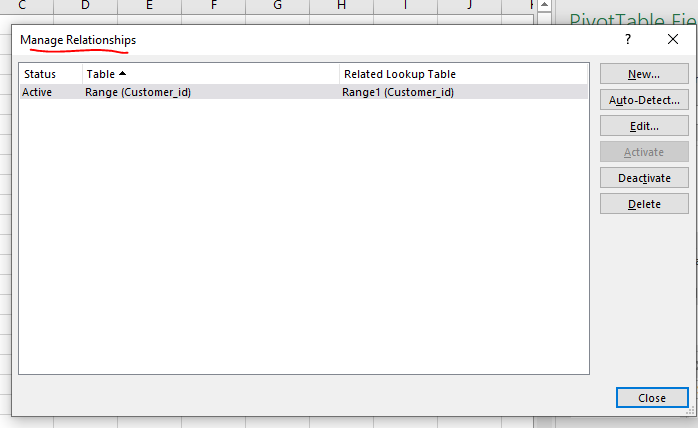
Step 3: Once done, click on close. This will create a table having a similar customer_id from both tables. It will display the customer's name from the customer's table and the total cost from the orders table.