

Claude Design is Anthropic's AI-powered design workspace available through claude.ai/design and the Claude Desktop app. It provides a split-screen interface where you can create designs using AI while viewing the results in real time. Unlike traditional AI design tools, it can work with your existing brand assets, such as code, fonts, and design guidelines, making it easier to create designs that are ready for production.
Step-by-Step Guide
Before exploring the features of Claude Design, let's first learn how to use it. The following steps will guide you through creating your first design using Claude Design.
Step 1: Open Claude Design
- Open Claude in your web browser or launch the Claude Desktop or mobile app.
- Sign in to your Anthropic account.
- Click New Chat to start a new conversation.
- Select the Design option (palette icon) from the left sidebar.
The Claude Design workspace will open, allowing you to start creating designs.

Step 2: Describe Your Design
Describe the design you want to create using simple, natural language. You do not need any design experience or technical terms. For example:
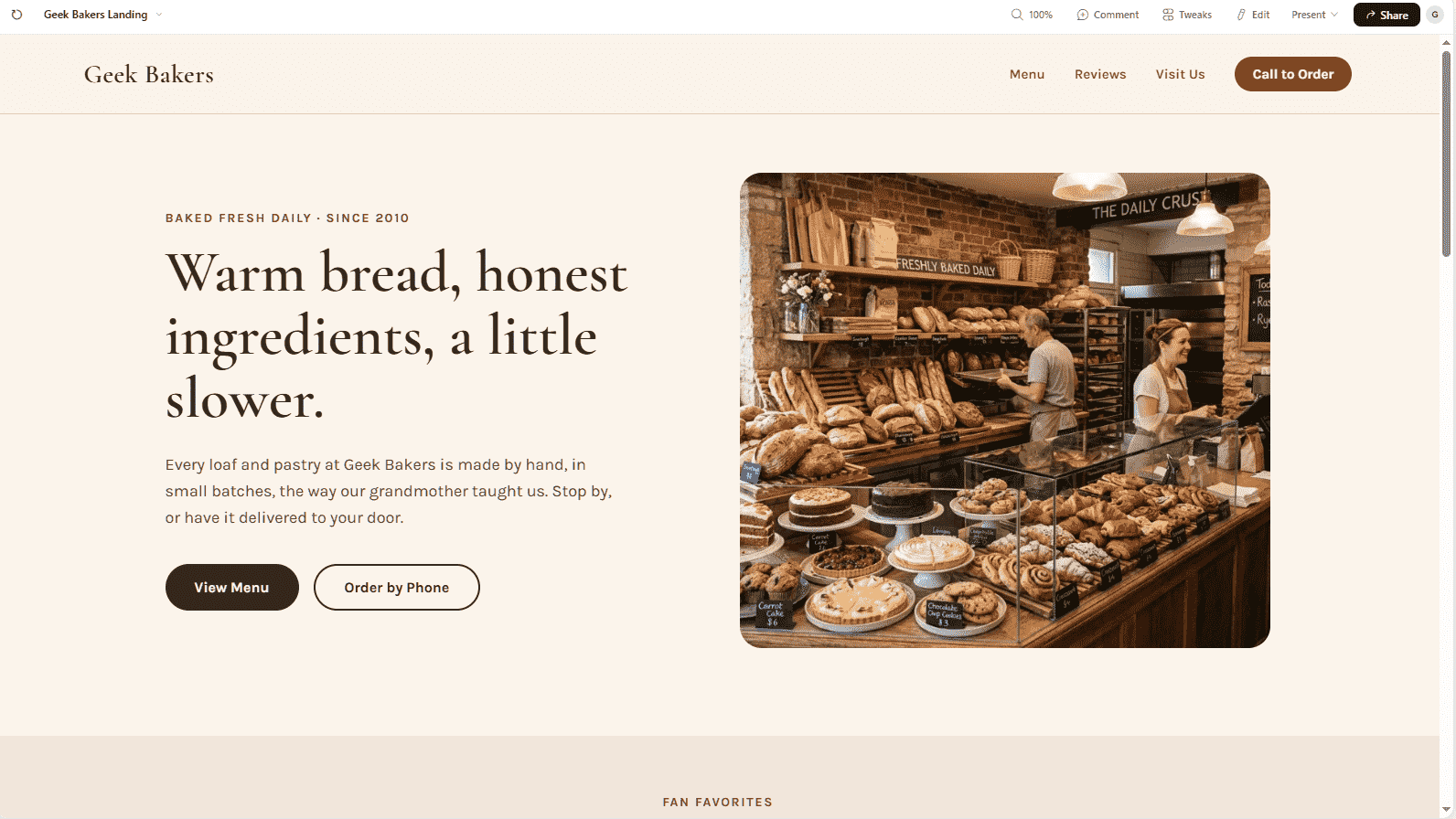
"Design a landing page for a small bakery with a warm and inviting look. Use soft cream and brown colors, and include sections for the menu and online orders."
Claude may either generate an initial design or ask a few follow-up questions to better understand your requirements.

Step 3: Provide Supporting Resources
Upload any resources that can help Claude create a more accurate design. These may include:
- Images or product photos
- Company logos
- Text content
- Brand guidelines
- Reference designs or inspiration
For example, if you are designing a bakery website, upload your bakery logo, product images, and any content you want to include on the webpage. Claude will use these resources while generating the design.
Step 4: Preview and Test the Design
Review the generated design in the preview panel and interact with it to check its functionality.
- Click buttons and links.
- Resize the preview window.
- Test the layout and navigation.
If something does not look or work as expected, you can refine it in the next step by giving Claude additional instructions.


Step 5: Refine the Design
You can improve the design by giving Claude additional instructions.
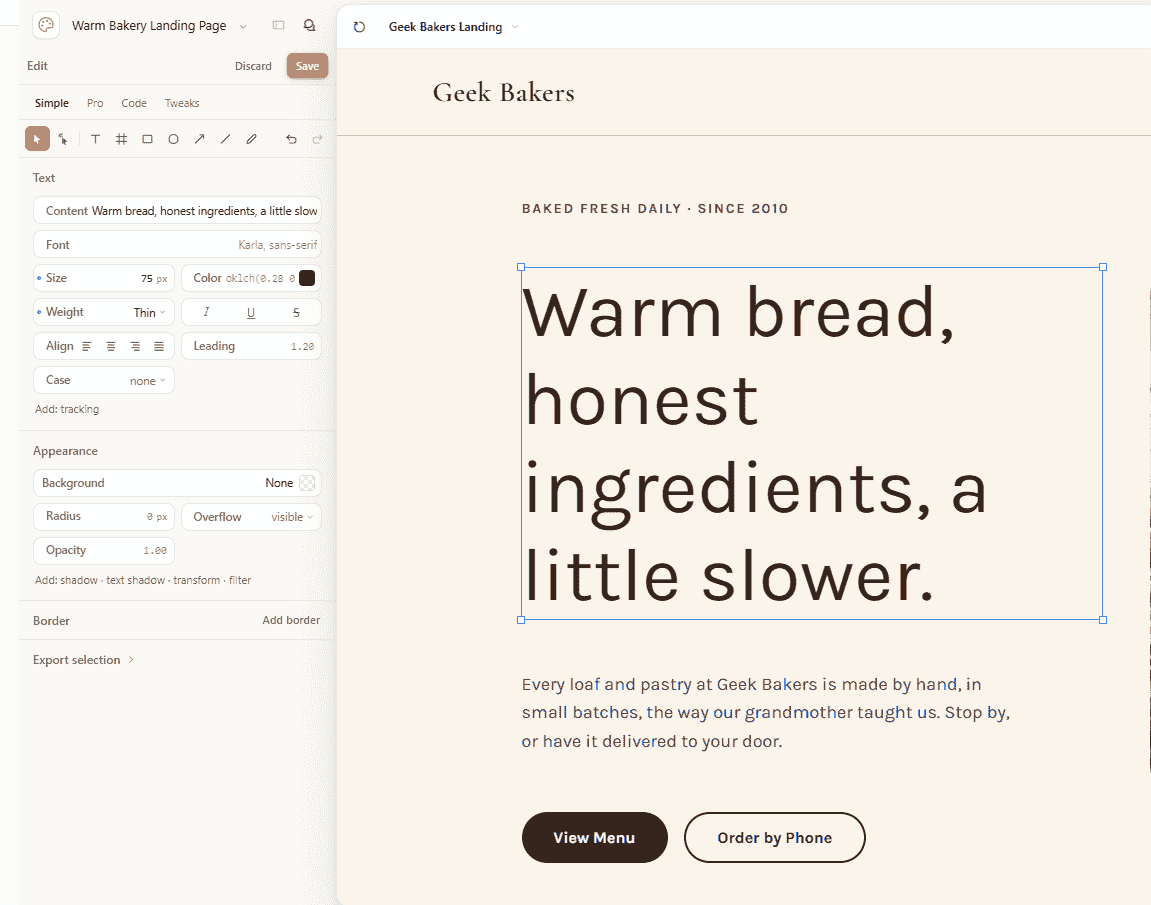
- Click the Edit option in the preview.
- Enter the changes you want to make in the sidebar.
For example:
"Increase the spacing between the heading and the button, and make the heading 20% larger."
You can also select a specific section in the Code View and ask Claude to modify only that part, allowing you to make targeted changes without affecting the rest of the design.
Step 6: Export or Share the Design
Once you are satisfied with the design, you can export or share it.
- Click Share or Export in the top-right corner to download or share your design.
- Use Presenter View to display the design as a presentation.
- You can also continue refining the design at any time by returning to the chat.
Best Practices
Creating a good design is an iterative process. Instead of trying to build a perfect design in a single prompt, improve it step by step.
1. Create the Layout: Start by focusing only on the page structure without worrying about colors or styling. For example:
"Create a wireframe for a language-learning app landing page with placeholder text and a focus on user signups."
This helps establish a clear layout and visual hierarchy.
2. Apply the Visual Style: Once the layout is finalized, add colors, fonts, branding, and other design elements. For example:
"Apply the brand colors, use a neutral background, and highlight the primary call-to-action button."
3. Add Interactions: Finally, enhance the design with animations and interactive elements. For example:
"Add hover effects to buttons and smooth fade-in animations when the page loads."
Tip: Building your design in layers makes it easier to review, refine, and improve each part without affecting the overall layout.
Give Clear and Specific Feedback
When refining designs in Claude Design, specific feedback leads to better results. Instead of using general statements, describe the exact changes you want to make.
| Avoid | Use Instead | What You Learn |
|---|---|---|
| Make it look cleaner. | Increase the card padding and reduce the body text font weight. | How spacing and font weight improve readability. |
| The page feels busy. | Improve the visual hierarchy by making the primary button larger and reducing emphasis on secondary elements. | How to guide user attention. |
| It feels boring. | Add subtle hover effects to navigation links and light shadows to cards. | How motion and depth improve interface quality. |
| The colors are off. | Increase the contrast between text and background to improve readability. | How accessibility affects usability. |
Using precise feedback helps Claude understand your design goals and make targeted improvements.
Limitations
Claude Design is a helpful design assistant, but it has some limitations:
- No user understanding: It cannot replace real user research or feedback.
- May create generic designs: Better results require multiple iterations and refinements.
- Accessibility needs review: Always check aspects like color contrast, keyboard support, and screen readers.
- Does not replace design skills: Knowledge of typography, colors, and UX principles is still important.
Claude works best as a design partner that assists with ideas and execution, while human judgment guides the final result.