How to Use a Business Dashboard: 7 Things Worth Doing First
Seven parts of the Stackedo dashboard, what each one actually does, and the order I'd set them up in.Somewhere on your laptop right now there's a spreadsheet with a dozen leads in it. Odds are a few of them have gone cold. You could probably name which ones if you thought about it for a second, and you've been meaning to email at least two of them since last month.
That spreadsheet works... fine. So does your notes app, and the invoice template you keep re-downloading, and the chat window where you ask AI what to do next. For a solopreneur, it's a "solution". The trouble is that none of them work together like they should, so remembering what's due, who needs a follow-up, and what project needs your attention falls entirely on you. It worked decently when you were in startup mode. Now it's a daily battle.
Most of the money lost in a one-person business happens because of poor follow up.
The team and I built the Stackedo dashboard to solve our own problem. No more 'thousand' tabs, no more disconnected tools, no more terrible follow up with clients and vendors. Want to see what you should do first the moment you open your own Stackedo dashboard? This is for you.
Haven't started your own Stackedo dashboard? Get 14 days of full access free, no card needed.
Open the Stackedo Dashboard →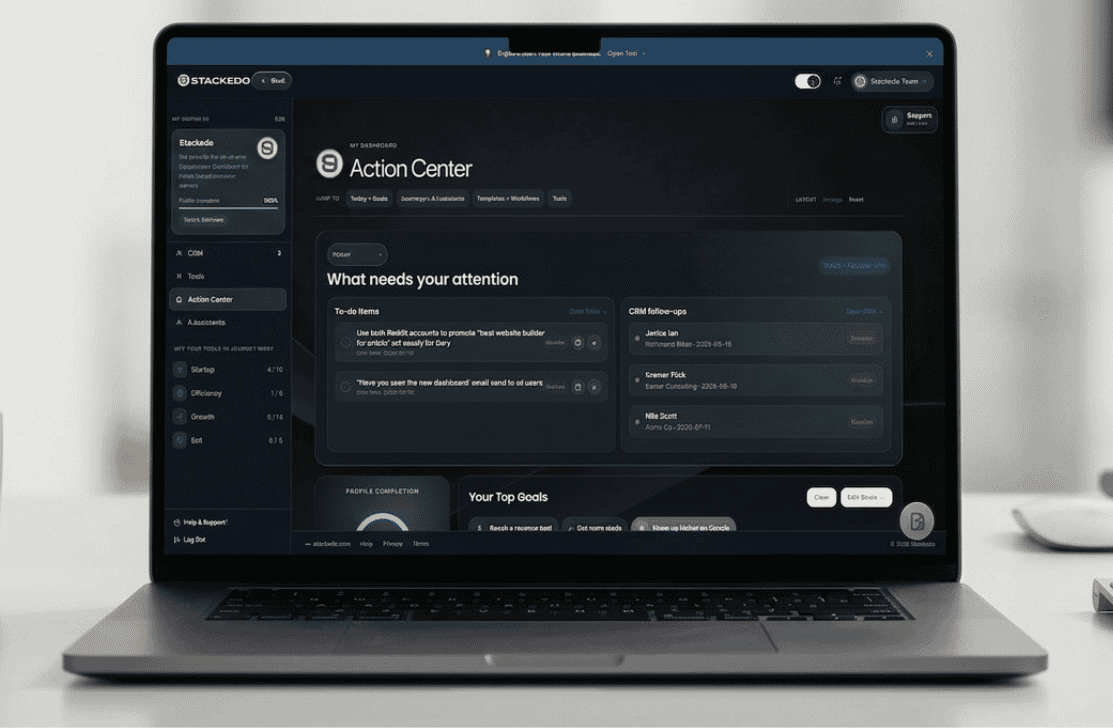
1. Start every day with the Action Center
Starting with emails or missed calls is a quick way to start your workday in 'react' mode. It means most things that day likely won't get your best because you're putting out fires from the start. The Action Center is for getting off on the right foot every morning, helping you knock out exactly what you planned first.
What is the Action Center? It shows you four things: to-do items planned for today (or overdue), important client follow-ups, your top goals, and dashboard resources to help bring those goals across the finish line. The whole page is clean, organized, and built to help you be as effective as possible when kicking off the workday.
Worth knowing: Want to switch the order of the panels? It's easy to drag any card so you can personalize what matters most to you in your Action Center.

2. Let the CRM handle the follow-ups
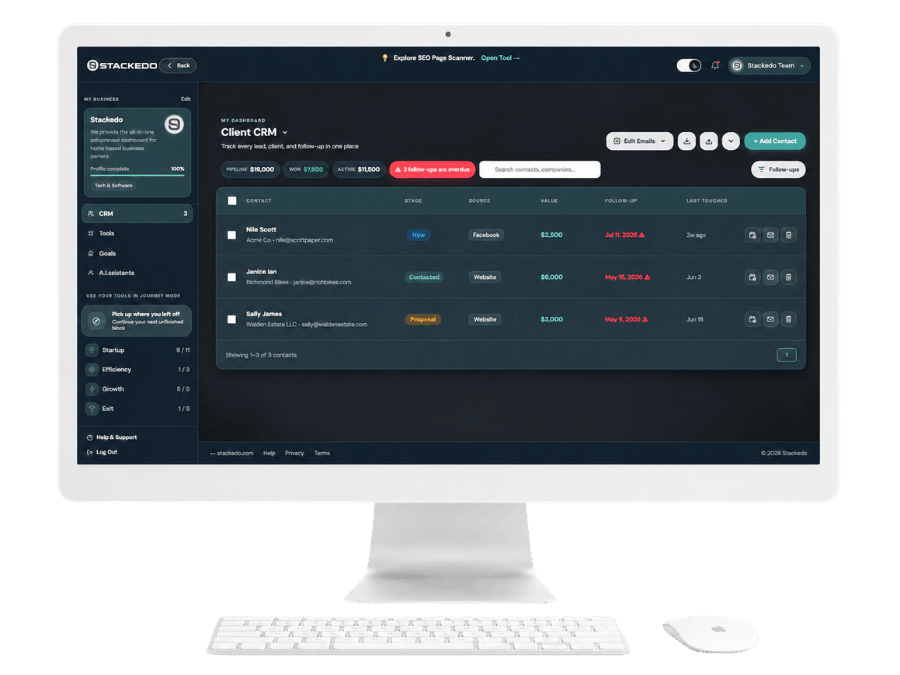
Here's how it usually goes with a spreadsheet. You add a lead, type "follow up next week" into a cell, and then next week shows up full of its own fires to solve. By the time you check back, you're 'facepalming' about all the follow-ups you missed.
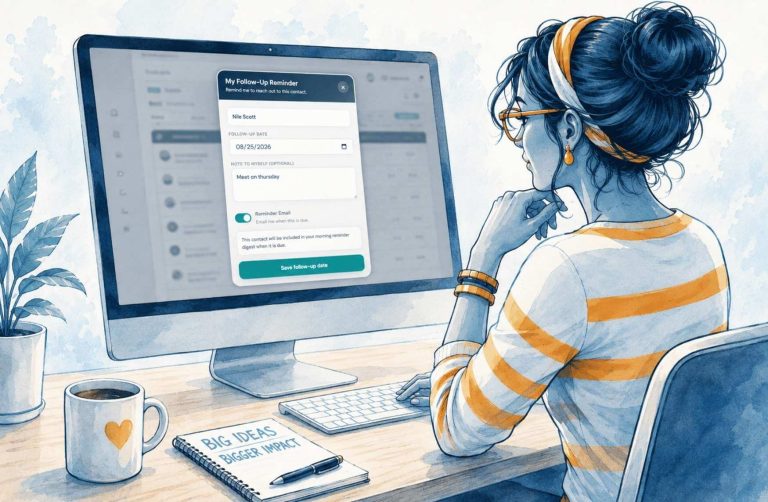
In the CRM, setting a follow-up date takes seconds and pays dividends. Not only do you see it when you open the dashboard, you get email reminders and even an overdue alert so you can stay on it. THIS feature is your money maker.
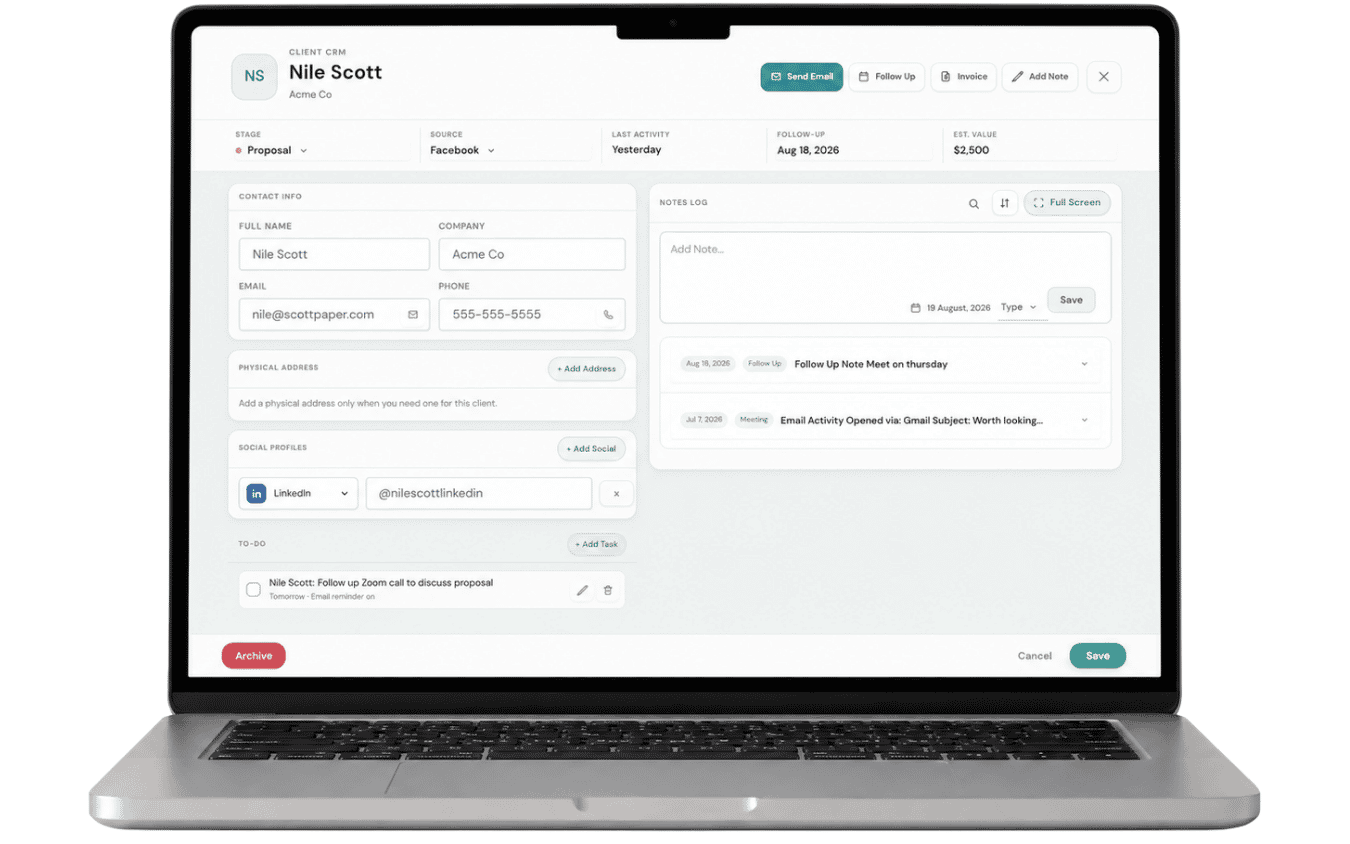
How easy is it to update a contact? Just click any contact's name and you get their full record on one screen. Pipeline stage sits at the top left, and moving someone from Contacted to Proposal to Won updates your pipeline, won, and active totals automatically. Underneath that you've got social profiles, tasks, dated notes from every conversation, and the email tools.
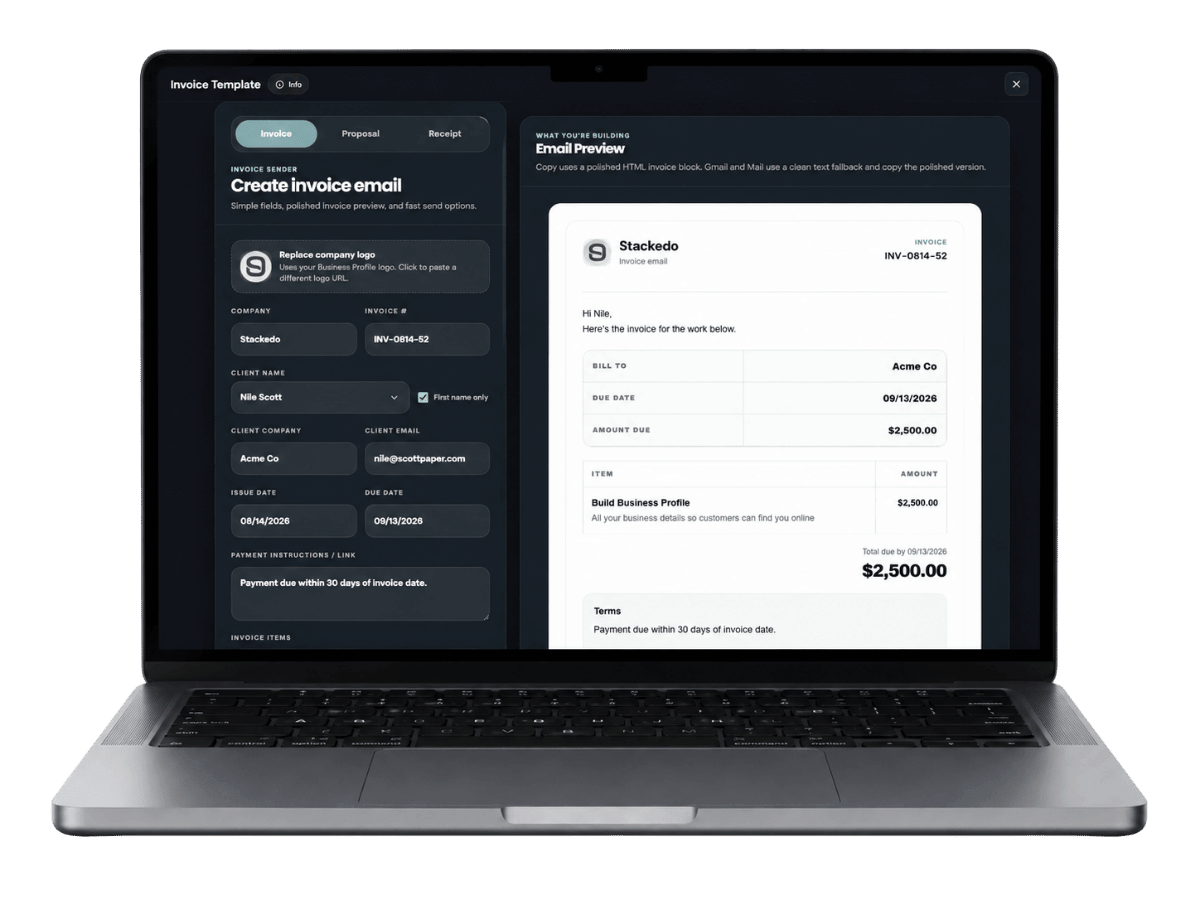
3. Invoice straight from the CRM
Someone says 'yes' on a Thursday afternoon. Between that and getting paid there's usually twenty minutes of digging through old files, copying last quarter's invoice, and retyping details you already have written down somewhere.
The invoice button sits right next to the contact. Click it and their name and email are already filled in. Add the amount, paste your payment link, send. The same tool covers proposals and receipts, all carrying your logo, so everything a client receives from you looks like it came from the same business.
Small thing that pays off later: because the invoice starts from their record, it stays attached to their history. Next spring, when you're trying to remember what you charged them, you'll find it in about four seconds.

4. Task Manager (the daily helper)
The Task Manager lives in the bottom right corner throughout the dashboard (as a shortcut, it also opens from anywhere with Alt + A). Easy to find, which is a good thing because nearly every user opens it daily.
Not only can you add essential tasks for yourself (making a post for the blog, updating the CTA on your homepage, doing the budget, etc.), but it also connects to your CRM and Projects (see #5). It's easy to use and intuitive. You can write: Call Sally James on Monday about the proposal. and the Task Manager will automatically set the date to Monday and attach the task to Sally in your CRM contacts. If you need to change the date, it's as easy as changing it with a click or changing the day in the task title.
Need certain tasks to repeat? You can easily make tasks repeat on a schedule for the weekly and monthly stuff, have them send you email reminders, and even connect them to a project. Got a long list of to-dos sitting in a text file somewhere? Paste the whole thing in and every line becomes its own task in seconds.
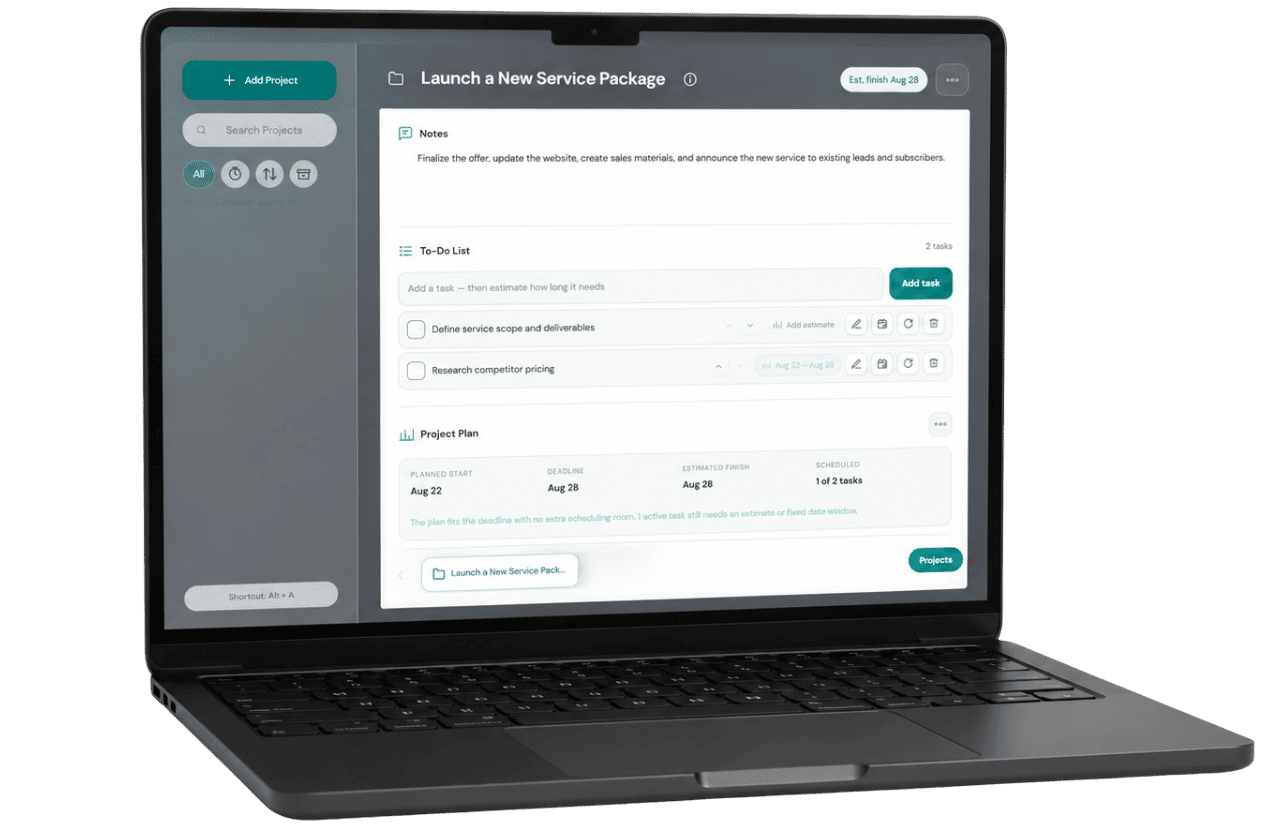
5. Use Projects for bigger items with deadlines
A to-do list is great for a one-off or a common daily task. But what about when you're planning your whole SEO strategy? Or writing an e-book? Or completing a large website redesign for a client?
Projects lets you organize and even plan a series of tasks with a clean, easy interface. It sits next to Tasks in the same panel. A project holds its own to-do list plus the ability to coordinate all tasks within a deadline. It's a great way to ensure you're on track based on what items are getting checked off. The good news is if a week gets away from you (which happens to all of us), hit Replan and your project's schedule rebuilds your timeline to help keep you on track.
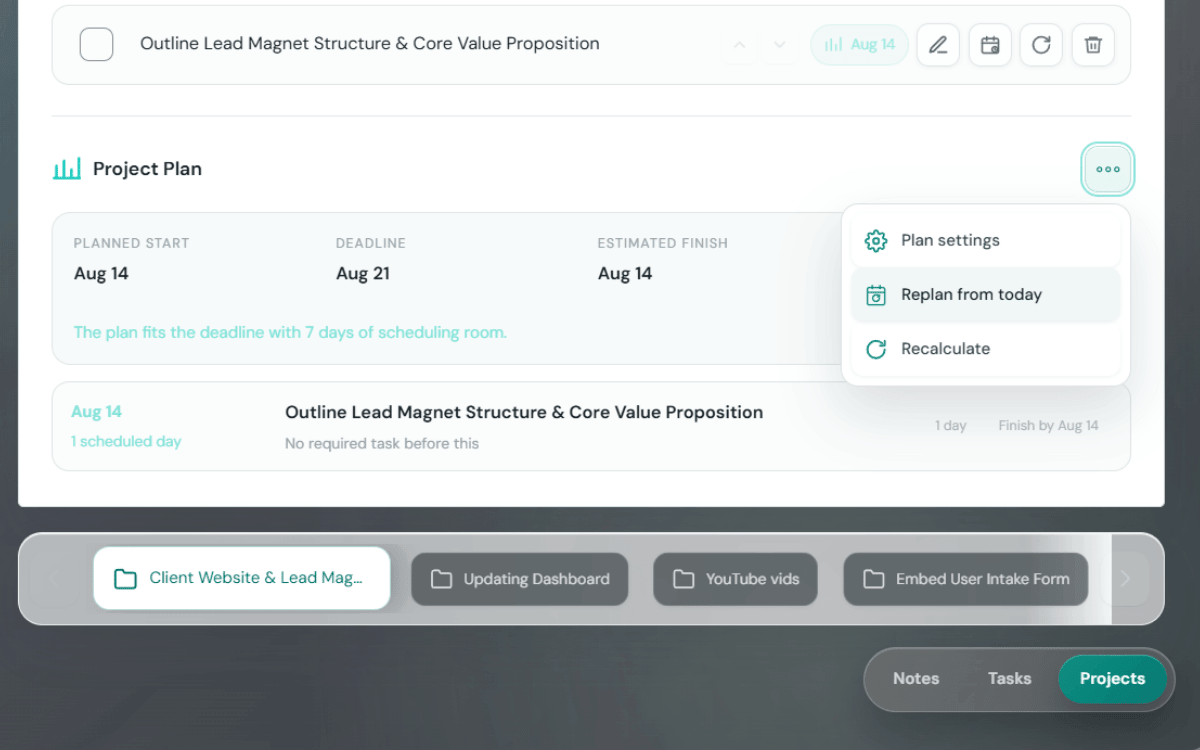
All of your project tasks will also appear in Task Manager and the Action Center, making it not only easier to keep your work connected, but also to manage your workday.
What are Notes? Task Manager and Projects share a panel with Notes, which is where you can put ideas before they're ready to be developed—or even just keep important text you don't want to lose.

6. Starting a small business? Use Journey Mode.
If someone asked me what separates this from a folder full of apps, I'd point here.
Journey Mode organizes the dashboard's tools into guided paths that run from starting up all the way through eventually selling the business. The paths are named for what you're trying to accomplish: Make Your Offer Easier to Buy, Building a Website That Converts, Making Your Business More Efficient, Generating Leads, setting a revenue goal you can actually hit.
Every lesson hands you a tool and has you use it. You finish a journey holding a real page map or a real offer or a real launch checklist, saved in your account, ready to use.
What do these Journeys look like?
Journey 01
Starting Your Business
The startup path is the one most people open first. Lessons run in order down the left, your progress saves as you go, and you can stop mid-journey on a Tuesday and pick it back up two weeks later without losing your place.

The Startup Journey main screen — lessons in order, with your progress saved as you work through them.
Journey 02
Setting a Real Revenue Goal
Most revenue goals start with a number someone picked because it sounded good. This one works backward instead: what you want to earn, what you charge, and how many clients that actually requires. The planner is built into the lesson, so you're not reading about the math, you're doing it with your own numbers.
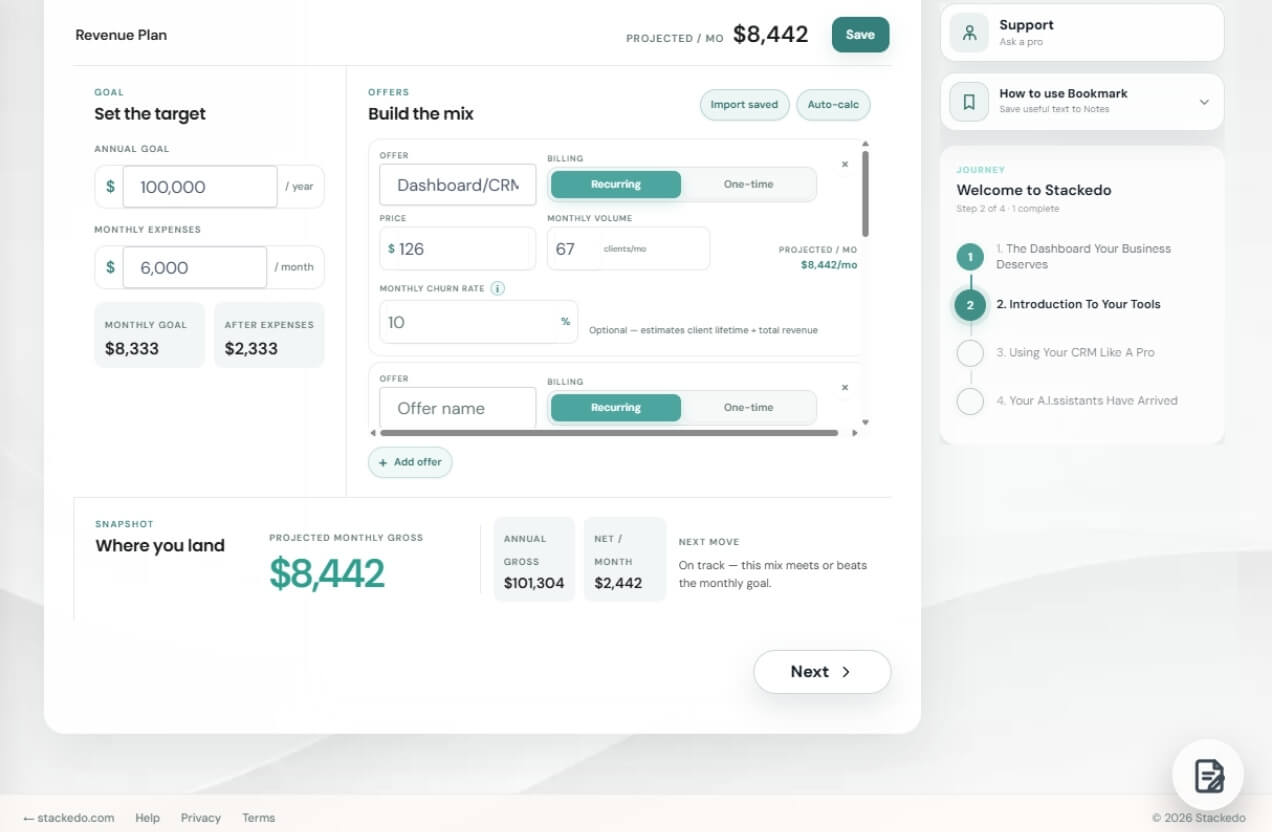
The revenue planner sits right inside the lesson — you fill it in and the result saves to your account.
Whatever you build in a lesson stays in your account. Come back next quarter, change one number, and the plan updates.
Journey 03
Building a Website That Converts
It opens by asking what your website is even for, which is a question most people skip and then regret. From there it walks you through mapping your pages and menu, writing a homepage that converts, and getting found by search and AI.
Each step hands you the tool for that job. The Page and Menu Planner. The platform matcher, with real first-year costs for nine different setups. The 41-item pre-launch checklist that flags hard blockers before you go live.
You come out with a website plan, not a certificate.
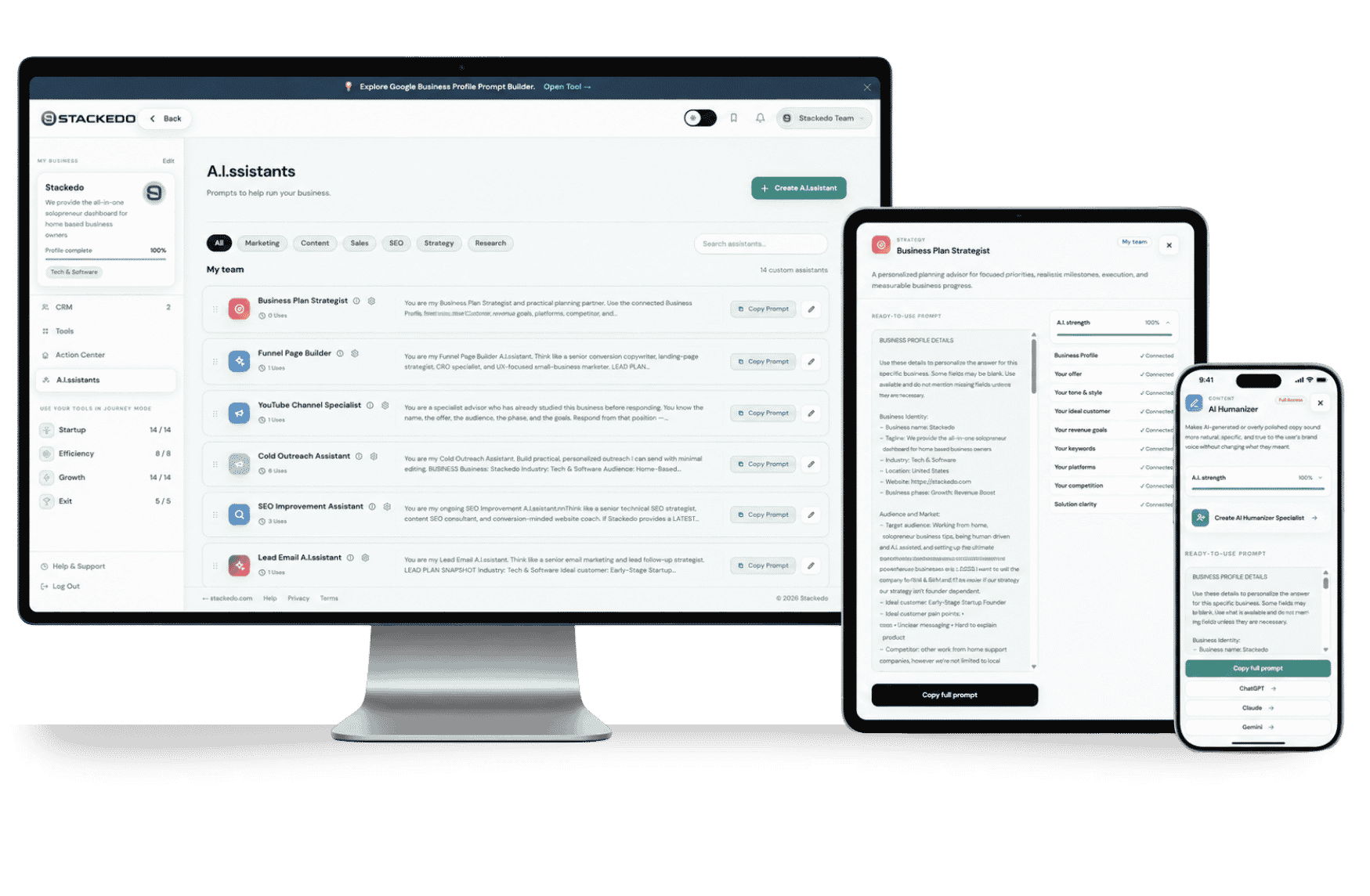
7. A.I.ssistants are your life-saving AI tools
We are huge believers that every business, no matter if it's massive or a small business being run from home, should be human driven, AI assisted. Humans make the calls, have the vision, provide the experience, shape the offer, etc. AI? Just tools in the toolbox to help boost your business when needed.
How to use A.I.ssistants? The dashboard already carries your business details: your offer, your price, who you sell to, what you're trying to earn this year. Just open any A.I.ssistant for a fresh prompt and hit Copy. Then paste it into whatever AI you prefer, and what comes back is about your business and focus. You're using the same AI as before. It's just armed with the context you'd otherwise be retyping or refining every session.
Think of it as having a prompt engineer on the team.
Start with four minutes
Fill in your business profile, pick your goals, and put your three warmest leads into the CRM with follow-up dates on them. That's the whole first sitting. Everything else in here gets more useful once the dashboard knows what you sell and what you're aiming at.
It's easy to get started. Get 14 free days on us, then it's just $10 a month for this powerful (yet easy-to-use) small business dashboard.
Go to the Dashboard →