Custom fields
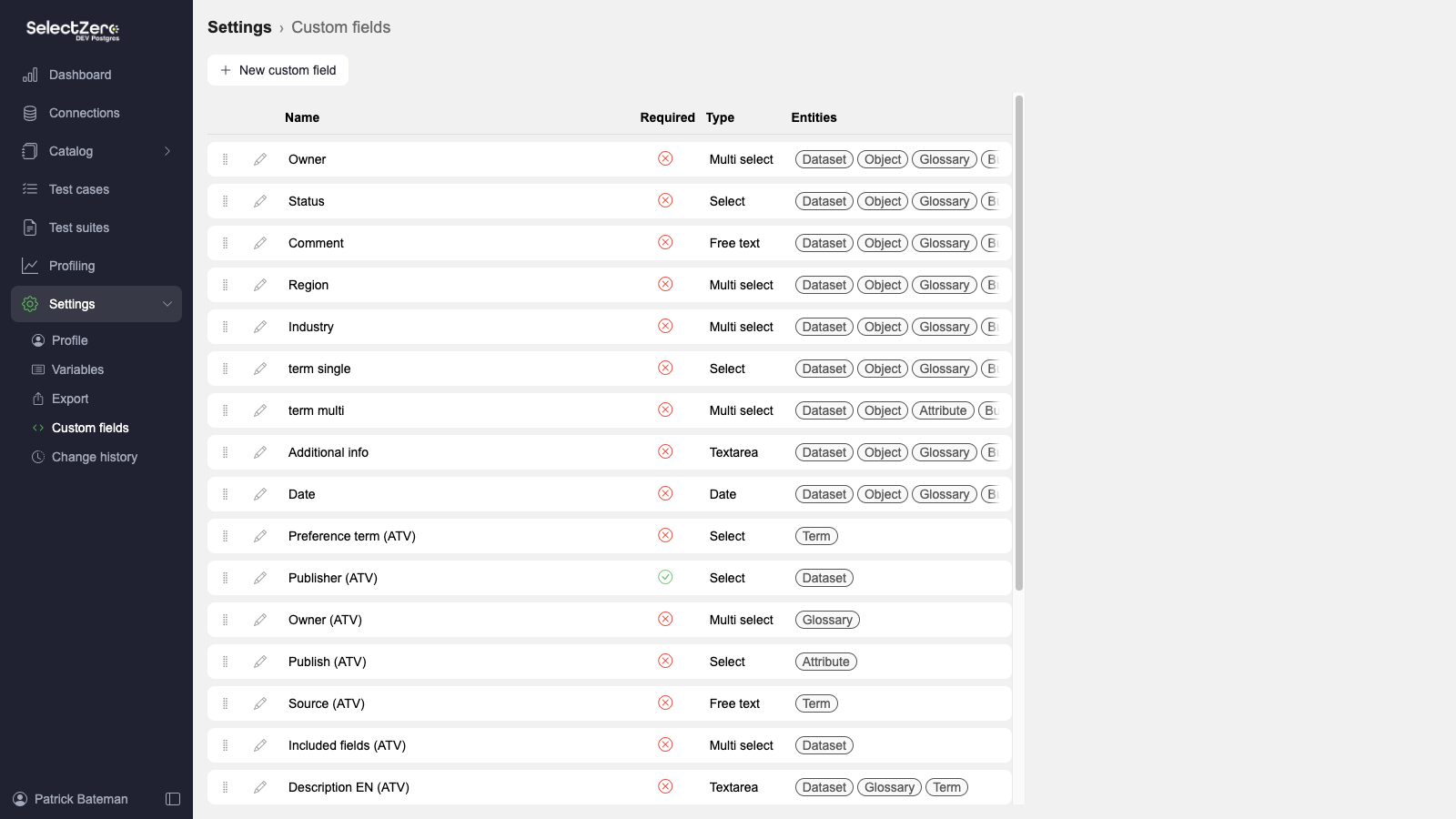
The table lists each field's Name and Description, whether it is Required, whether its value is Derived by connected entities (see Derived values), its Type and the Entities it is connected to. The order of the fields in the table is the order they appear everywhere in the application - drag the handle at the start of a row to reorder. Click a row to open the field for editing.
Creating Custom field
To create a new custom field press New custom field button. This will open a new modal where is possible to create five different types of custom fields. At least one connected entity must be selected.
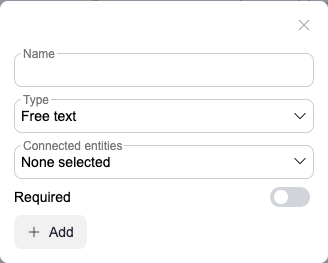
Name – display name for custom field
Description – optional help text. When set, it is shown as a hint next to the field on every entity form that uses it
Type – free text enables functionality to manually add text for created custom field
Connected entities – features where custom field will be used
Dataset
Object
Attribute
Glossary
Business rule
Term
Test case
Test suite
Required - makes filling in the custom field for entities required
Add – creates a new custom field

Name – display name for custom field
Description – optional help text. When set, it is shown as a hint next to the field on every entity form that uses it
Type – textarea enables popup window to add large text for created custom field
Connected entities – features where custom field will be used
Dataset
Object
Attribute
Glossary
Business rule
Term
Test case
Test suite
Required - makes filling in the custom field for entities required
Add – creates a new custom field
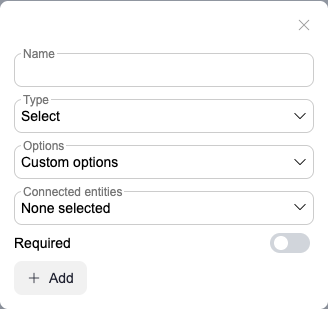
Name – display name for custom field
Description – optional help text. When set, it is shown as a hint next to the field on every entity form that uses it
Type – select enables choosing one active value
Options
Custom options
User selection
Term selection
Connected entities – features where custom field will be used
Dataset
Object
Attribute
Glossary
Business rule
Term
Test case
Test suite
Required - makes filling in the custom field for entities required
Add – creates a new custom field

Name – display name for custom field
Description – optional help text. When set, it is shown as a hint next to the field on every entity form that uses it
Type – multiselect enables choosing multiple active values
Options
Custom options
User selection
Term selection
Connected entities – features where custom field will be used
Dataset
Object
Attribute
Glossary
Business rule
Term
Test case
Test suite
Required - makes filling in the custom field for entities required
Add – creates a new custom field

Name – display name for custom field
Description – optional help text. When set, it is shown as a hint next to the field on every entity form that uses it
Type – enables choosing a date
Connected entities – features where custom field will be used
Dataset
Object
Attribute
Glossary
Business rule
Term
Test case
Test suite
Required - makes filling in the custom field for entities required
Add – creates a new custom field
Edit custom field
Click a row in the custom field table to open the edit modal.
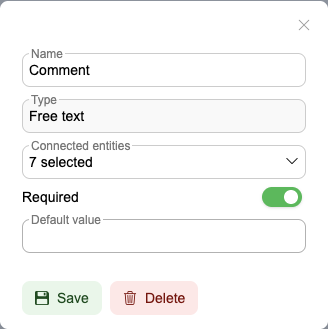
Name – display name for custom field
Description – optional help text. When set, it is shown as a hint next to the field on every entity form that uses it
Type – cannot be changed after the custom field is created. To use a different type, create a new custom field
Connected entities – features where custom field will be used
Dataset
Object
Attribute
Glossary
Business rule
Term
Test case
Test suite
Required - makes filling in the custom field for entities required
Default value - default value for the field; shown while Required is enabled. The editor matches the field type (text, date picker, option or term selection)
Save – applies and saves your changes. Removing a connected entity type asks for confirmation, since the values stored for that entity type are deleted
Delete – permanently deletes the custom field; the confirmation shows how many entities currently use it
Same editing principles apply for other types of custom fields as well. For Select and Multi select fields the option type is shown read-only (it cannot be changed after creation), and the option list editor appears only for the Custom options type.
Editing custom options

Type the value into the "Add new option" field and press the plus button (or Enter) to add it.
Hovering over an existing option will display icons for editing and deletion. Deleting an option asks for confirmation.
Required custom fields with defaults
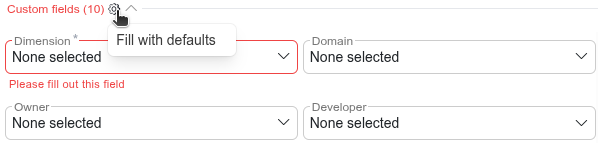
The gear icon next to a Custom fields section header offers Fill with defaults, which fills every currently blank field that has a default value configured.
Derived values
A custom field value can carry over from one entity to the entities connected to it, so that a classification such as PII set once on a dataset also shows on the objects in that dataset, on their attributes, and on the test cases that check those attributes. Nothing is copied: the value is worked out when the entity is shown, so a change at the source is visible everywhere at once, and turning the flow off later changes no saved data.
Setting up value flow
Value flow is configured per custom field, in the field's edit modal, and is off by default. The Value flow box appears once the field is connected to both ends of at least one flow. The Derived switch turns every available flow on or off at once; the checkboxes below it pick the flows individually:
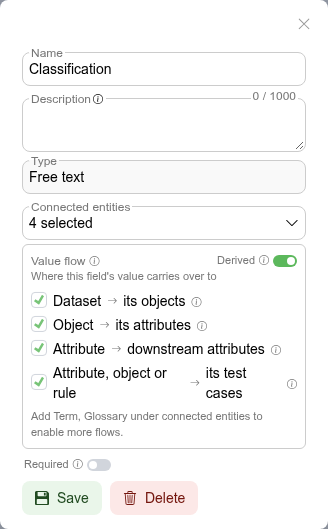
Dataset → its objects - a value on a dataset also shows on the objects in that dataset. It does not carry into datasets nested below it.
Object → its attributes - a value on an object also shows on that object's attributes. A value on the object's own dataset reaches the attributes through the object, so this flow and the dataset one both have to be on.
Attribute → downstream attributes - a value on an attribute also shows on the attributes downstream of it in lineage, over any kind of relation, however far it carries.
Glossary → its terms - a value on a glossary also shows on the terms in it.
Attribute, object or rule → its test cases - a value on an attribute the test case checks, on the object it runs on, or on a business rule it implements also shows on the test case.
A flow is only offered when both of its entity types are connected to the field; the hint under the list names the entity types to add for more flows. A chain stops wherever a link in the middle does not derive: a dataset value does not reach attributes if the object flow is off.
How a derived value behaves
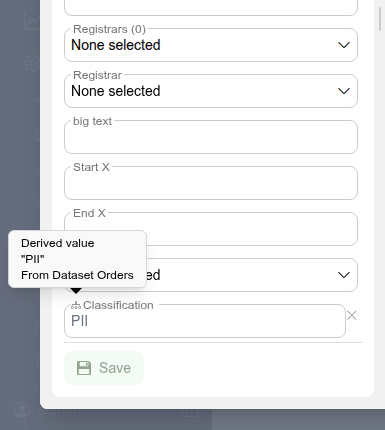
A value set directly on the entity always wins. The derived value is still shown in the hover card of the marker, so you can see what the entity would derive without it. To go back to the derived value, use the restore button inside the field or empty the field: the derived value shows at once and follows its source again after you save. This works on required fields too.
The nearest source wins. A value one step away beats a value farther up the chain. Sources the same distance away that disagree produce no value at all; the marker turns red and lists the conflicting sources, and setting a value on the entity resolves it. Multi select fields merge the values of every source instead of conflicting.
Clearing stops the flow. The clear button inside a derived field removes the value from this entity and from everything that would have derived it through this entity. Bring the derived value back restores it.
A derived value counts as filled for a required field; a cleared one does not.
Where derived values appear
On entity detail pages a derived value is shown dimmed inside the field, with a marker in front of the field label. Hovering the marker shows whether the value is derived, set here or cleared here, the value itself, and the source entity type and name.
In the attribute, object, term and test case lists a derived value appears in its custom field column, dimmed and led by the same marker.

Export, version history and the audit log record only the values set directly on an entity. A derived value is never exported and never appears in an entity's history.
Fields managed by dbt
A dbt project with Import dbt tags and meta as custom fields turned on creates and fills fields such as dbt tags and dbt: domain. They are marked dbt in the custom field list. Their values are replaced on every sync of that project, so edit the value in dbt rather than here. You can rename such a field and it keeps syncing. If you delete it while the project still imports it, the next sync creates it again: narrow the project's Meta keys to import or turn the import off first.
To clean up many fields at once, click Edit above the custom field list, tick the fields (dbt fields carry a dbt badge), then click Delete and confirm. Their values on every entity are deleted with them. See Custom fields from dbt.
Link detection
Free text and Textarea custom fields automatically detect URLs in their values. When a field contains a valid http:// or https:// link, a small external link icon appears on hover.
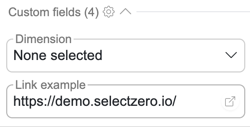
Clicking the icon opens the URL in a new browser tab. If the link points to an external site, a confirmation prompt is shown before navigating away:
No configuration is required - link detection is enabled automatically for all Free text and Textarea fields across every entity type, both in editors and in read-only table values.