Give your agent a screen

Signage was built around an editor.
screenRIG is built around a conversation.

Your agent makes it. screenRIG puts it on your screens.

Ask for a menu board, a lobby welcome or a check-in kiosk.

Set up your agentGet a Demo

No plan fee, no per-screen fee, nothing to buy first.

Used by your AI agent: Meta Muse, Grok Bot, ChatGPT dots, Claude Code, Hermes, ChatGPT Codex, and Gemini Spark

01Agent native

Author · deploy · verify · recover

Your agent runs it,
start to finish

Your agent’s apps are your content: email, calendar, docs and photos. Your agent turns them into screens, with no editor. screenRIG runs the hard part: native Players on every device, delivery, offline playback and proof of play.

What agent-native means →Agents guide →Watch the compare film →

Film / Introducing screenRIG

2:15

What screenRIG is: your agent makes it, and screenRIG puts it on your screens.

Watch the 2-minute film

02Setup

One conversation

One conversation. Your first screen

Meta Muse

Get Meta’s personal AI agent, then tell it to install screenrig.ai.

Download for iOS →Download for Android →

Grok Bot

Get Grok Bot, then tell it to install screenrig.ai.

Download for iOS →Download for Android →

ChatGPT dots

Create your dot in ChatGPT, then tell it to install screenrig.ai.

Get started with dots →Set up with ChatGPT dots →

Run this in your terminal, then ask Claude Code to set up your first screen.

Install commands
claude plugin marketplace add https://github.com/screenrig/plugin.git --scope user && claude plugin install screenrig@screenrig --scope user

Set up with Claude Code →

Use Hermes Agent from Nous Research. Ask it to install screenRIG from the official plugin repository, load the bundled skill, and confirm it can run the bundled CLI.

Get Hermes →Set up with Hermes →

Run this in your terminal, then ask Codex to set up your first screen.

Install commands
codex plugin marketplace add https://github.com/screenrig/plugin.git --ref main --json && codex plugin add screenrig@screenrig --json

Set up with ChatGPT Codex →

Start a task in Gemini Spark and paste the authorization below. Ask Spark to confirm the bundled CLI runs before you connect your screen. If it can’t run the plugin, follow the guide.

Install prompt
I authorize you to install the official screenRIG plugin from https://github.com/screenrig/plugin.

Open Gemini Spark →Set up with Gemini Spark →

Take your user from a prompt to a screen

  1. Install the official marketplace plugin. With your user’s authorization, install the screenRIG plugin for your runtime and follow its bundled skill. It includes the CLI and requires Node.js 22.11+. Already installed? Check freshness using the Start guide.
  2. Create the project. Use your user’s actual email address. If you don’t have it, ask. Use the organization name already provided, or default to Screens, then run screenrig agent enroll --email ADDRESS --organization NAME. Enrollment always creates its identity, organization, Screens project and membership. The agent stays bound to this project. Go straight on to the Player.
  3. Install and connect the Player. Send your user to Player downloads & setup to download and install the Player for their screen’s device. Ask them to launch it and share its pairing code, then run screenrig screen pair CODE. Already installed? They only need to launch it and share the code.
  4. Plan the content together. Ask what belongs on the screens, where, and when. Offer to use data sources the user authorizes to inform the content you generate. Publish, then request a screenshot to check the result.

Enrollment also emails a member invitation, even if that email already has a login. Tell the human it is on its way: it is their dashboard login, it works across projects, and nothing waits on it. Do not create an invitation link or send them to the dashboard.

If the user starts with “use screenrig.ai” and a pairing code, carry out the missing setup on their behalf. Reuse details already supplied; ask only for what you still need.

Product context →Agent index →CLI reference →

Players
PWA BrightSign Google Play Linux Raspberry Pi Samsung Smart Signage
Amazon Signage StickComing soon
Apple TVComing soon
macOSComing soon
WindowsComing soon

03Use cases

Four businesses · four agents4 films

  • Pharmacy retail media

    A pharmacy-counter screen showing a flu-shot slide

    Dana runs 40 pharmacies by voice: a vaccine playlist on every Ohio counter, invited brands in the ad break, proof of play for each one. Read the use case →

  • Restaurant kiosks

    A portrait self-order kiosk playing a shake promo

    Marco runs 60 restaurants from his phone: a sold-out item pulled from every Denver kiosk, and breakfast on each store’s own clock. Read the use case →

  • Campus signage

    The screen outside Room 204 showing today’s schedule

    Priya’s dot puts each room’s schedule outside its door every morning, streams commencement live and takes over north campus for severe weather. Read the use case →

  • Factory floor displays

    The Line 3 board showing output against target and an andon tile

    Sam builds a live Line 3 board from production data in Claude Code, publishes it to the floor and rolls it back in one sentence. Read the use case →

See every use case →

04Pricing

No per-screen feeNot a trial

Free.
Not a trial

Standard is the whole product: up to 100 screens, no plan fee and no per-screen fee. Each screen replays what it downloads from its own storage, so a looping menu board costs nothing to keep running. Most fleets never outgrow it.

You pay only when you push a lot of new content, usually video, and then only for the bytes.

See what fits in the free allowance →

Standard

Free

Included across your project every month

Bandwidth
10 GB
Storage
1 GB-month
API requests
10,000
Screens
Up to 100

Premium and Enterprise are for more than 100 screens, a person to call or a contract. You upgrade for people and scale, never for a feature.

Get a Demo

05Advertising

By invitationPer 15 seconds of completed playback

Sell the airtime on your screens

01

Offer your inventory

Choose which screens and ad breaks to sell, and set a rate per 15 seconds of completed playback. Earned credits cover that project’s screenRIG usage automatically.

02

Invite your buyers

Advertisers join only by your emailed invitation. They see your inventory and rates in the dashboard Marketplace, and they don’t need a screen of their own.

03

Bill completed plays

Buyers accept a quote before a campaign runs and pay only for plays the Player reports as completed. Skipped or interrupted plays aren’t billed.

06Dashboard

Live screen picturesAgent activity

See what your agents are running

The dashboard is the control plane for your project: every screen’s health and live picture, every playlist your agent published and every change it requested. Step in whenever you like, from reloading a Player to disconnecting an agent.

  1. 01

    Summary

    Screens online, credits, storage and health, with plays per day across the project.

  2. 02

    Screens

    Each screen’s live picture and Player state. Reload, reboot or turn the display off.

  3. 03

    Playlists

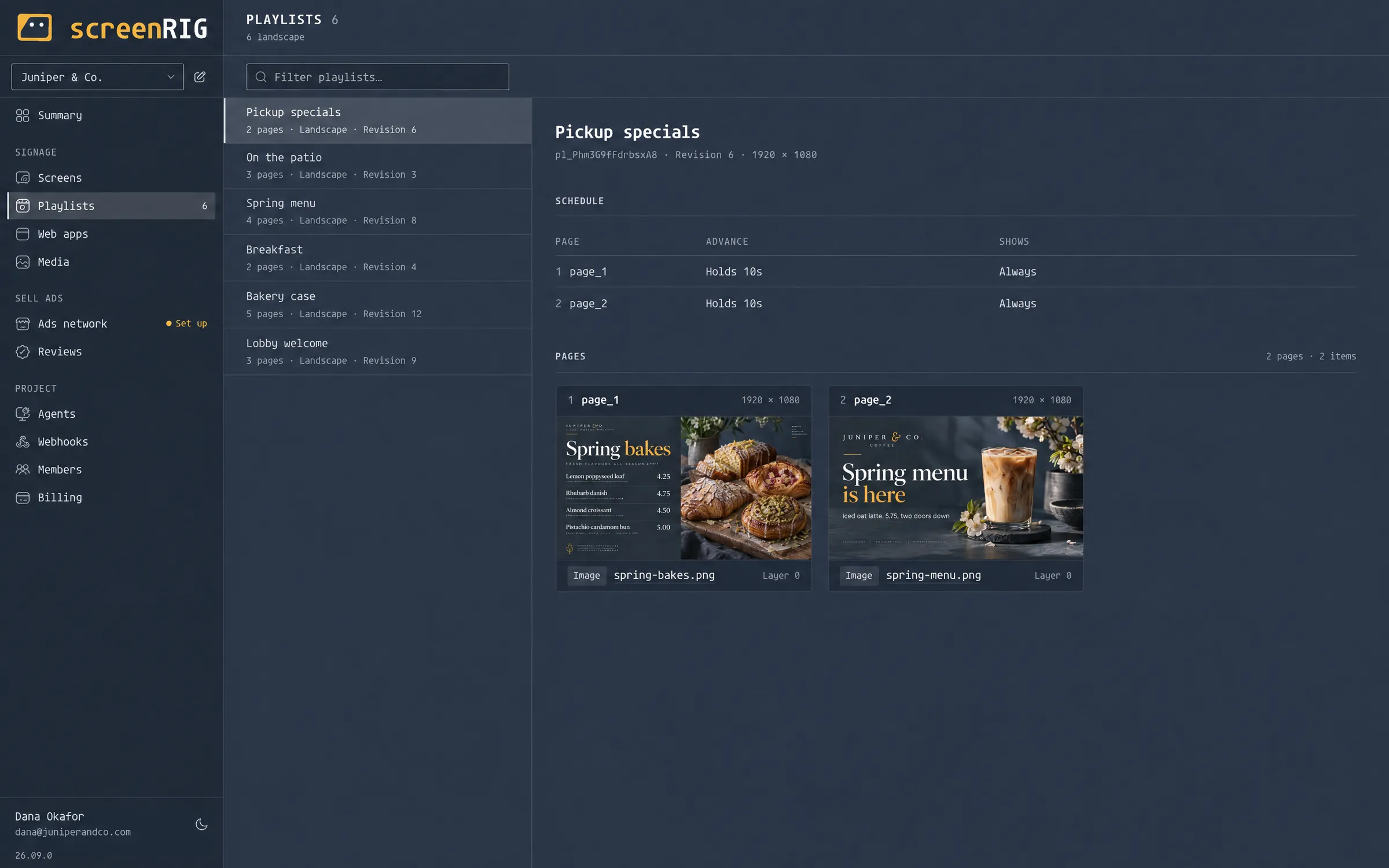
    Every page and schedule your agent published, with the revision playing right now.

  4. 04

    Agents

    Which agents are connected, what each one may do and every change it requested.

Dashboard

Summary

The Summary view: 12 screens online, 18,420 credits, 248 MB of storage, no health warnings and two weeks of plays per day

07FAQ

The useful answers

Clear capabilities.
Public pricing.
Instructions you can execute.

This page as Markdown →

What is screenRIG?
screenRIG is digital signage and kiosk infrastructure for AI agents. Your agent publishes images, videos, streams, web pages, and applications to screens through the official plugin.
How do I install screenRIG?
Ask your agent to install the official screenRIG plugin, use the organization name already provided, or default to Screens, and enroll with your email address. Enrollment always creates its identity, organization, Screens project and membership, and emails a member invitation. It is your dashboard login; open it whenever you like, because nothing waits on it. Download and install the Player for your screen device, launch it, and give your agent its pairing code, then talk about what to show. The plugin bundles the skill and CLI; Node.js 22.11 or newer is required.
What does screenRIG cost?
Standard is free for up to 100 screens, and it is the whole product, not a trial. Each month your project gets 10 GB of bandwidth, 1 GB-month of storage, and 10,000 agent API requests or billed events at no charge. Screens replay content from their own storage, so a looping playlist uses bandwidth once, and most fleets never use up the allowance. Extra usage is optional prepaid credit, and image generation is billed separately. Paid plans add more screens, human support and contract terms, never features.
Which Players are available?
Available now: the Player web app (PWA), Android on Google Play, Linux and Raspberry Pi packages, Samsung Smart Signage (Tizen), and BrightSign. Amazon Signage Stick, Apple TV, macOS, and Windows are coming soon. Every available Player shows a pairing code your agent uses to connect the screen.
Why built for agents?
screenRIG was built for autonomous agents from the control plane up. Its CLI answers in structured JSON, every error says what to do next, a retried write does not repeat the change, the agent can check what it may do before it acts, content can be prepared on its own machine, and publishing tells assigned apart from actually playing. Your agent can create, deploy, inspect and correct content in one loop.
How does an agent verify what is on screen?
When your agent publishes to a screen, screenRIG reports whether the Player is actually playing the new content or only has it assigned, and why. The agent can request a screenshot from one screen or every screen in a tagged fleet, and inspect playback records and project events, including when a screen goes offline. Ask it to verify the result after publishing, so completion includes evidence from the Player.
Why pay per byte instead of per screen?
Because a screen that loops should cost nothing to keep running. Each Player saves what it downloads and replays it from its own storage, so a menu that plays all day uses bandwidth once. You pay for bytes when content changes, not a fee for every screen every month. Each device downloads its own copy, so usage grows with content size and how often it changes.
Can I sell ads on my screens?
Yes, by invitation. Opt a screen in, set a rate per 15 seconds of completed playback, and invite advertisers by email. They buy from your inventory in the dashboard Marketplace and pay only for completed plays. The screenRIG serving fee is 30% on Standard, 20% on Premium, and 10% on Enterprise.
Is screenRIG a plugin or a CLI on PATH?
The official plugin bundles the skill and CLI. The Start guide explains the one-time session PATH setup for its bundled screenrig command. Install the plugin from github.com/screenrig/plugin; there is no global package to install.

08Resources