Block Editor Help

WordPress automatically inserts a blank line after you hit Return. I guess hitting Return to WordPress means you want to start a new paragraph and thus the app adds a blank line.

In the good old days of the classic editor, if I wanted to eliminate that blank line, say if I was writing what could only loosely be described as a poem, all I needed to do was switch to HTML mode in the app on my iPhone and delete the line between the sentences, thus achieving single-spacing in my published post. Easy peasy.

But since WordPress “decommissioned” the classic editor on its iOS app for the iPhone, the HTML code generated is a lot more complicated than it was in the classic editor. Each time you hit Return, the app creates a new paragraph block.

Here’s the poem as it appears using the paragraph block and hitting Return at the end of each line.

This a test

To see if I can figure out

How to single-space a line of text

Using the block editor

On my iPhone

Without having to use

The verse block.

Using the old Text tab in the classic editor on my laptop, here’s what the HTML looks like…
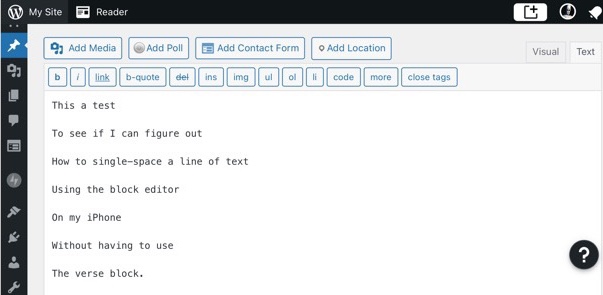
And to remove the extra line between sentences, all I needed to do was delete the spaces, so the updated HTML code look like this…

But the HTML code for this seven line “poem” above, using the paragraph block in the block editor on my iPhone looks like this…
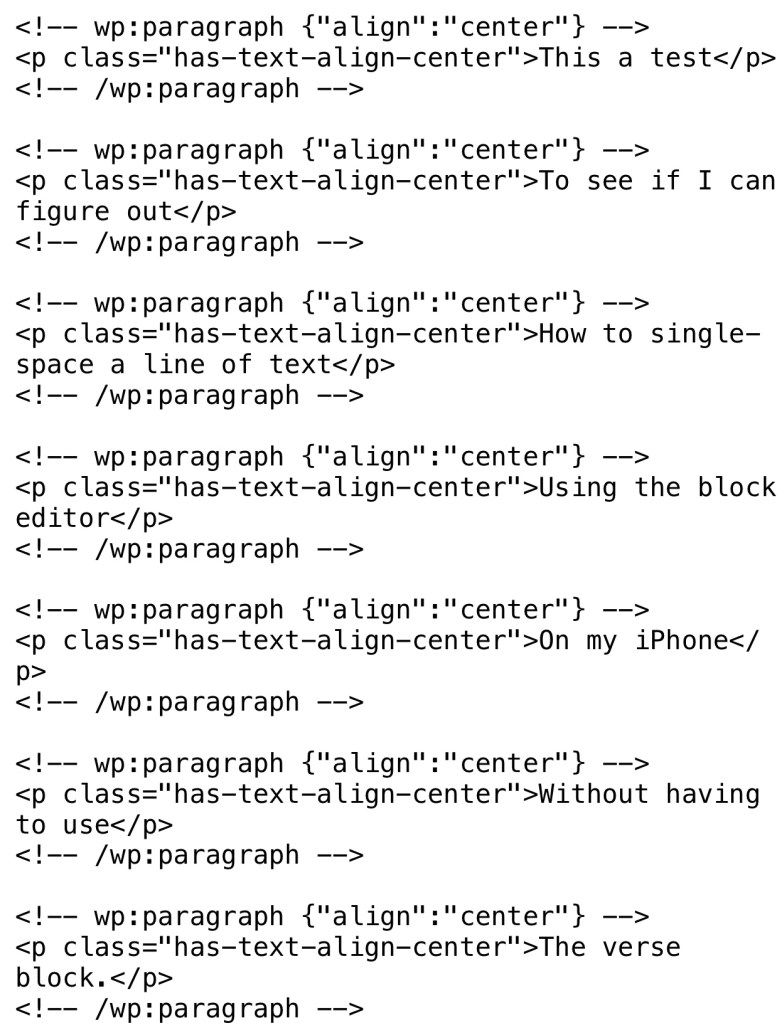
Yikes! WTF?

So now, the only way I can figure out how to get my text to show single-spaced is by using the verse block, which looks like this…

This is a test
To see if I can figure out
How to single-space a line of text
Using the block editor
On my iPhone
Without having to use
The verse block.

Using the verse block is not terrible, but I prefer to look when I just have the lines of text appear in the body of the post and not inside a shaded block.

So here’s my question for you tech-savvy bloggers out there. If you are an iPhone user and you are using the WordPress iOS app for the iPhone, do you know how to single space your text after each Return without having to use the verse block?

Or am I SOL in the brave new world of the block editor?

The Monday Peeve — Technology

Every Monday, Paula Light, with her The Monday Peeve post, gives us an opportunity to vent or rant about something that pisses us off. Today my peeve is directed at technology that doesn’t work as it is supposed to.

From my perspective, when it comes to technology, 2020 has not been a good year, which is not at all surprising, since 2020 has been a particularly shitty year in most respects.

From a technology standpoint, WordPress launched its block editor and decommissioned its classic editor. It also released a buggy version 16 update to the iOS app for the iPhone, which won’t allow me to like or comment on a number of blog posts from the Reader. And other software apps have released upgrades that are anything but improvements over earlier versions.

The latest example of technological frustration for me has been going on for the past week. You may recall that at the end of last December I had surgery to remove a middle ear growth in my left ear. The surgery successfully removed the growth, but not before it destroyed a tiny bone in my middle ear that connects the ear drum to the inner ear. Without that tiny bone, sound waves that vibrate the ear drum don’t reach the inner ear, which means that sounds don’t reach the brain. As I result, I am deaf in my left ear.

This has created a problem between me and my wife. In order to hear the dialogue while we’re watching TV together, I have to turn the volume up. But my wife complains that it’s way too loud. We’ve tried close captions, but my wife finds them annoying and distracting. And I find that reading the text distracts from seeing what’s happening on screen. Further, closed captions don’t work very well for live TV, like cable news.

My wife suggested I get a device that would permit me to hear the audio through headphones while enabling her to hear the audio through our surround sound speakers.

I did some research and ended up buying this wireless headphones/transmitter set, which claims to work with virtually any TV, audio receiver, and cable box configuration.Well, maybe except mine. I admit that my configuration is complicated. I’ve got a wall-mounted hi-def TV that is connected via an HDMI cable in the wall to my stereo audio receiver, which then connects to my cable box.

Either/or

I followed all of the detailed instructions that came with the device and everything seemed to be set up correctly. But I could either hear the audio through the headphones or via the speakers, but not through both at the same time.

I’ve had four calls with the tech support team from the makers of the wireless transmitter, but so far they have been unable to get the headphones and speakers to work simultaneously. This morning, after yet another hour on the phone, I was asked to send them pictures of the back of my TV, the connections on my audio receiver and those of my cable box. I was also asked to send photos of how my sound was configured on my TV’s settings.

I’ll give them one more chance to figure out how to get this technology to work as advertised. If not, I’ll send it back and hope my wife and I can figure out how to watch TV together so that I can hear and she doesn’t feel like she being blasted out of the room. Either that or one of us will be sent to our room to watch TV.

Drop Cap

I read with interest a post today from Frank, aka PCGuy, who was talking about the ability to incorporate a feature called the “drop cap” on his posts. Frank wrote:

With all the frustration that has come with the recent changes that WordPress.com has made to their blogging platform, I though it might be good to shed a little light on a good thing that I have discovered. It’s small, but it makes a big difference in the visual appearance of your text. If you take a look at the settings when you use the paragraph block in the new Gutenberg [block] editor, you’ll see an option for a drop cap.

As Frank noted, this ability to incorporate the drop cap functionality is accessible in the paragraph block within the block editor.

Oh well, I thought, that’s too bad because I hate the block editor and refuse to use it. So I guess I’m SOL if I ever wanted to incorporate a drop cap into my posts.

But then Frank pointed out that having to use the block editor is not entirely accurate. He wrote that one can accomplish inserting a drop cap using the classic editor by leveraging a simple HTML command, which Frank was kind enough to share with his readers:

<p class=”has-drop-cap”>

Now I can honestly say that I never gave much thought to using the drop catch functionality on my posts, but after reading Frank’s post, I figured I’d give it a try using the classic editor available in the WordPress iOS app for the iPhone. So I wrote this paragraph:

“This is a test to see if, within the classic editor on the iPhone’s WordPress iOS app, I can use the Drop Cap functionality without having to use the block editor.”

Then I copied that brief paragraph, selected the “Switch to HTML Mode” in the iOS app, and surrounded the “T” at the begging of the paragraph with the HTML expression that Frank offered. In HTML, here’s what it looks like.

<p class=”has-drop-cap”>T</p>his is a test to see if….

Then I pasted that edited paragraph below and this is what it looks like in the preview mode after I added the HTML to that line.

T

his is a test to see if, within the classic editor on the iPhone’s WordPress iOS app, I can use the Drop Cap functionality without having to use the block editor.

Pretty cool, huh? That said, I may or may not use the drop cap functionality in future posts. But thanks, Frank. It’s alway fun to learn how to do something on my blog that I didn’t know how to do before, especially when I can do it without using the goddam block editor.

HTML Weirdness

The good news is that it’s June 16th and WordPress has not forced me to use its Block editor that it said it was switching to as of June 1st. That’s right, I’m still able to use the Classic editor without having to jump through extraordinary hoops to do so. Yay!

But something weird is going on. I compose my posts on my iPhone at either Safari or Chrome using WordPress.com and the visual tab of the classic editor.C3CDD689-5788-4852-8629-FF7B684407A6I’ve been doing it this way since my return to blogging in May of 2017 after a two year hiatus. And it has worked perfectly.

Recently, though, there has been a fly in the ointment, so to speak. As I compose my posts, I periodically preview what I’ve written so far to see what it will look like when I publish it. I’ve noticed that for the past week or so, even though everything looks fine in the visual editor, when I preview the post, random lines show up in a much smaller, slightly lighter font than the rest of my post, as in the example below from a post I was working on yesterday.
F1A4F7B2-94E9-41BA-A861-05EC1BFF9A5AI’m not exactly an HTML expert, but I am familiar enough with it that I will occasionally go to the HTML tab to fine tune something that doesn’t quite look right when I preview my post. And that is when I see this line of HTML code inserted into my post:74D1F4EA-9EF2-4A97-8E2B-D6AA128CF1AFFor some reason that line of code is being randomly inserted into the HTML on my draft posts and it changes the way my posts look. I have to manually delete that strange line of HTML code in order to keep the fonts consistent throughout the post.

I’m not sure if this is an iPhone problem, a browser problem, or a WordPress.com problem. Or could this be a deliberate act of sabotage on the part of the WordPress happiness engineers to punish those of us who have resisted the move to the Block editor?

Is anyone else having this happen on your posts? Is there an HTML expert out there who can explain to me what causes this and how to keep it from recurring? I’d appreciate any help I can get.

Chip Off the Old Block

I’m using the WordPress block (aka Gutenberg) editor for the very first time, since I’ve been having issues with the Visual editor in the “classic” mode in my iPhone’s browser. So far, I find it not at all intuitive and very confusing. I hope that I’ll be able to revert to the “classic” mode at the end of this experiment. But, I’m going to give it a shot nonetheless.

Now I’m going to try to post an image.

6e6146f3-4544-4466-b34c-082dc3d7ac1cWell, that seemed to work, although, because I’m using an iPhone, my screen doesn’t look like either of those two images in the graphic above.

4b1f98d2-ebd4-47c3-8ca8-6c0787fe6511So the next thing I tried to do was preview what my block editor post looked like. I tapped the “Preview” button on the top right of the screen. But instead of seeing a preview of my post so far, this is what I saw.73E676A9-7877-41BC-96C5-58FAB4E23A12It has taken me about three hours so far to compose this post, which is ridiculous. So I’m going back to the “classic” mode will finish this post using the HTML editor. It’s not as easy to use as the classic Visual editor, but at least I know what I’m doing, which I don’t when using the block editor.

That way I can finish this post, preview it, and publish it.

Finally!