
Amazon Pay V1
Connect Amazon Pay to Recurly so customers can subscribe using payment details already stored in their Amazon account — no redirect required.
Prerequisites
- Sign up for an Amazon Pay account.
- Set up an Amazon application to authenticate users on your site.
- Enable Amazon Pay on your Recurly site.
Limitations
- Amazon Pay does not currently support 3DS or PSD2.
- Amazon Pay is available only in specific regions: the US, Europe, and the UK.
Definition
Key details
| Feature | Details |
| Services that work with Recurly | Amazon |
| Supported operations | Authorize and Capture, Purchase, Refund, Verify, Void |
| Supported payment types | Amazon |
| Supported card brands | Visa, Mastercard |
| Gateway-specific 3DS2 supported | Yes |
| Card on file supported | Yes |
| Regions | US, EU, and the UK |
| Currencies | AUD, GBP, DKK, EUR, HKD, JPY, NZD, NOK, ZAR, SEK, CHF, and USD |
Use cases
- Subscription checkout for Amazon customers without leaving your site
- Allowing subscribers to manage payment and billing details through Amazon Pay

Integration
After configuring your Recurly site and Amazon Pay account, you can integrate the Amazon Pay library into your subscription checkout flow.

Recurly provides a free JavaScript plug-in library to embed Amazon Pay directly in your site. The library handles inline widget interactions and is configurable through simple parameters. The only step that takes customers off your site is the initial Amazon login — after that, they're redirected back to confirm their address and payment details using the Amazon widgets.

Add the following JavaScript to your document's <head> section:
<script src="pay-with-amazon.min.js"></script>Still in the <head>, initialize PayWithAmazon with your configuration:
var payWithAmazon = new PayWithAmazon({
    sellerId: 'ABC',
    clientId: 'XYZ',
    button: { id: 'pay-with-amazon', [type], [color] },
    addressBook: { id: 'address-book', [width], [height] },
    wallet: { id: 'wallet', [width], [height] },
    consent: { id: 'consent', [width], [height] },
    region: 'eu' // Options are 'eu' or 'uk'
});region parameter. EU and UK regions must include the region in every transaction request.Once a customer confirms their Amazon payment details, an Amazon Billing Agreement ID (id) is generated. Pass this ID to Recurly's create subscription API to set up billing for the account:
<?xml version="1.0" encoding="UTF-8"?>
<subscription>
    <plan_code>gold</plan_code>
    <currency>USD</currency>
    <account>
        <account_code>customer</account_code>
        <billing_info>
            <amazon_billing_agreement_id>abc-xyz</amazon_billing_agreement_id>
            <first_name>John</first_name>
            <last_name>Doe</last_name>
        </billing_info>
    </account>
</subscription>
While optional, using Recurly.js alongside Amazon Pay gives you access to plan and add-on details and a pricing preview module. Recurly.js v4 is recommended for Amazon Pay integrations.
Configuration examples
Standard subscription
The default configuration renders address, payment, and consent widgets:
var payWithAmazon = new PayWithAmazon({
    sellerId: 'ABC',
    clientId: 'XYZ',
    button: { id: 'pay-with-amazon', type: 'large', color: 'DarkGray' },
    addressBook: { id: 'address-book', width: 400, height: 260 },
    wallet: { id: 'wallet', width: 400, height: 260 },
    consent: { id: 'consent', width: 400, height: 140 }
});
No address widget
For digital goods where a shipping address isn't needed, omit the addressBook widget to simplify checkout:
var payWithAmazon = new PayWithAmazon({
    sellerId: 'ABC',
    clientId: 'XYZ',
    button: { id: 'pay-with-amazon', type: 'large', color: 'DarkGray' },
    wallet: { id: 'wallet', width: 400, height: 260 },
    consent: { id: 'consent', width: 400, height: 140 }
});
For full usage and customization options, see the GitHub repository.
Subscription management
When a customer initiates checkout with Amazon Pay, they log in with their Amazon credentials and confirm their stored address and payment details — establishing a billing agreement for their subscription plan.
Once the subscription is active, Recurly retains the billing agreement and relevant Amazon details. This agreement is used automatically for subsequent renewals.
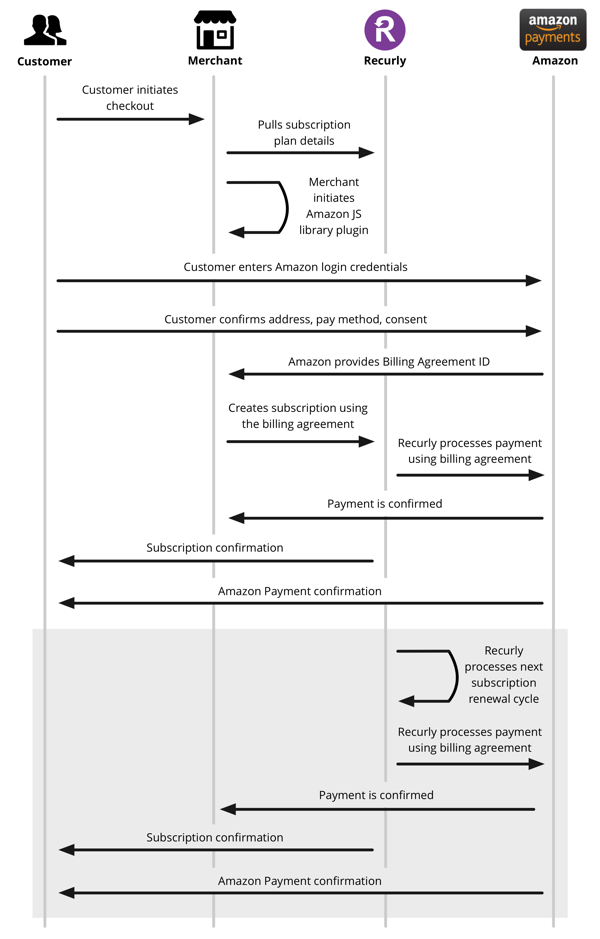
Customers can update or cancel their billing agreement through either platform:
- Amazon interface — Customers can update their payment method or cancel the billing agreement directly from their Amazon account.
- Recurly interface — You can refresh billing information using a newly obtained Amazon Billing Agreement ID via the JavaScript library or an alternate payment method such as a credit card. Use the update billing info API for this. Recurly also integrates with Amazon's CloseBillingAgreement API (see Amazon documentation) to handle billing agreement termination notifications — contact Recurly Support to enable this.
Recurly settings
Sign up for Amazon Pay
To get started, create an Amazon Pay account (free to register). If you already have one, log in here.
Set up Amazon Pay in Recurly
Once your Amazon Pay account is ready, configure your Recurly site to accept it for recurring subscriptions.
Open Payment Gateways
In Recurly, navigate to Configuration → Payment Gateways and select Amazon Pay from the available providers. Note that Amazon Pay is currently available in the US, UK, and EU only.
Test the connection
Click Test Configuration to verify Recurly can communicate with your Amazon Pay account. For Hosted Payment Pages, an Amazon Client ID is required, and your Recurly subdomain must be listed in Amazon's Security Profile.
Amazon Instant Payment Notifications (IPN)
Recurly supports Amazon Pay's Instant Payment Notification (IPN) feature, which sends notifications for successful payment refunds. To enable IPN and start receiving refund updates, follow these instructions.
When activated, Recurly retrieves the data needed to update refund transaction statuses in your account. Enter your Merchant URL in Amazon using the following format:
https://callbacks.recurly.com/amazon/YOUR_MERCHANT_SUBDOMAIN
https://callbacks.eu.recurly.com/amazon/YOUR_MERCHANT_SUBDOMAIN instead.Amazon shipping address
During Amazon Pay checkout, customers can enter a shipping address. Recurly can save this as either a Recurly Account Address or a Recurly Shipping Address, depending on your gateway configuration.

Saving as a Recurly Shipping Address ensures accurate tax calculations based on the shipping location and includes shipping details on the invoice. Learn more about managing shipping addresses.
To prevent duplicates, addresses that match existing records in Recurly are automatically linked to the new subscription rather than created again.
Handling customer names
Recurly requires both a first and last name to store a shipping address or process a transaction. Amazon, however, only requires a single name field. If Amazon doesn't return a last name, an API error will occur. To avoid this, encourage customers to enter their full name. If a full name isn't available, Recurly will attempt to retrieve it from Amazon via API — but providing it upfront is recommended.
Amazon references in Recurly admin
In the Recurly Admin panel, under the Billing Info section of an Account Details page, you can view Amazon Pay engagement details including the Amazon Billing Agreement ID — useful for customer service interactions.

Gateway settings
Amazon Pay support in Europe and the United Kingdom
Recurly supports Amazon Pay transactions in the following regions:
- Europe — transactions in Euros (€)
- United Kingdom — transactions in Pounds Sterling (£)
Credentials
EU and UK integrations use a delegated authentication model for transaction request signatures. Unlike the US integration (which requires an MWS Access Key, Secret Key, and Seller/Merchant ID), EU/UK integrations use the Seller/Merchant ID together with an MWS Auth token.
Sign up for an EU or UK Amazon Pay account
Register or log in
Create an EU or UK Amazon Pay account, or log in if you already have one.
Add the EU/UK gateway in Recurly
EU and UK Amazon Pay integrations are separate gateways, each requiring its own setup. Follow the Recurly setup steps above for each gateway, using your new MWS Auth token in place of the standard credentials.
Specify the Amazon Pay region
Always include the correct region code in EU/UK Amazon Pay transaction requests. Omitting it causes Recurly to default to USD, which can result in declines for one-off transactions, initial subscription transactions, and renewals — because the transaction won't route to the intended Amazon Pay region. See the developer documentation for implementation details.
Updated 9 days ago