Settings
Settings is the Settings tab of My Dashboard. Open My Dashboard, the first row at the top of the sidebar, and choose Settings. You can also choose Profile or Settings in your account menu (your avatar and name, at the bottom of the sidebar). An old link to the Settings page lands here too.
The tab has two halves side by side:
- Your settings: Profile, Appearance, Display, Preferences, Integrations, Dictionary, Security, Connected AI apps and Connections.
- Organization settings: Org dictionary for everyone. Org owners also get Usage & Billing (when your organization has it) and Connectors.
Each row has Open, which opens its panel in place under the two halves; Close puts it away. Usage & Billing is its own page, so its Open takes you there.
Memory and labels are not rows here. They are the Memory and Labels tabs of My Dashboard, each showing yours beside your organization's. See Memory and Labels.
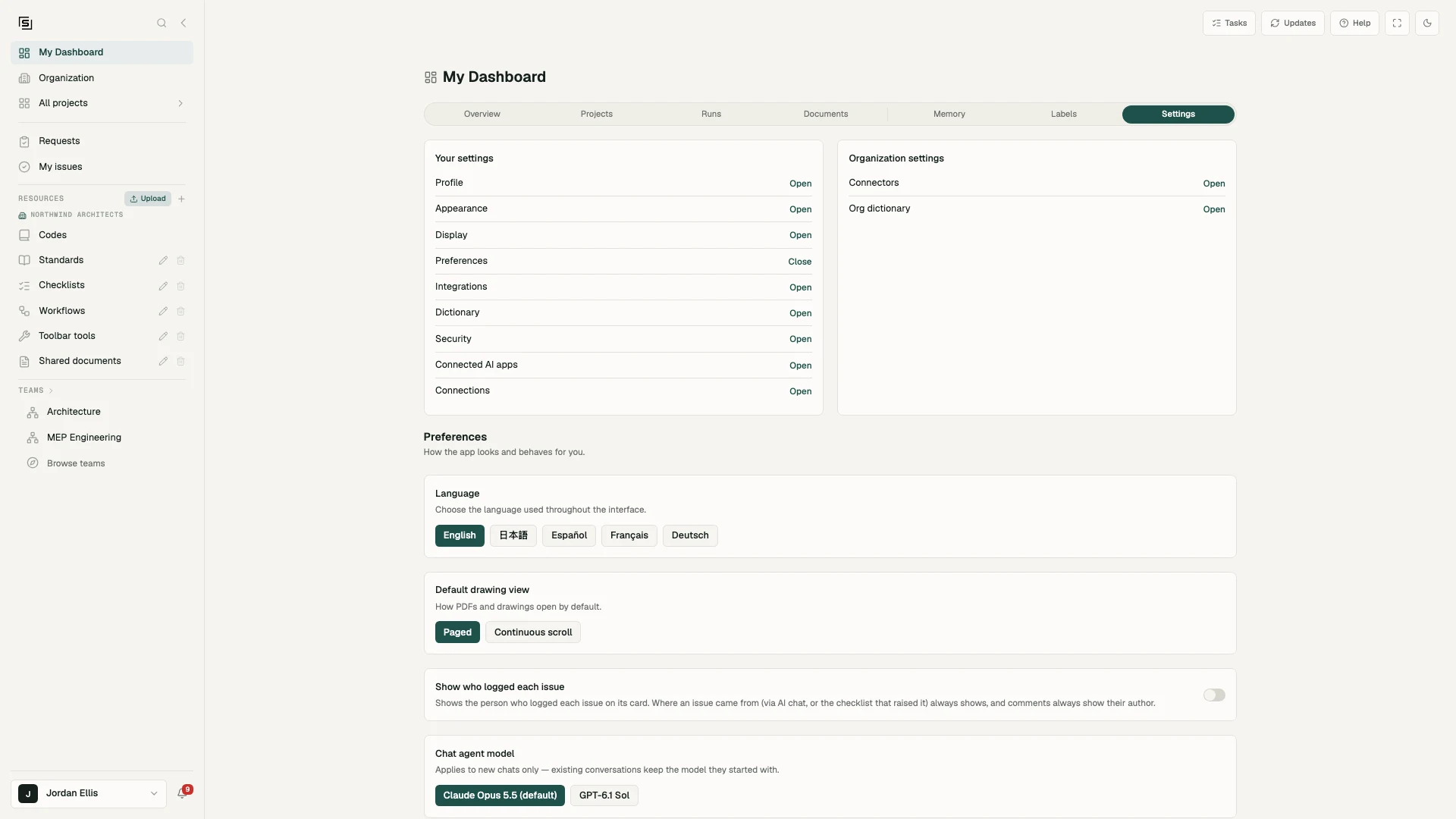
From My Dashboard, open Settings: set a smaller text size in Appearance, hide the share and labels buttons on checklist rows in Display and watch the live preview change, then set the run email to list every open issue in Preferences.
Profile
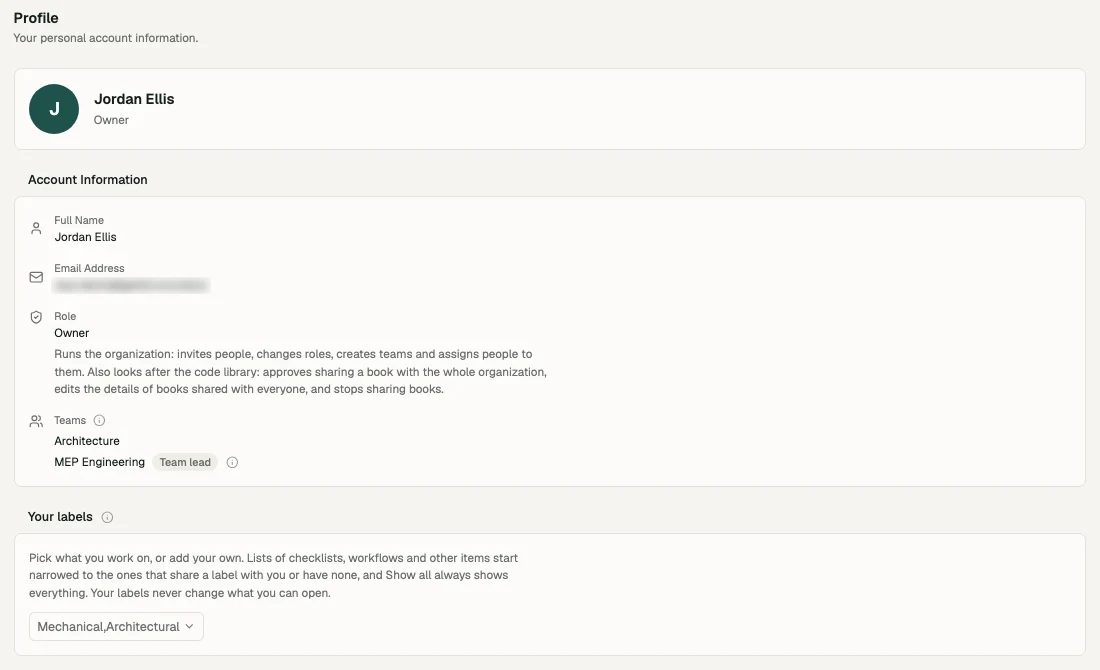
Your name and email, as they show up when you comment on a sheet or get assigned an issue.
It also shows your Role in the organization (owner, member or viewer) with a line on what that role lets you do, and the Teams you belong to, marked where you're a Team lead - the small "i" beside the badge says what a lead approves. Only an org owner can change your role or your teams; see Organization members & invites.
Your labels. A section of its own on the Profile panel. Pick the labels that describe what you work on, like Mechanical or Telecom, or add your own. Change your labels at the end of a list's filter bar opens this section directly. Your lists start narrowed to items that share one of your labels or carry none, and the rest are hidden behind "N hidden". They never change what you can open: Show all always shows everything.
If you're a Structured admin previewing an organization without viewing as one of its people, there are no labels of yours to change here, and the block says so.
Appearance
Text size. Large, Normal, Small or Extra small. Normal is the app as designed; the others make everything bigger or smaller, the way your browser's zoom does, and the choice follows your account to every device. Pick a smaller size on a big monitor showing a dense drawing next to a chat panel, a larger one on a small laptop.
Theme. Light or Dark colours. The same switch as the sun and moon button beside Help; this one is remembered per browser.
Display
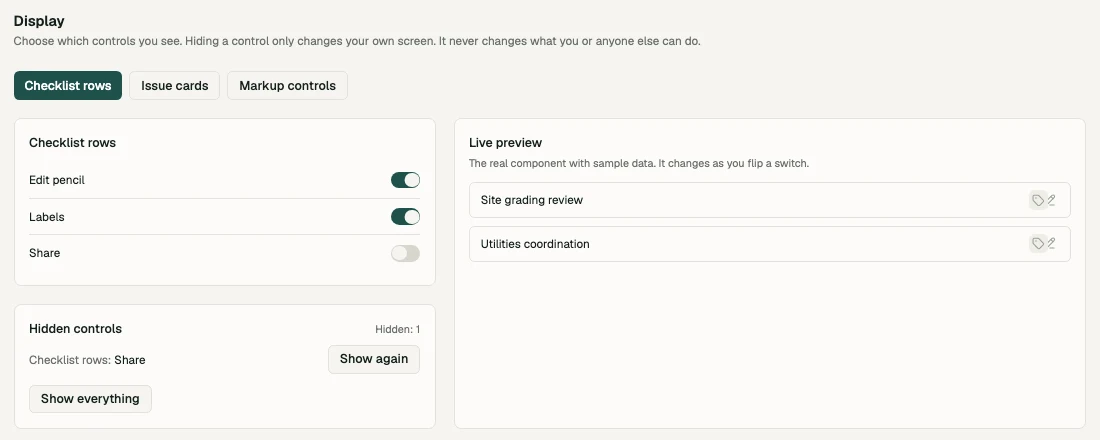
Choose which controls you see. Hiding a control only changes your own screen: it never changes what you or anyone else can do, and the control is back the moment you show it again.
Pick an area at the top, then switch controls off:
| Area | Controls you can hide |
|---|---|
| Checklist rows | Edit pencil, Labels, Share |
| Issue cards | Sheet references, Status actions, Evidence snapshots |
| Markup controls | Text styling, Line and fill |
Beside the switches, a Live preview shows the real component with sample data and changes as you flip a switch. Hidden controls lists everything you have hidden, with Show again for each and Show everything to undo the lot.
Preferences
The panel most worth a visit.
Language. The interface ships in English, 日本語, Español, Français and Deutsch, and each is offered in its own name so the list reads the same whatever language you're currently in. Switching reloads the app in your chosen language and remembers it for next time.
Default drawing view. Paged shows one sheet at a time; Continuous scroll runs the pages together.
Show who logged each issue. Off by default. Turn it on to see the person who logged each issue on its card. Where an issue came from (via AI chat, or the checklist that raised it) always shows, and comments always show their author.
Chat agent model. Which model new chat threads use. Existing conversations keep the model they started with. If your account only has one option, the card doesn't appear.
Email me when my long-running tasks finish. On by default. When a QA/QC run, spec audit or comparison you started takes longer than 10 minutes, you get the results by email. Shorter runs stay in the tasks tray, where you can still ask for an email on any single run.
The same card asks Which issues should the email list?
- Only what that run found (the default): the issues that run filed.
- Every open issue on the project: also lists issues from chat, from earlier runs and ones added by hand. The run's own findings stay first, and the attached issue list has them all.
This choice applies to every run email, including one you asked for from the tasks tray with the switch off.
Email me when a long chat reply finishes. On by default. When a chat reply takes 10 minutes or longer, we email you the start of the answer and a link back to the chat, unless you watched it finish. You can still ask the chat to email you about any reply.
When a chat reply finishes. If you are looking at the chat, nothing more happens. If you are elsewhere in the app, you get a message with a link back to it. Three choices shape the rest:
- Desktop notification: a notification from your browser when the app is in a background tab or another window has focus. If your browser blocks notifications from the site, the card says so; allow them in the browser's site settings, then turn this on.
- Email me if nothing reached me: on by default. When a reply finishes while the app is closed, or in a background tab with no desktop notification, we email you the start of the answer.
- Put it on the notification bell: Only when I missed it (the default), or Every reply, where replies you watched finish arrive already read.
Run my QA/QC checks without asking first. Normally the chat reads your checklist, shows you what it would run, and waits for you to approve. Turn this on and it launches as soon as it has read the drawings, then tells you what it ran, what it left out, and what it will cost. You can cancel any of it afterwards. This card only appears if your organization has custom checks.
Integrations
Connect your own accounts:
- Autodesk Construction Cloud - see Connect ACC. Connecting is per user; Structured acts with your ACC permissions. If your workspace isn't set up for ACC yet, the card says so - talk to us and we'll enable it.
- Bluebeam Studio - see Connect Bluebeam. Default Studio region sets which regional Studio server the connect screen starts on; connecting to a different region updates it.
- Procore - see Connect Procore. Connect your own Procore account here. Organization owners can also connect your Procore company once, so members don't need their own Procore accounts.
- Egnyte - see Connect Egnyte. Connect asks for Your Egnyte domain (for example
acmeforacme.egnyte.com), then you sign in on Egnyte. The card then says Connected as your Egnyte user on that domain.
If an org owner has turned one of these off for members, its card says so and its Connect button is greyed out; ask an owner.
Disconnect here removes your stored connection. It doesn't affect anyone else's, and for ACC it doesn't revoke the company-wide authorization - that's a separate admin step.
Dictionary
Your own word list. Anything you add here is ignored by spelling checks.
This is the fix for the most annoying false positive in the platform: a spelling check flagging your client's name, a product line, a local place name or a firm-specific abbreviation on every sheet of every set. Add the term once, and the noise stops.
Add, edit and remove terms from the panel. Words for your whole organization go in the Org dictionary instead (below).
Security
Logout signs you out of Structured on this browser. You can also log out from the bottom of your account menu.
Signing in on the Revit add-in is separate and per workstation. Revoking a specific device's access is a support request today rather than a self-service control - see Connect Revit.
Connected AI apps
The AI apps you have connected to your account, with Revoke for each, your Let my connected AI apps make changes without asking me setting, and any changes an app asked for that are waiting for your approval. See Connect an AI app.
Connections
Your own Microsoft 365 connections (Outlook mail, Outlook calendar, SharePoint / OneDrive and Teams), with Connect and Disconnect for each. See Connect Microsoft 365. If you are in the Forma Build early access, your connection is here too.
Organization settings
- Org dictionary - for everyone. Words every check in your organization accepts. Anyone in your organization can add or remove them; viewers can see the list but not change it.
- Usage & Billing - org owners, when your organization has Usage & Billing. Opens its own page; see Usage & Billing.
- Connectors - org owners. Which Microsoft 365 connectors members can use and whether the chat may make changes (see Connect Microsoft 365); Forma Build, for the people it is on for (see Connect Forma Build); and Project data integrations, where Allow members to use each of Autodesk Construction Cloud, Bluebeam, Procore and Egnyte decides whether members who are not owners may connect it and bring project data in. Owners can always use them, and projects already linked keep syncing. If the page opens with "Connectors aren't available for your organization yet", that note is about the connectors above it (Microsoft 365 and Forma Build); the Project data integrations switches work either way.
Organization-wide settings - who can see new projects by default, the organization's name, the default language for new members and which built-in code books are offered (Code offers) - are on the Settings tab of the Organization page in the sidebar, for org owners. Who may do what (approving organization-wide sharing, opening Usage & Billing, joining with a company email and the rest) is the Permissions section on that same tab; see Permissions. Whether new projects need a team and new checklists and workflows need a label is the Require teams and labels switch on My Dashboard's Labels tab, for org owners; see Requiring labels.
On the legacy layout, the Settings page has its own sidebar with the same rows. Org owners also get Members (invite people, revoke pending invites, see the roster - see Organization members & invites) and Dashboard, which links out to the Dashboard, and everyone gets Organization memory. On the new layout the roster lives on the Organization page (org owners): its Members tab is the roster and sends invitations. Organization settings are on the Dashboard's Settings tab on the legacy layout. See The legacy layout.
Each panel is linkable - the open row is in the URL - so you can send a colleague straight to the one they need.